Add Items to Table
Items can be added to a table in two ways. You can open the table first and sell products directly onto it, or you can sell products first and then merge the sale onto a table.
Open the table first
- Open the table from the table area.
- Select lookup menus and product buttons as normal.
- Send the table when the items are ready to be saved and printed.
Merge products onto a new table
- Sell the required products on the sales screen.
- Select an empty table. Empty tables show as dark grey on the map.
- In the New Table panel, enter the guest name if required, check the guest count, and confirm the expected duration.
- Send the table when the items are ready to be saved and printed.
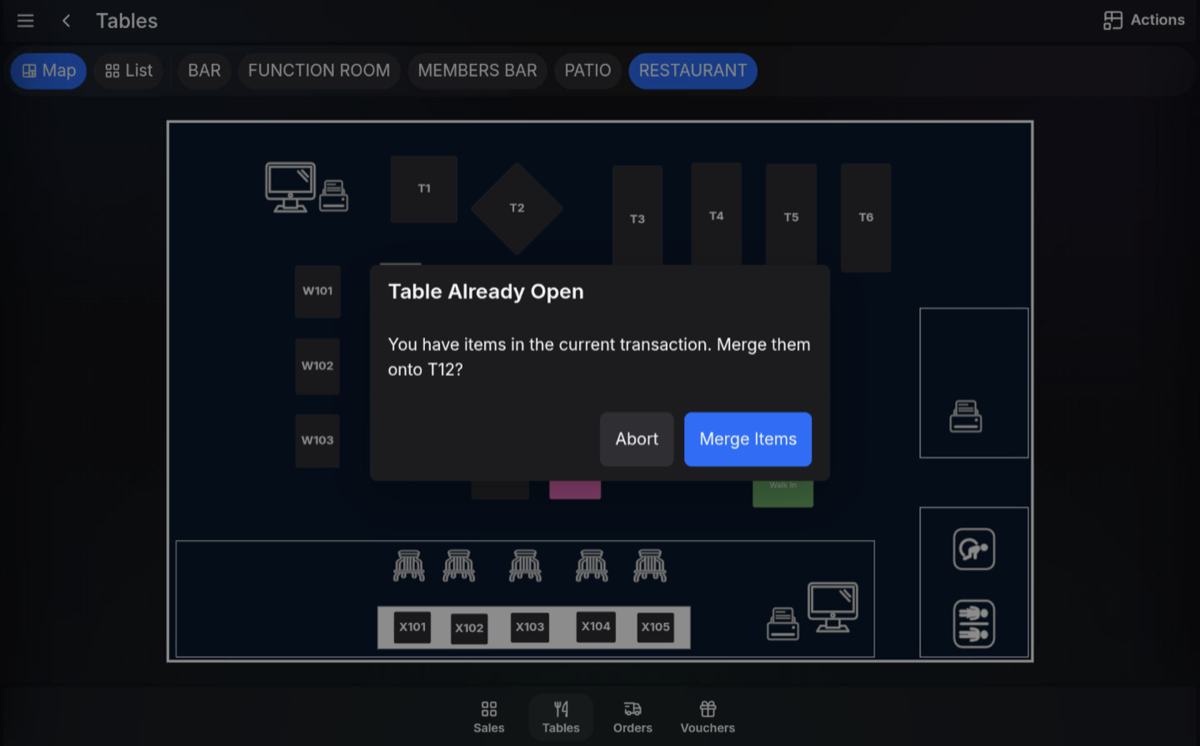
Merge products onto an open table
- Sell the required products on the sales screen.
- Select the table the items should be added to.
- Use Merge onto table.
- Send the table when the items are ready to be saved and printed.
Before sending: Check the table items, quantities, modifiers, Sales Menus, Condiment Products, and Condiment Messages before sending the order.
FAQ
When should I open the table first?
Use this when the guest is already seated and you are building the order directly from the table.
When should I use Merge onto table?
Use this when products have already been selected on the sales screen and need to be attached to a table.