Attach Customer to Sale
Attach a customer to a sale when the transaction should be linked to their customer record, account balance, purses, points, or promotions.
Attach the customer
- Search for the customer and open their customer record.
- Press Attach.
- The POS returns to the sale with the customer attached to the transaction.
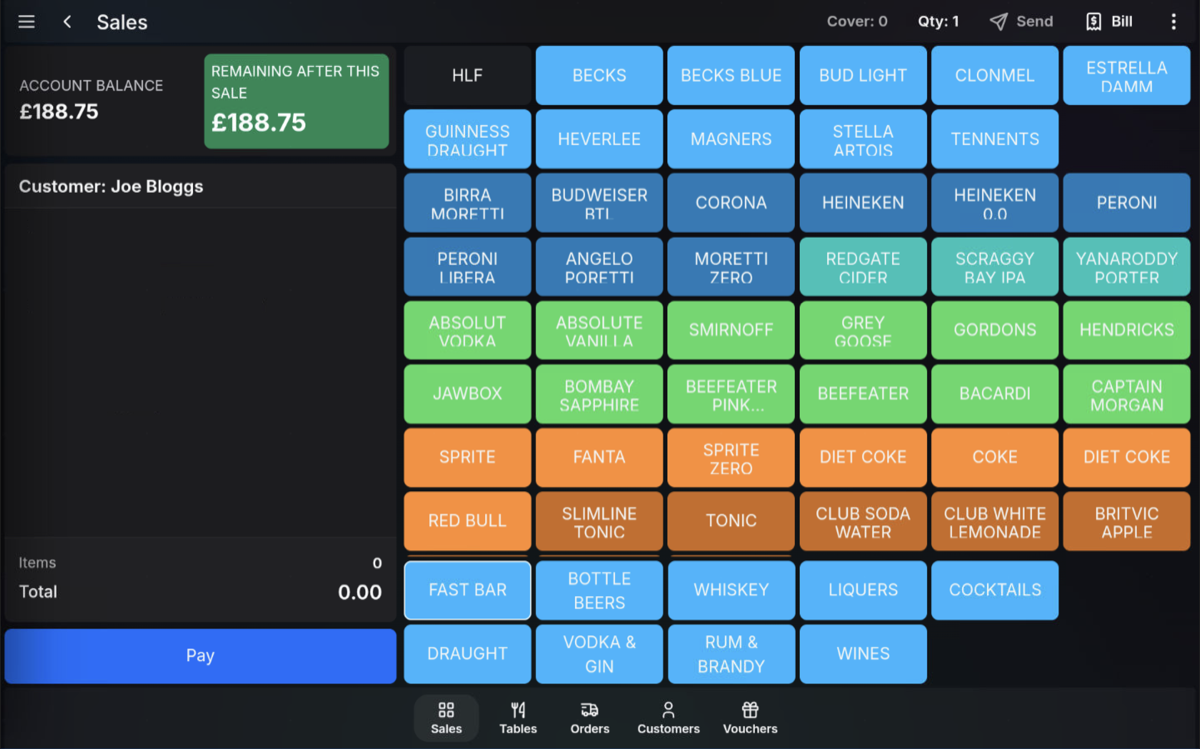
Enter the sale
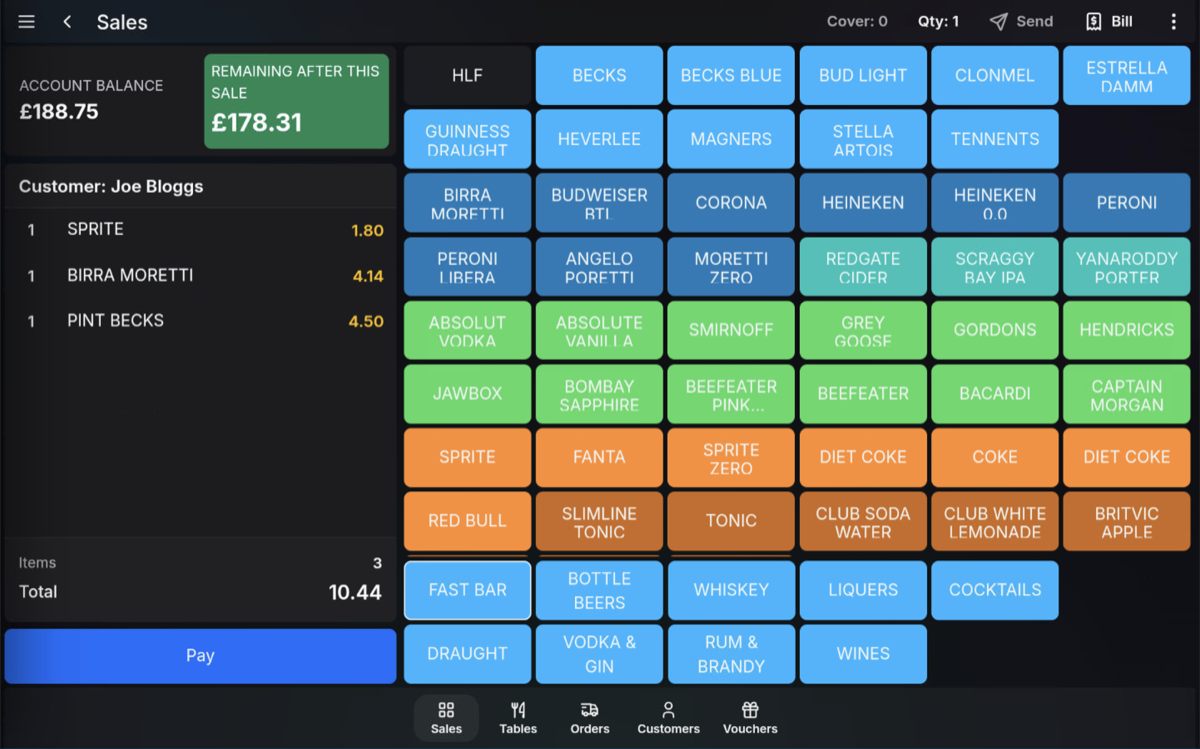
Enter the sale as normal by selecting lookup menus and product buttons. While the customer is attached, the transaction area can show the customer's available account balance and the balance remaining after the current sale.
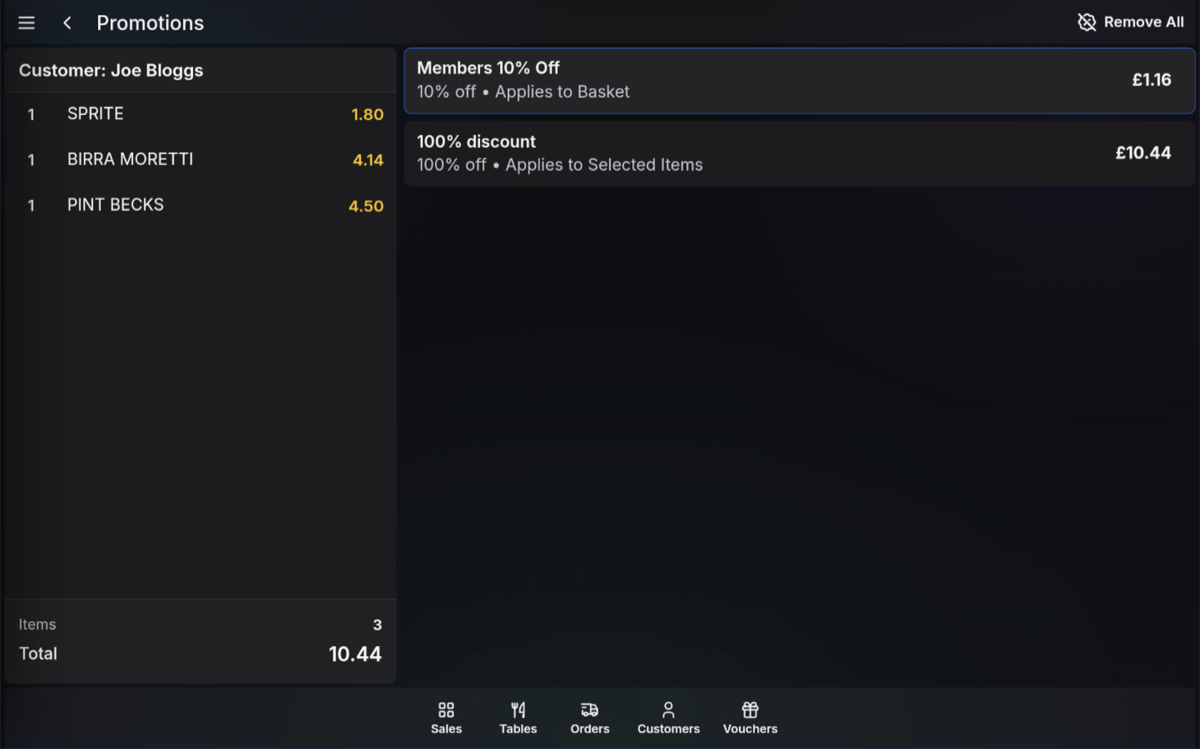
Automatic discounts
Customer transactions can automatically apply discounts when promotions are configured for the customer's group. For example, a customer in a members group may receive a member discount when qualifying items are sold.
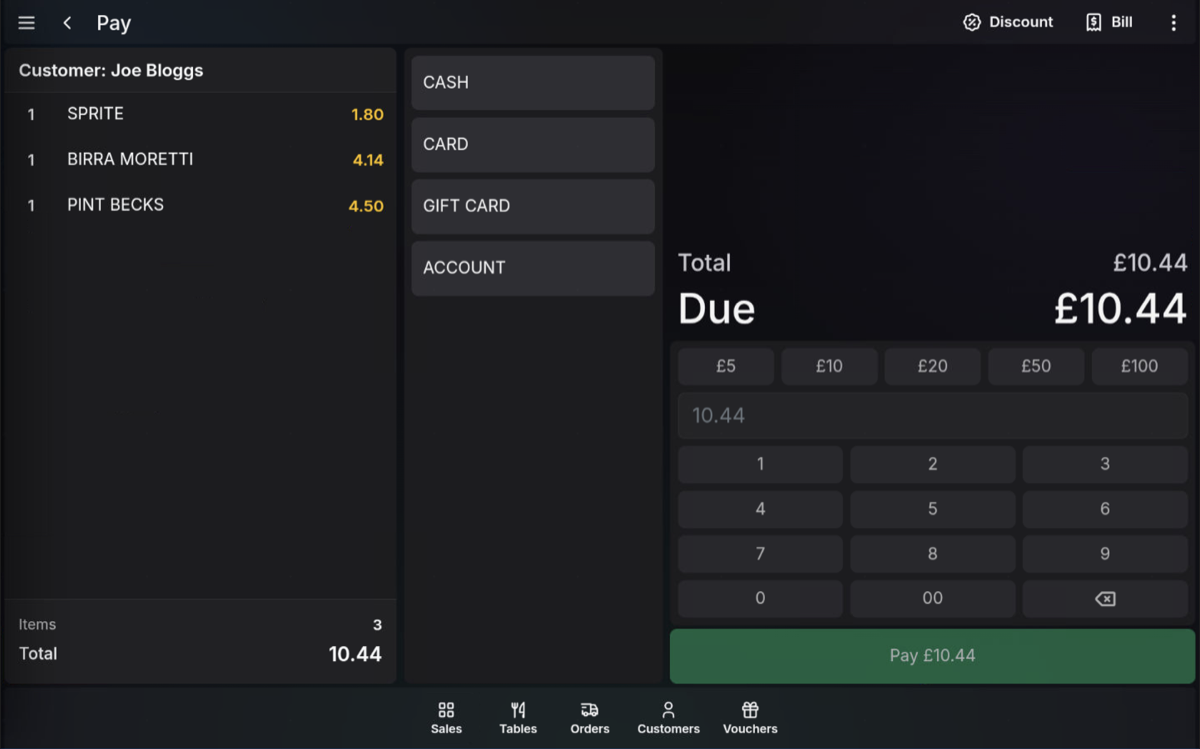
Take payment
- Review the customer, items, sale total, and any discounts.
- Press Pay.
- Select the payment method and complete the sale.
Balance after sale: The remaining balance display helps you check the customer's account position before completing the transaction.
FAQ
Can discounts apply automatically?
Yes. If promotions are configured for the customer's group, the POS can apply the relevant discount automatically when the customer is attached to the transaction.
Why does the balance after sale change as I add products?
The balance after sale reflects the current transaction value against the customer's available balance, so it updates as items are added or removed.