Cash Payment
Use a cash payment when the customer is paying with notes or coins. The exact steps depend on whether Compulsory Entry is enabled for cash payments.
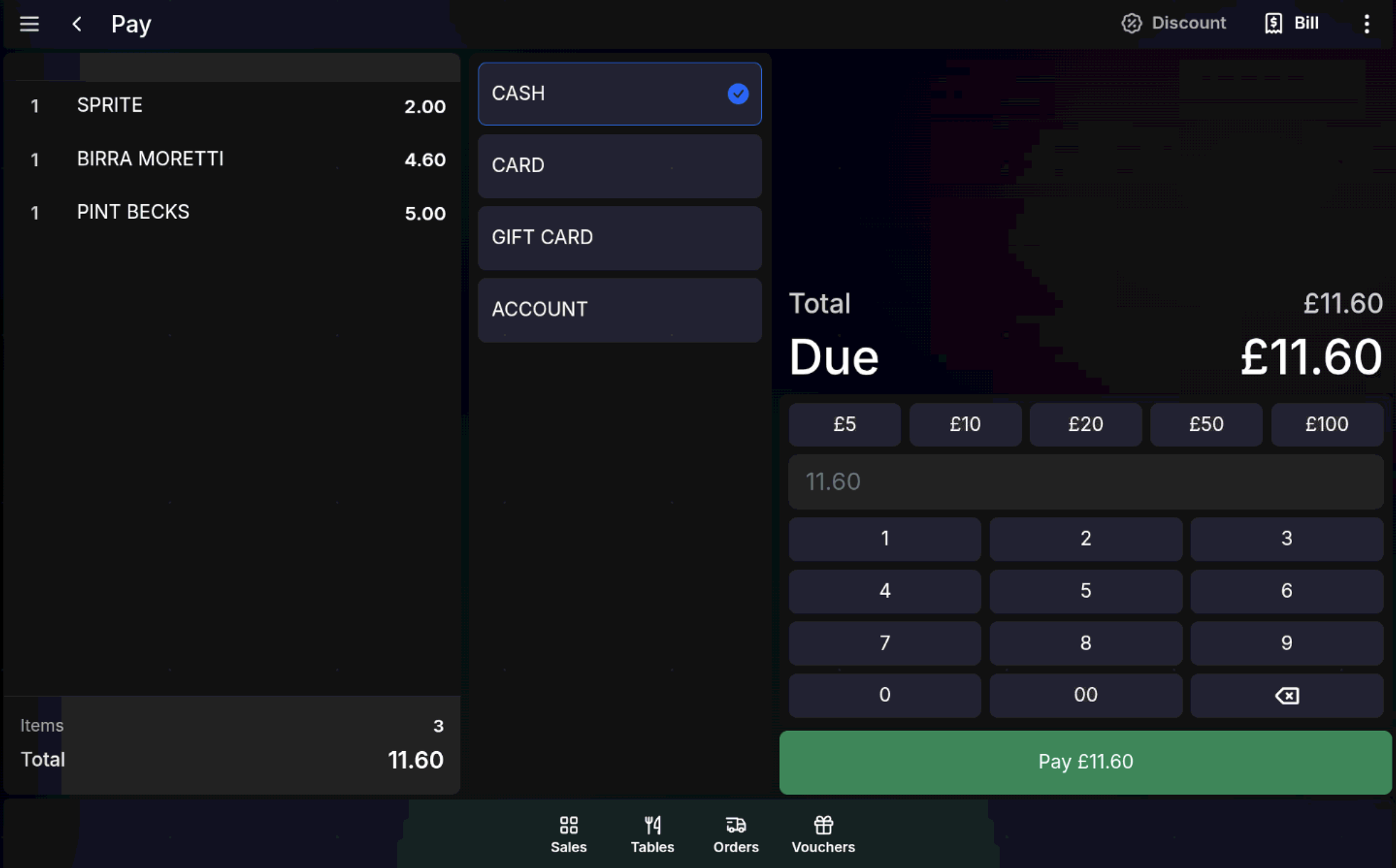
Exact cash payment
If Compulsory Entry is not enabled, you can complete an exact cash payment without typing an amount.
- Review the sale total.
- Select Cash.
- Press Pay £ with the sale amount shown beside it.
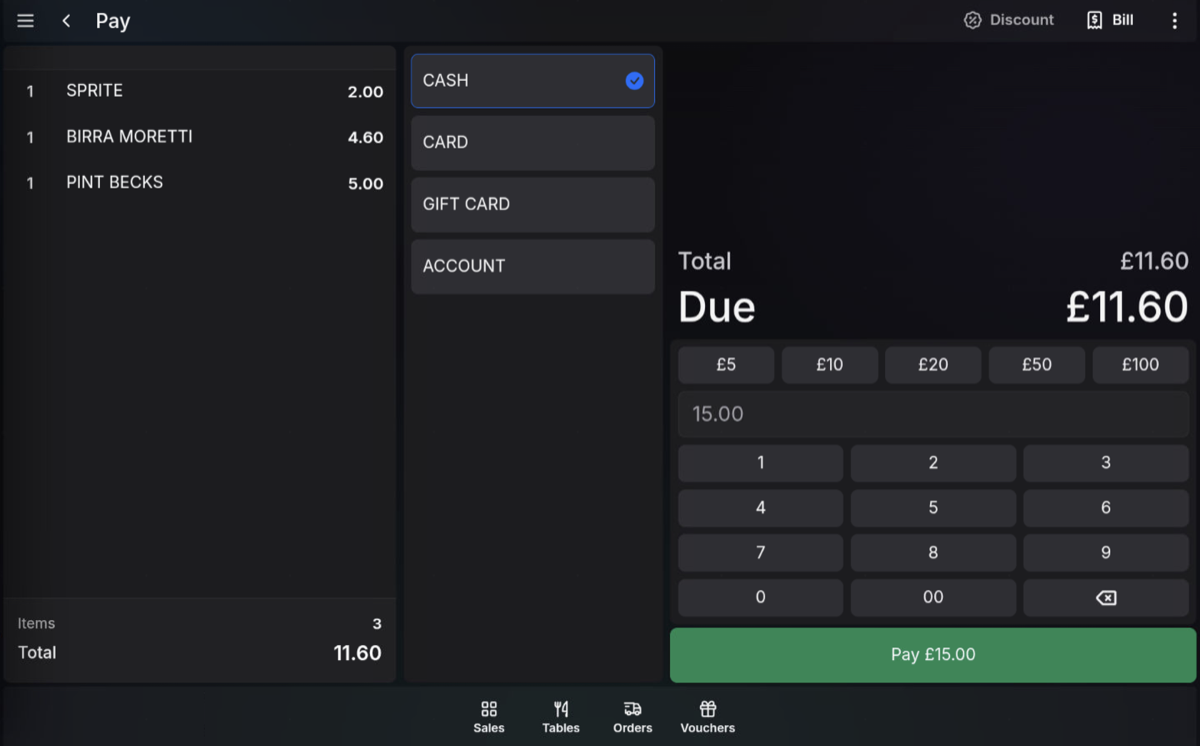
Compulsory amount entry
If Compulsory Entry is enabled, the Pay £ button is inactive and you must enter the cash amount before completing the payment.
- On the numeric keypad, enter the amount given by the customer, for example 15.00.
- Press Pay 15.00.
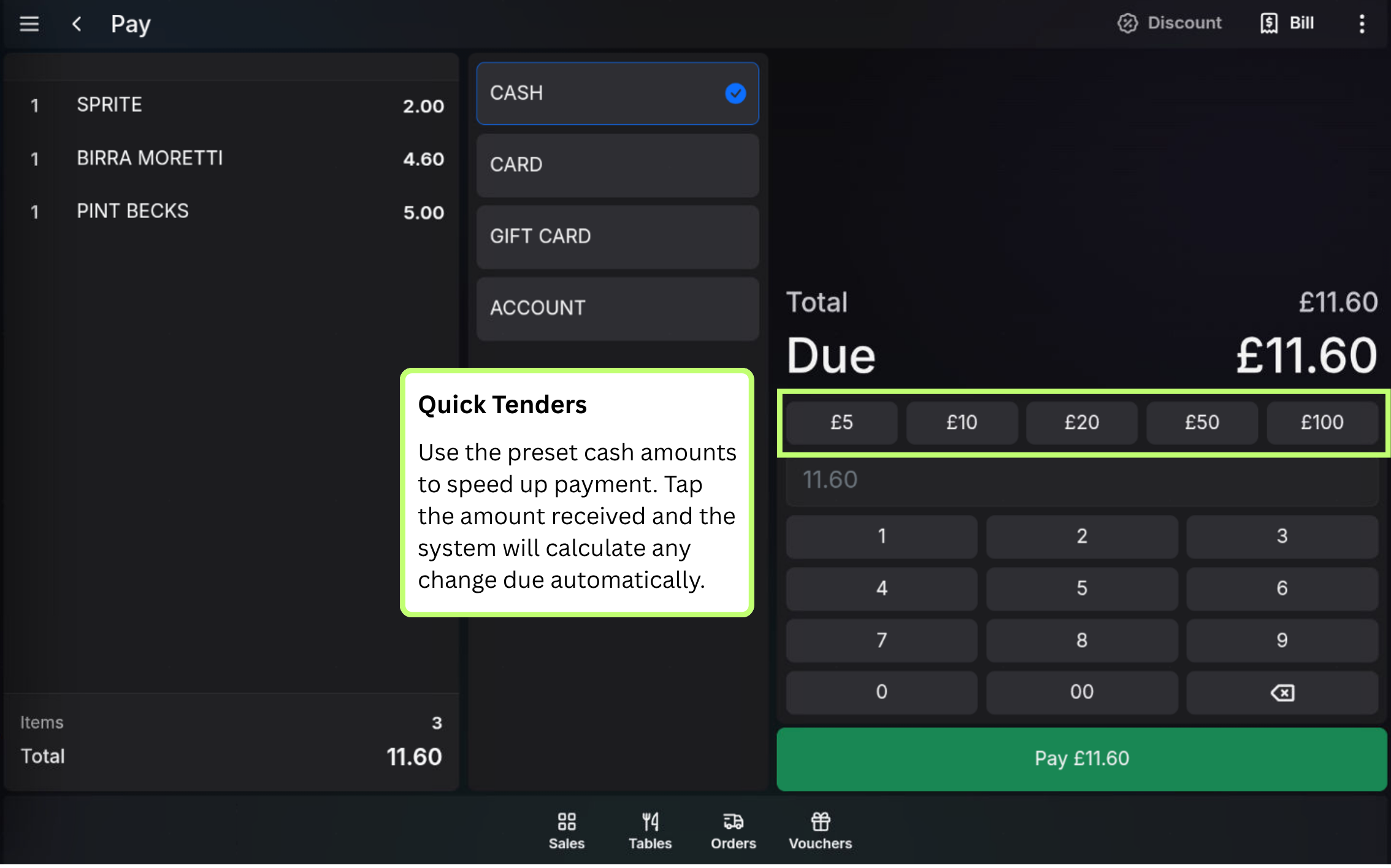
Fast tender keys
You can also use the fast tender keys for common note values:
- 5
- 10
- 20
- 50
- 100
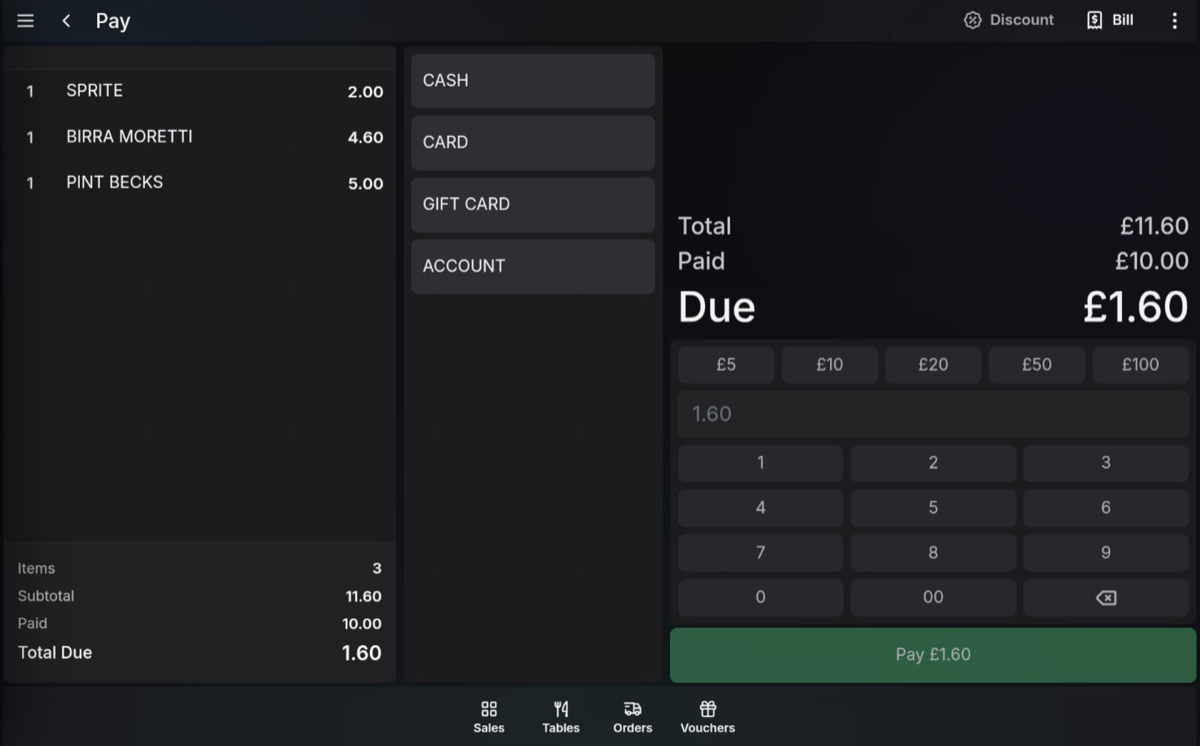
Under-tendering
If the cash amount entered is lower than the sale total, the cash amount is taken as a partial payment and the remaining balance stays outstanding. Select another payment method to complete the sale.
Cash drawer and change
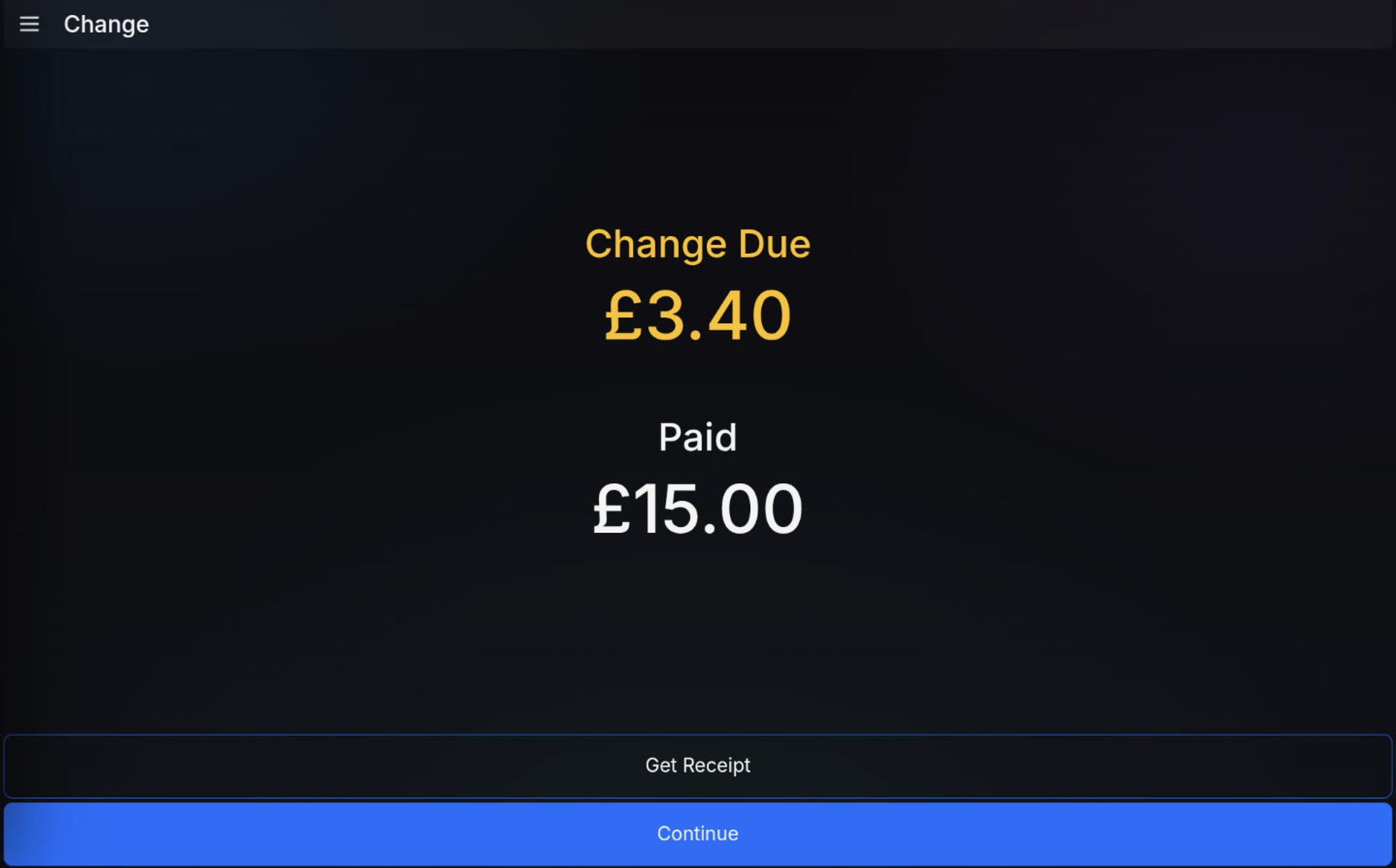
When the cash payment is completed, the cash drawer opens. The POS displays the amount paid, and shows change due only if the tendered amount is higher than the sale value.
Receipts
If receipts are enabled, the receipt prints automatically. Alternatively, press Get Receipt.
- Print a physical copy.
- Scan the QR code so the customer can view a digital copy.
- Send a copy by email.
FAQ
What does Compulsory Entry change?
It stops the operator from completing a cash payment until the cash amount received from the customer has been entered.
When is change shown?
Change is shown after the cash payment is completed only when the tendered amount is higher than the sale value.