Changing Quantities
Use quantity controls when you need to sell more than one of the same product without pressing the product button repeatedly.
Set quantity before selling a product
- On larger screens, press the Qty button on the top bar.
- On smaller screens, tap the three-dot menu in the top right (Other Functions), then press Qty.
- Enter the quantity required.
- Press Enter.
- Press the product button to sell the selected quantity.
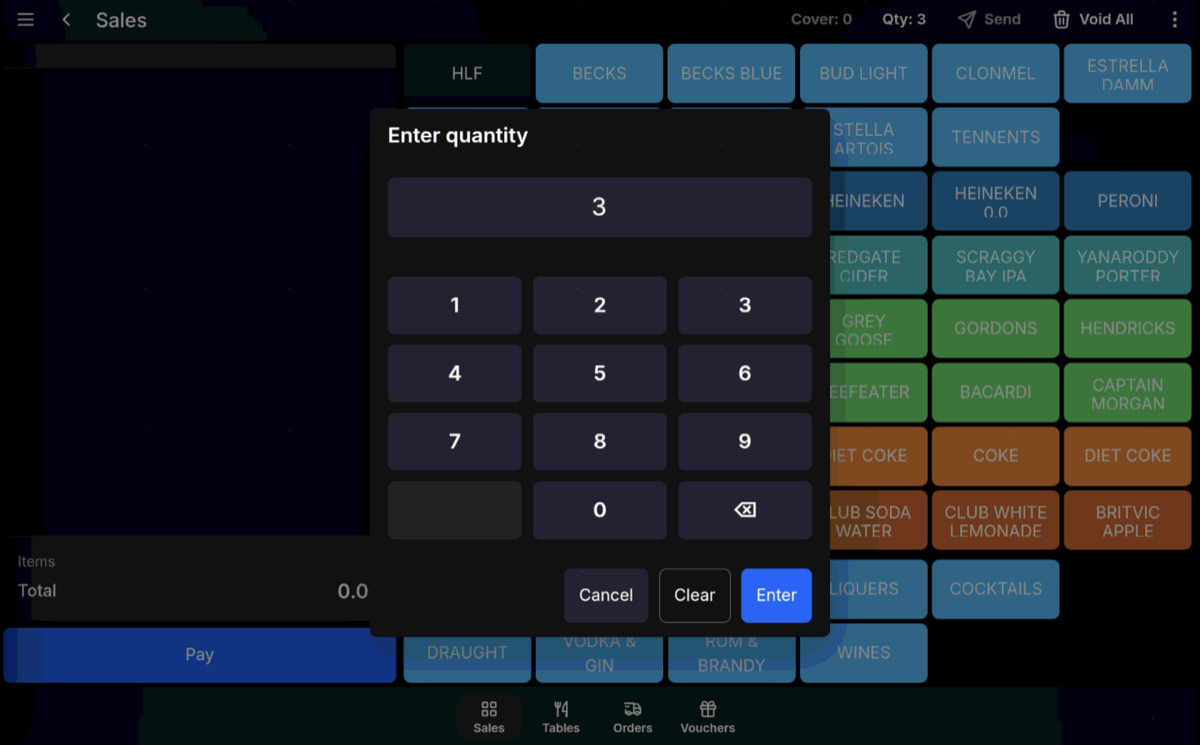
Sales menus and condiments: If the product has Sales Menus, Condiment Products, or Condiment Messages, they will reflect the quantity selected for all items.
Increase quantity after selling a product
- On the transaction grid, swipe left on the product line.
- Press + Qty to increase the quantity.
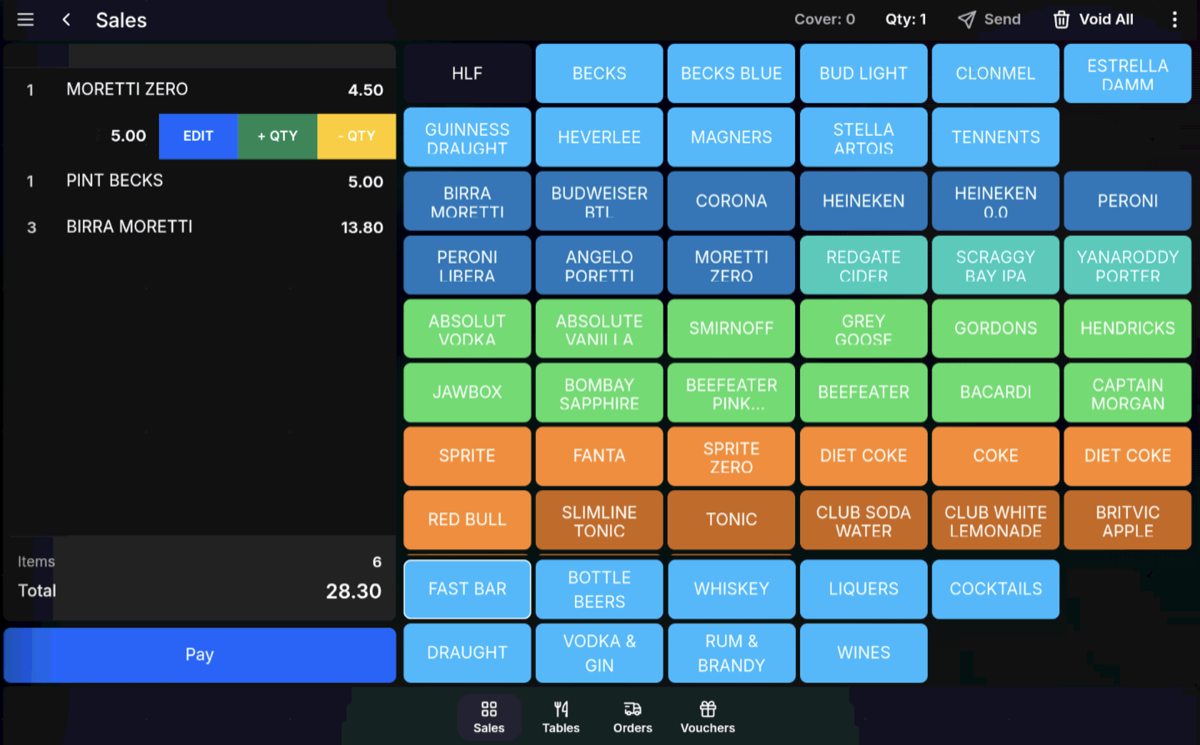
Linked choices: Any Sales Menus, Condiment Products, or Condiment Messages attached to that product will increase by the same quantity.