Correcting Errors
Some corrections reduce or remove items from the current transaction. These actions may be controlled by the user's User Role because they are treated as void activity.
Correct an item quantity
- On the transaction grid, swipe left on the product line.
- Press - Qty to decrease the quantity.
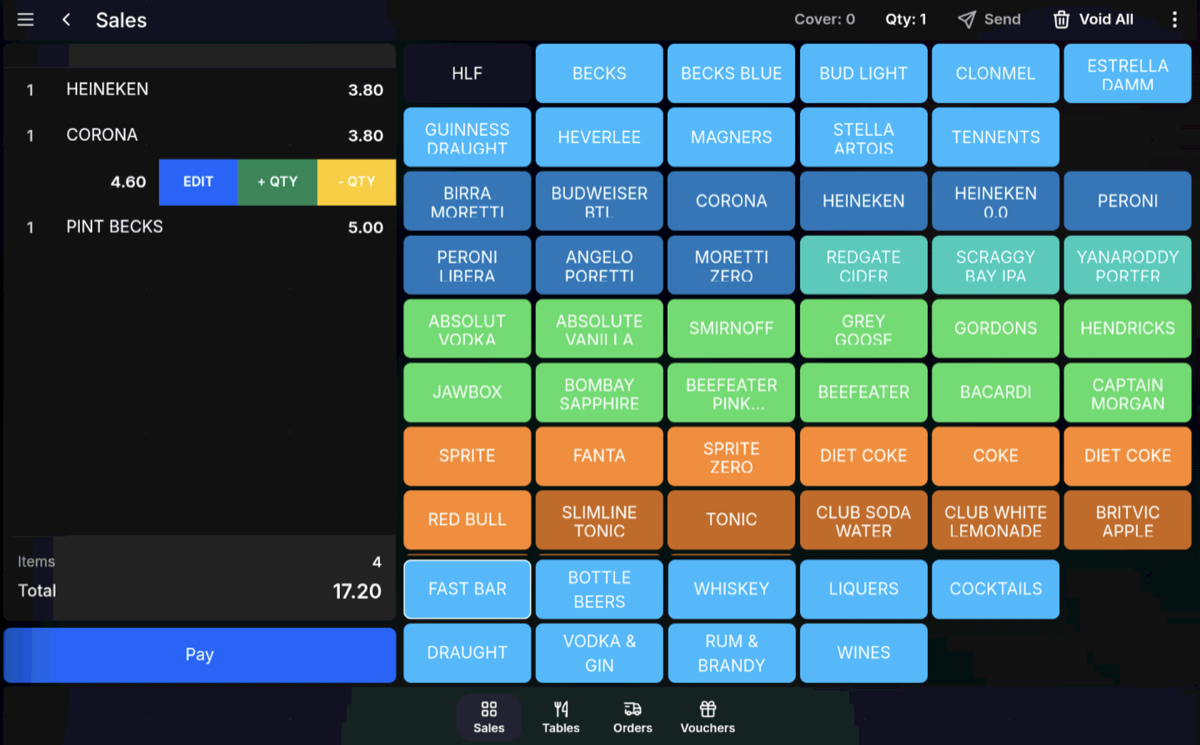
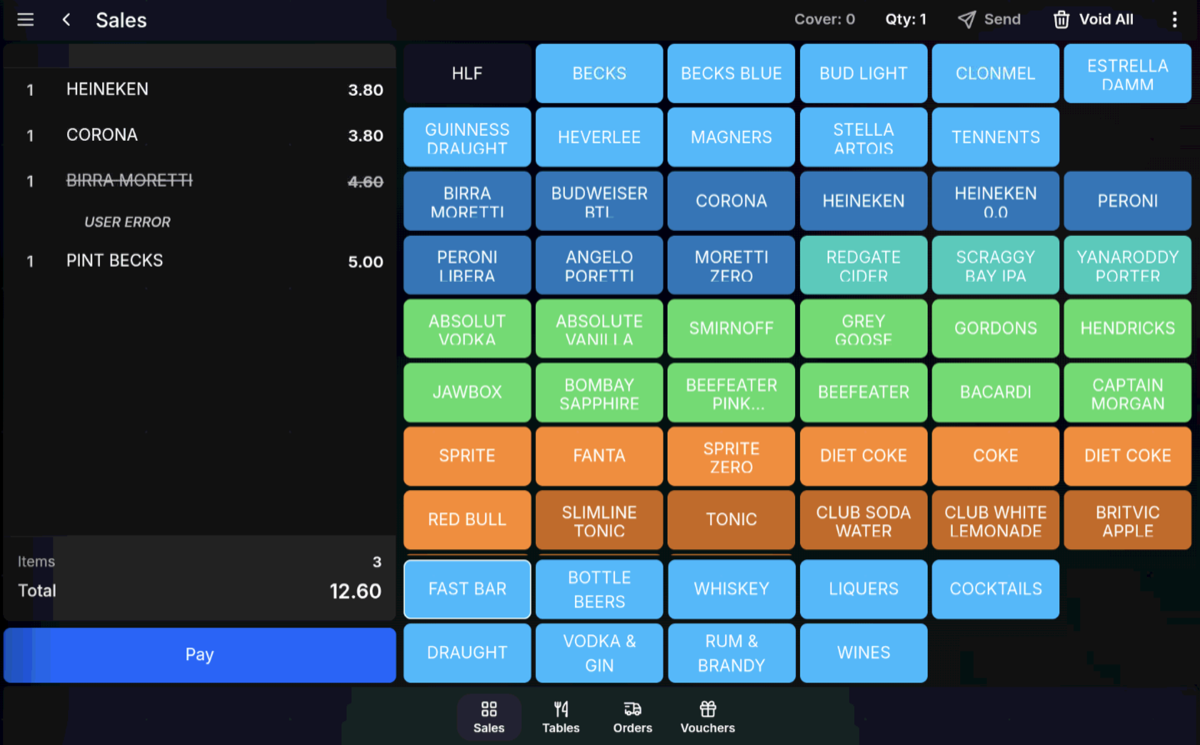
Void quantity: Using - Qty is treated as a void action. Voids are restricted by User Role and may require the PIN or finger-vein approval of an authorised user.
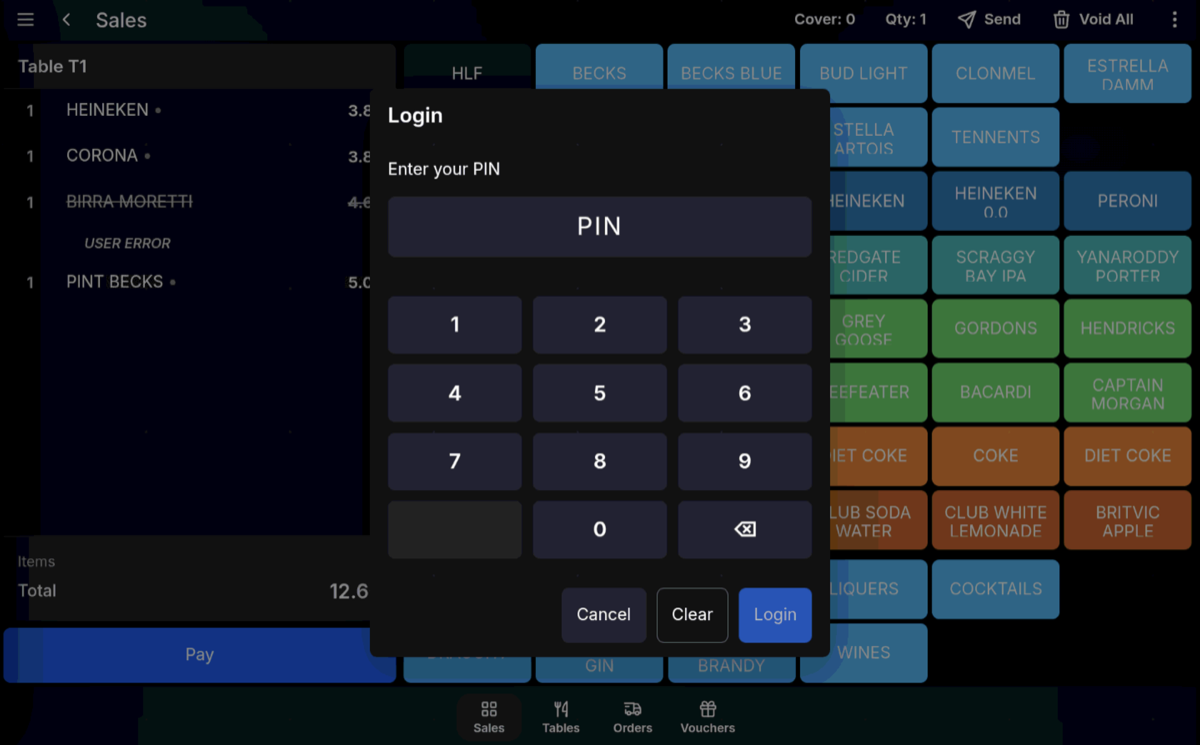
Void reporting: If there is only one item sold, reducing it reports as a Void. If there are multiple items and the quantity is edited, it reports as Void Qty.
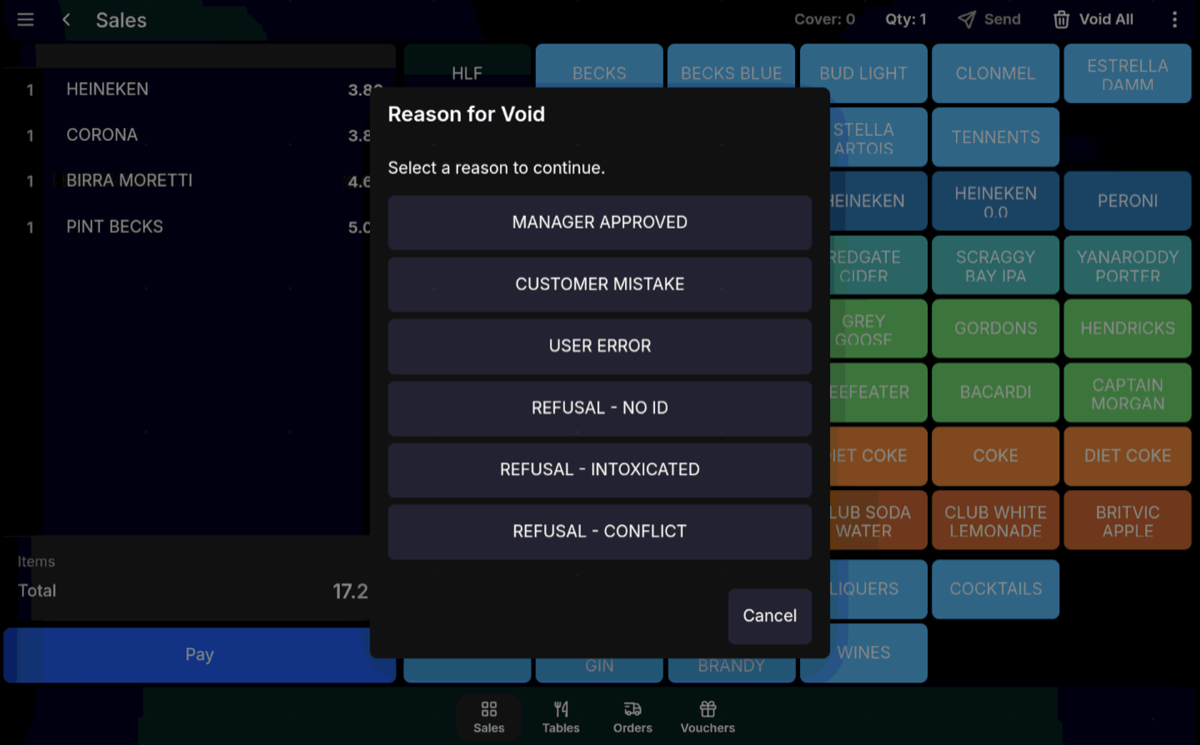
Void reason: The POS may ask for a void reason before completing the correction.
Void After Print
Void After Print is used when an item has already been printed and then needs to be voided. This is another secure void action controlled by the user's User Role.
Authorisation: Void After Print may require the PIN or finger-vein approval of an authorised user.
Reprint and reporting: Void After Print can be set to reprint, and it reports in Back Office as Void Post.
When decreasing becomes Void All
If there is only one product sold, or if using - Qty would remove the remaining quantity, the action is technically a Void All.
Additional restriction: Void All may require an additional User Role security restriction before it can be completed.
Void All function
Void All cancels the entire sale when the user's User Role permits it.
- On larger screens, press Void All on the top bar.
- On smaller screens, tap the three-dot menu in the top right (Other Functions), then press Void All.
User Role restriction: Void All is restricted by User Role and may require authorisation before the sale can be cancelled.
Undoing a void line
- On the transaction grid, swipe left on the voided line.
- Press Restore.
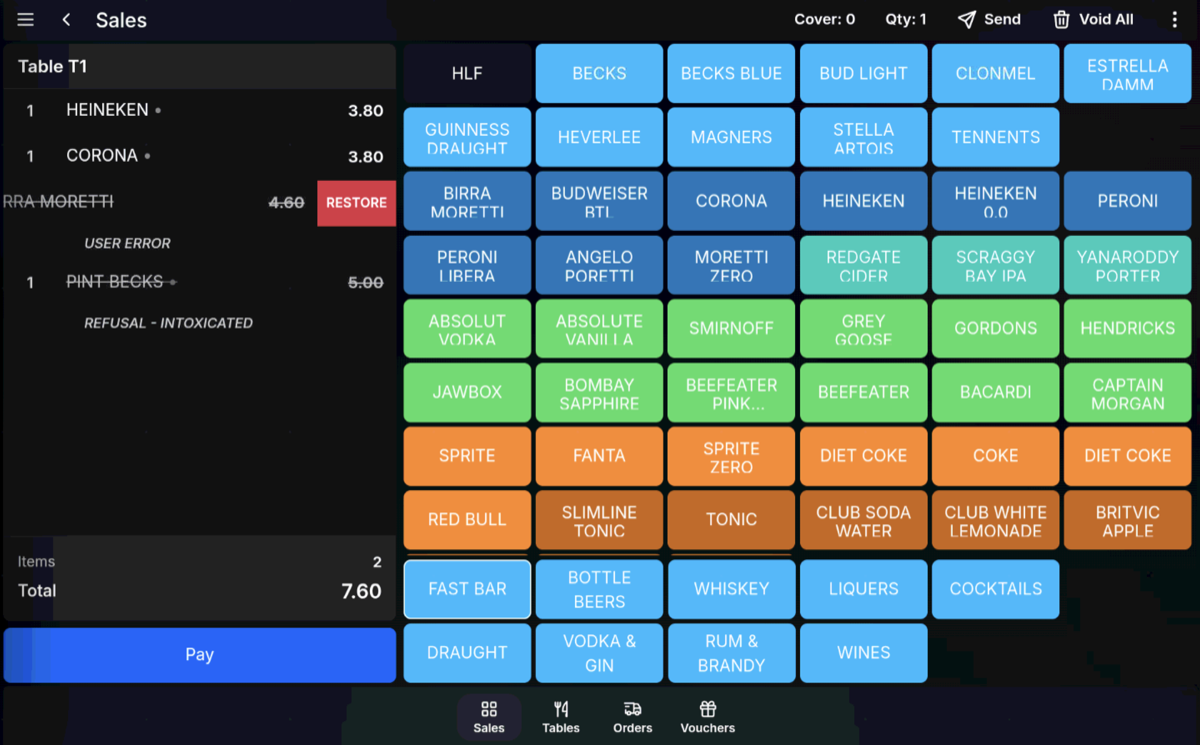
User Role restriction: Restoring a voided line is only allowed if the user's User Role permits it.