Create an Order
Create an order from the Orders screen when a customer phones in or when staff need to enter a collection or delivery order manually.
Start a new order
- Open Orders.
- Select New Order from the top-right toolbar or from the empty order board panel.
- Choose Collection or Delivery.
- Choose New Customer or Existing Customer.
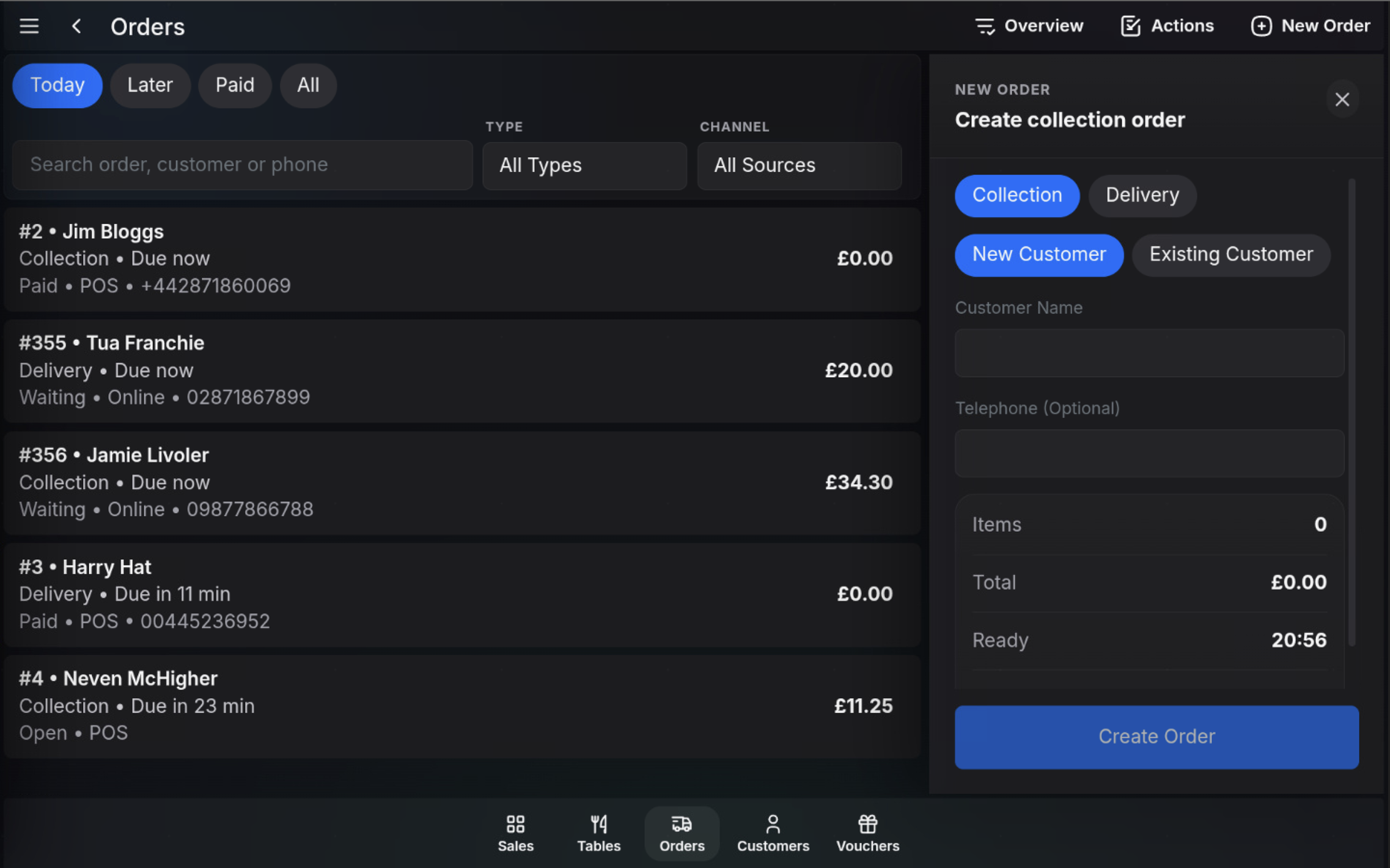
Use a new customer
Choose New Customer to enter customer details directly on the order. The panel shows the item count, total, and ready time before the order is created.
Use an existing customer
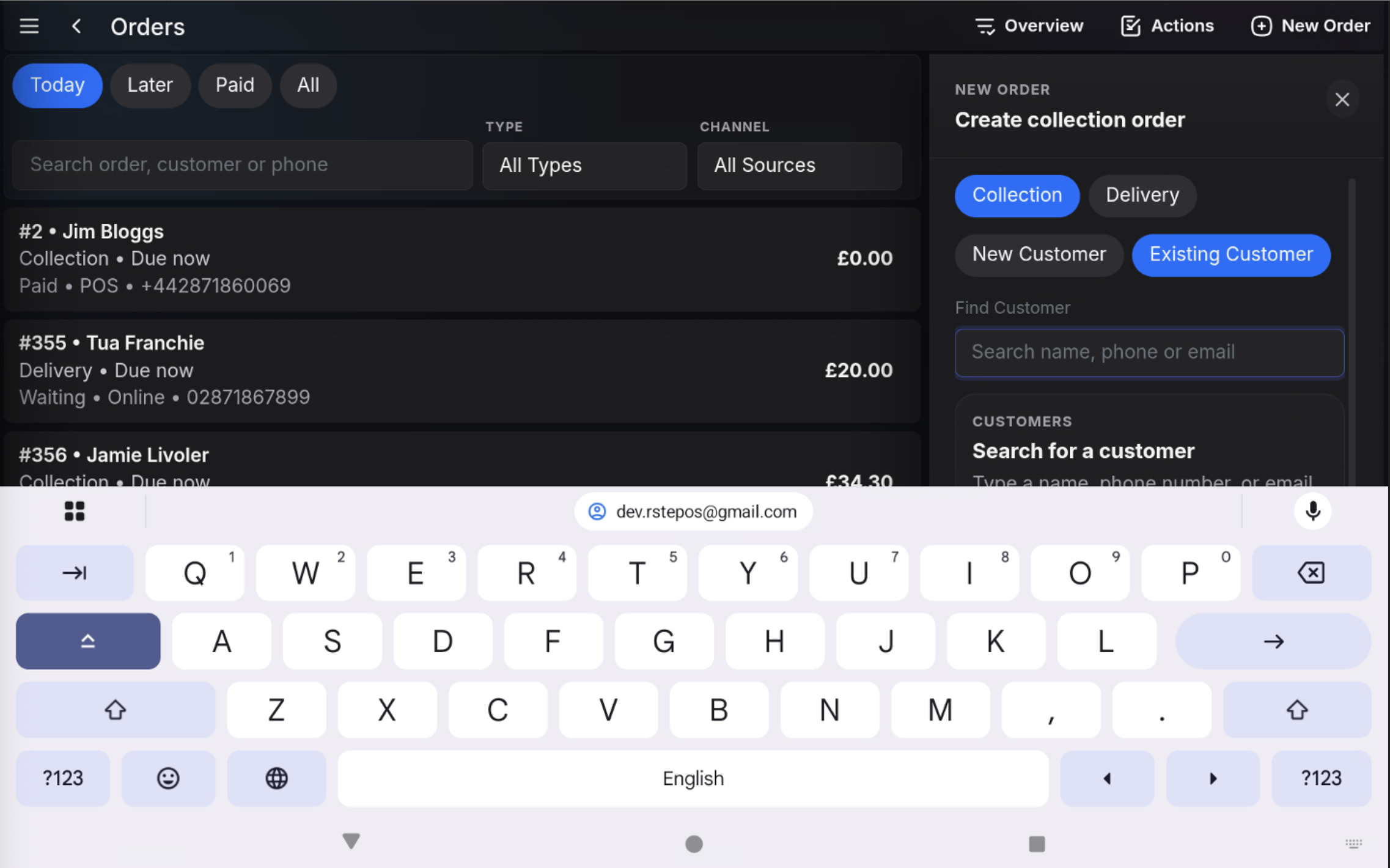
- Choose Existing Customer.
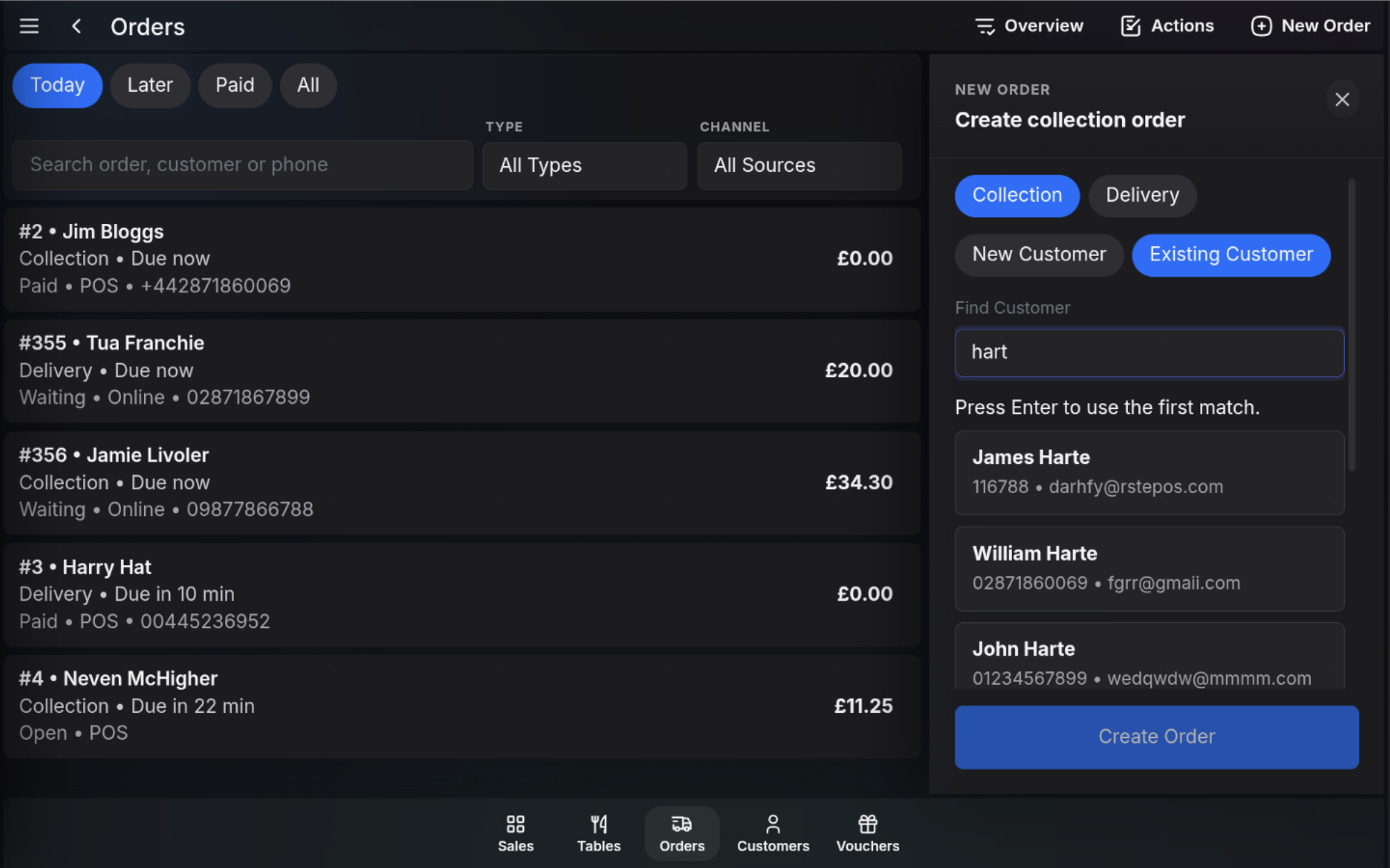
- Search by name, phone, or email.
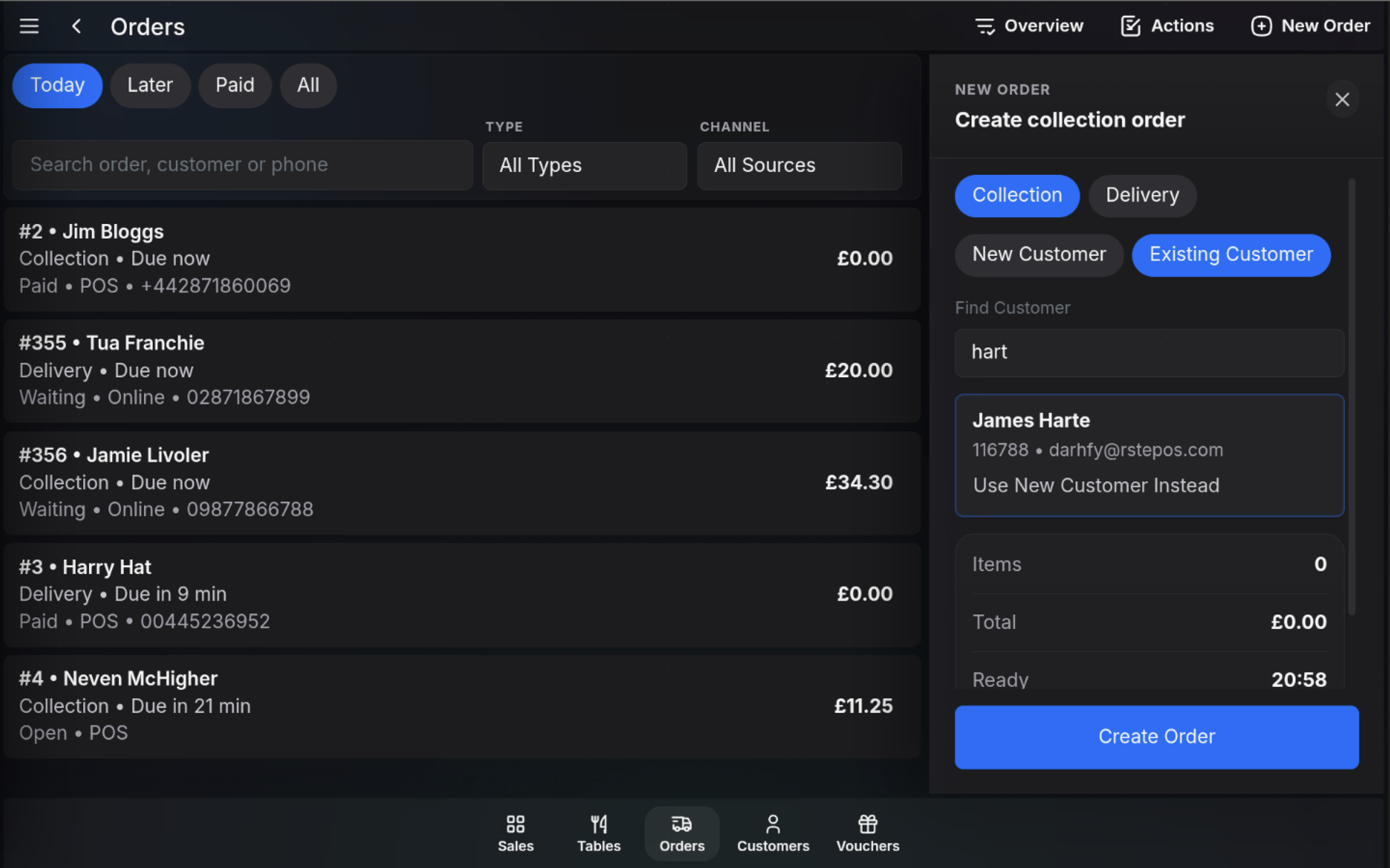
- Select the correct customer from the results.
- If the search result is not correct, use Use New Customer Instead.
Create the order
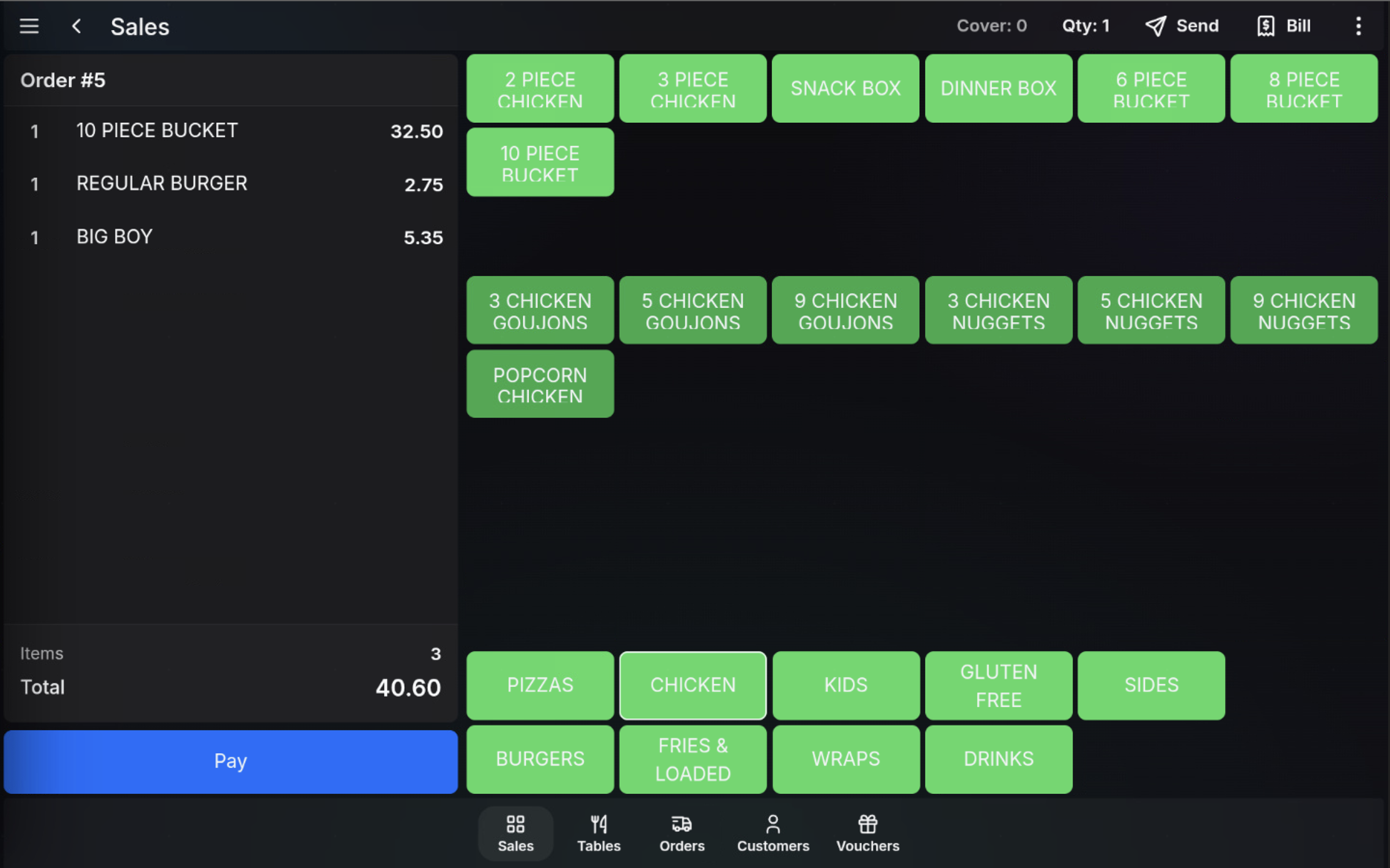
When the order details are ready, choose Create Order. The order opens on the sales screen so items can be added using the normal product buttons and lookup menus.
Add items and send
- Add products to the order from the sales screen.
- Check the order total and item list.
- Use Send to send the order for preparation.
- Use Bill or Pay when the order is ready to be charged or completed.
Watch in action
Create order for an existing customer
Create order for a new customer
FAQ
Can I create an order without an existing customer?
Yes. Use New Customer to enter the customer details directly on the order.
What happens after Create Order?
The order opens on the sales screen so items can be added, sent, billed, or paid using the normal POS flow.