Navigating Orders
The Orders screen is used to find delivery, collection, in-store, online, kiosk, and POS orders. From here you can filter the order board, select an order, preview its items, open it on the sales screen, or start a new order.
Open Orders
- Open the POS.
- Select Orders from the bottom dock or the Functions menu.
Order board layout
The left side of the screen shows the order list. Each order card shows the order number, customer name, fulfilment type, due time, payment or order status, source, customer phone number, and order total.
The right side shows the selected order panel. If no order is selected, use this panel to start a new order or choose an order from the list.
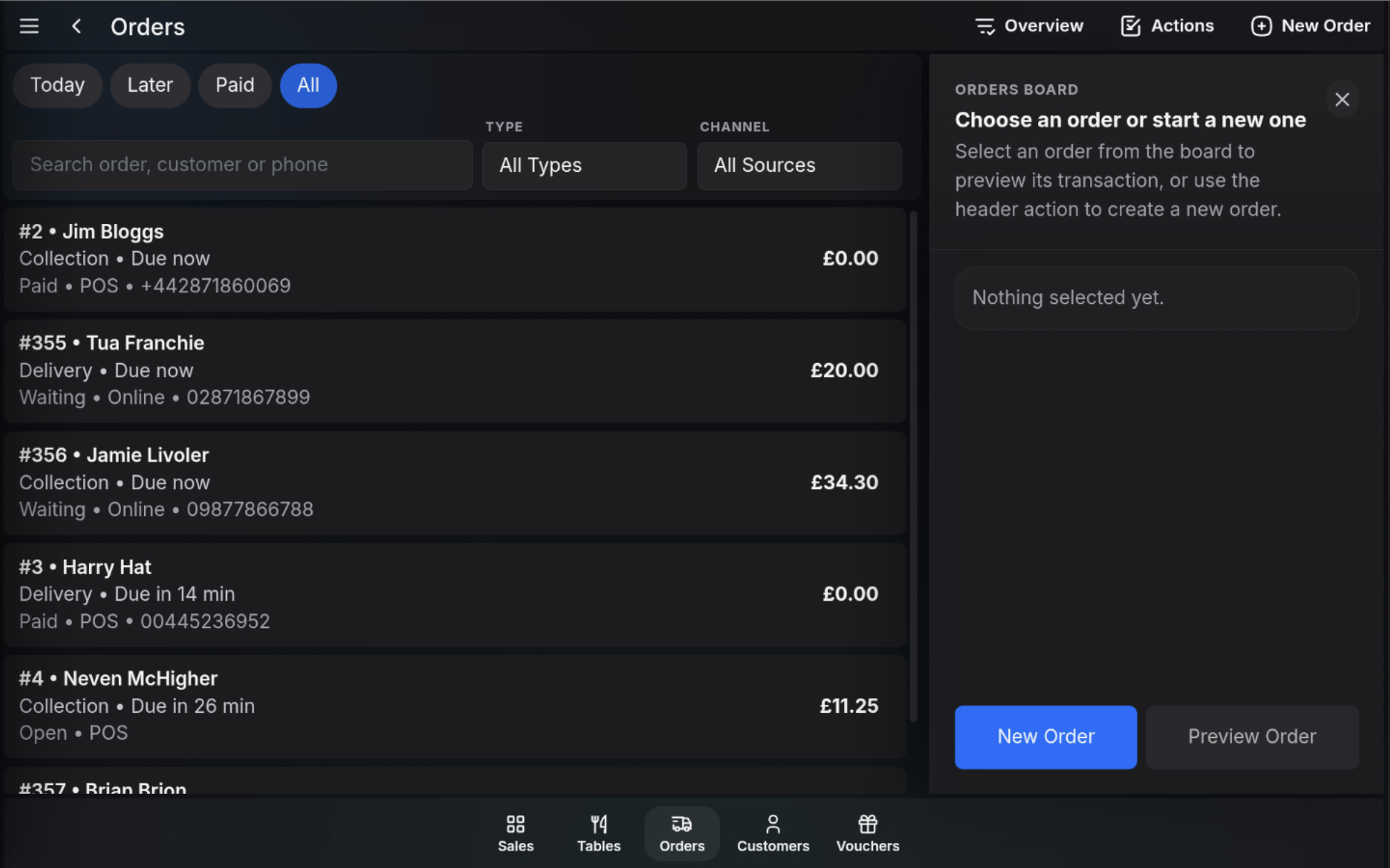
Date and payment filters
- Today shows orders due today.
- Later shows future orders due after today.
- Paid shows paid orders.
- All shows all matching orders.
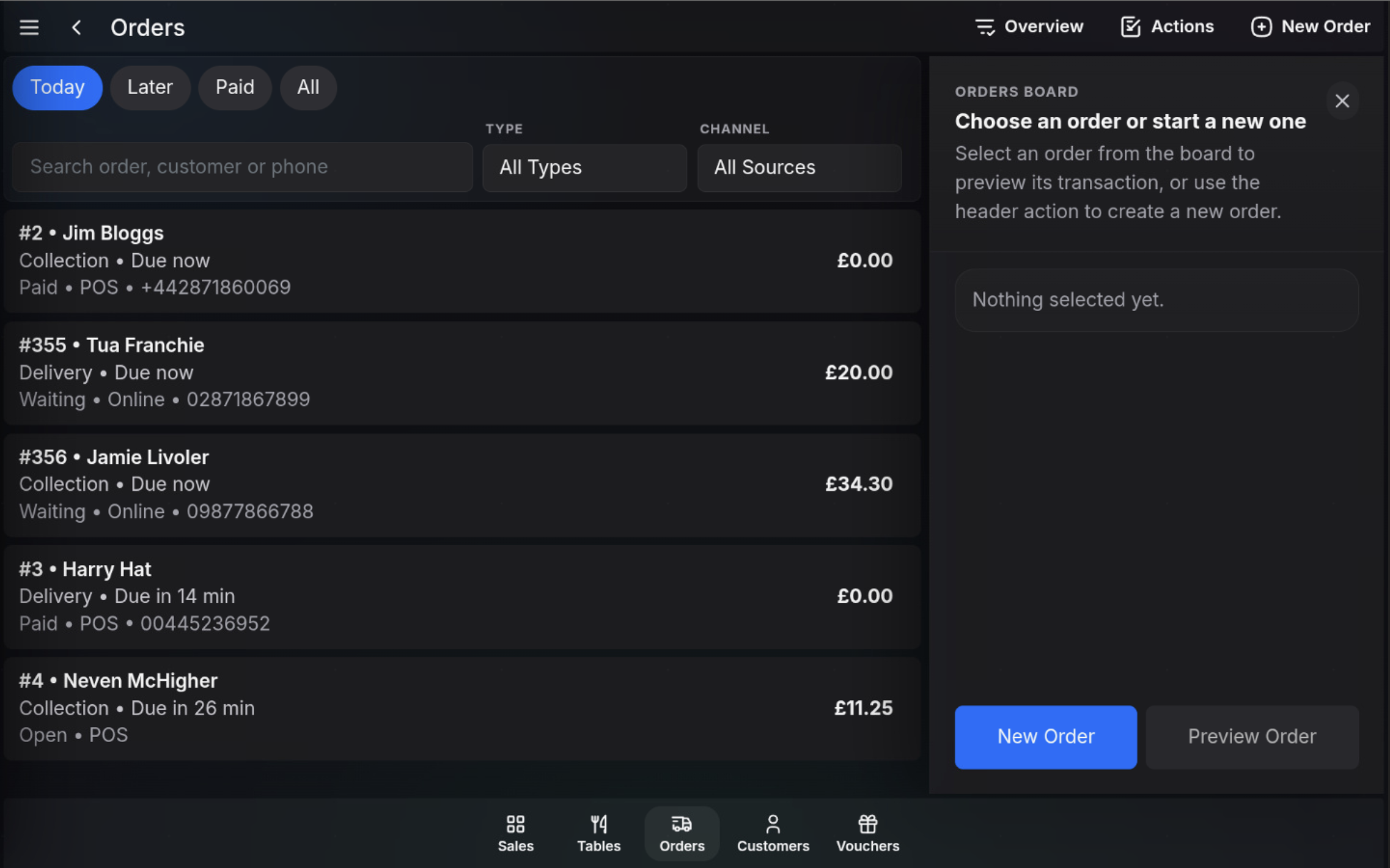
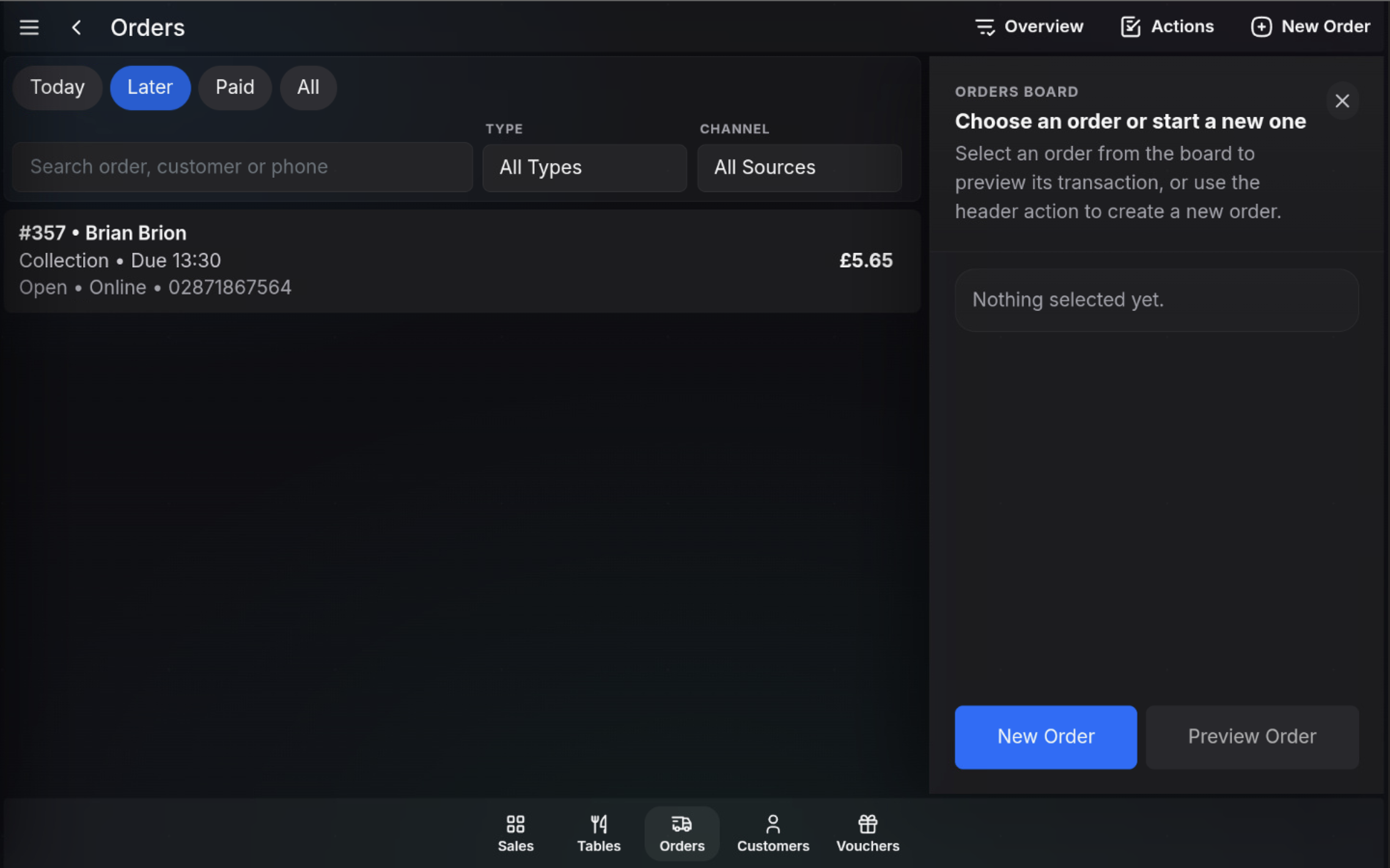
Search orders
Use the search box to find an order by order number, customer name, or phone number. Clear the search text to return to the previous list.
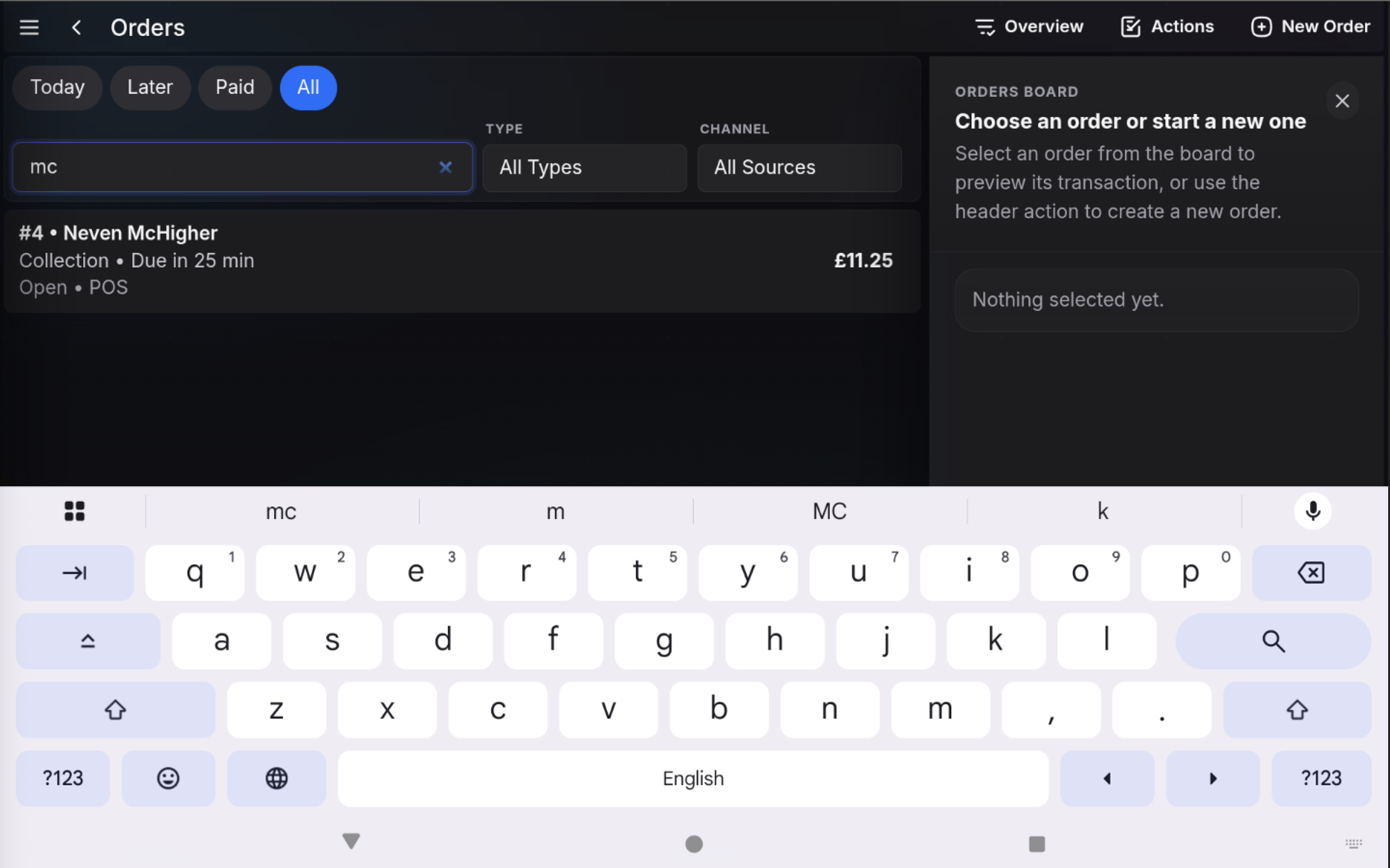
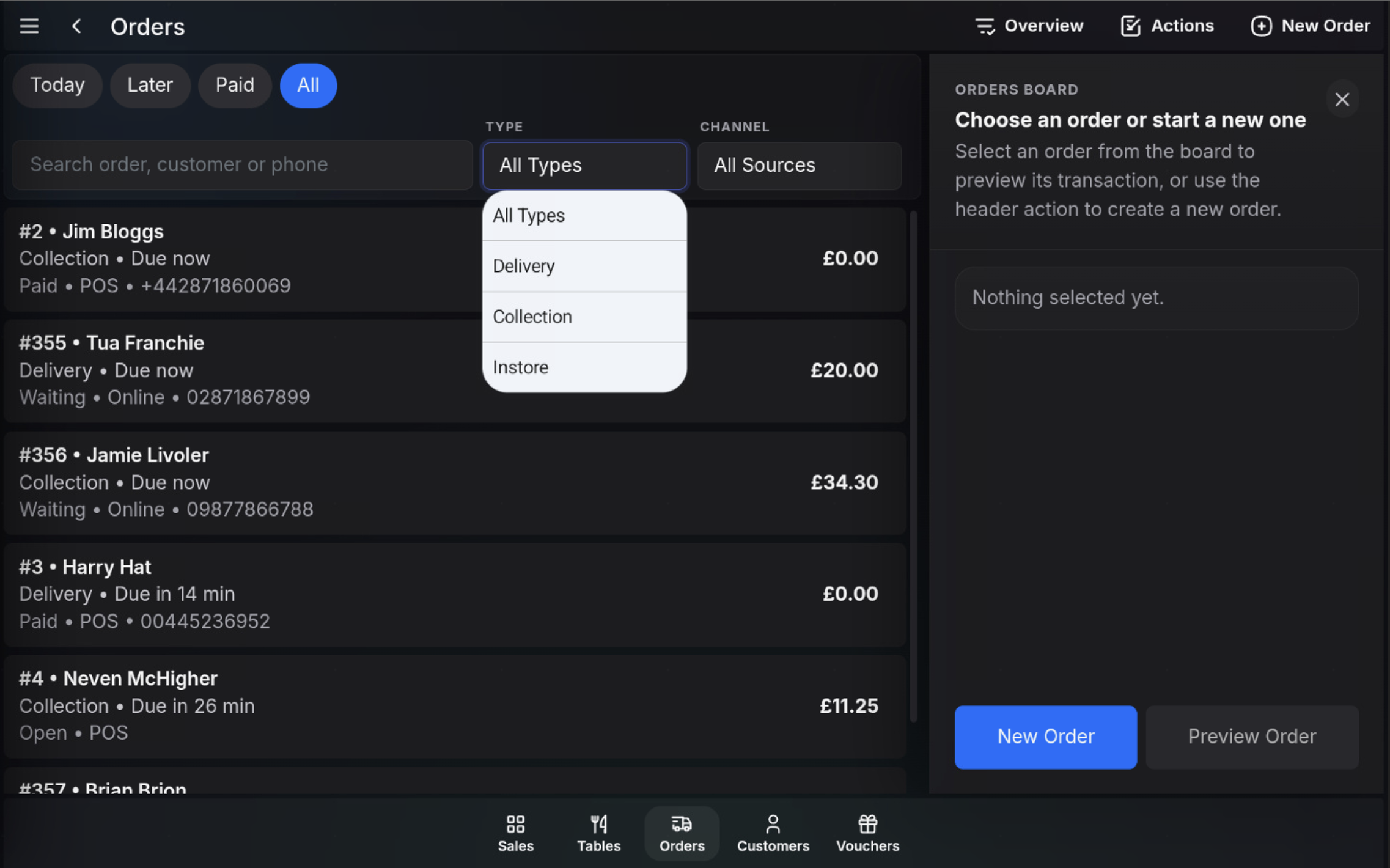
Filter by order type
Use Type to filter the board by fulfilment type.
- All Types shows every order type.
- Delivery shows delivery orders.
- Collection shows collection orders.
- Instore shows in-store orders.
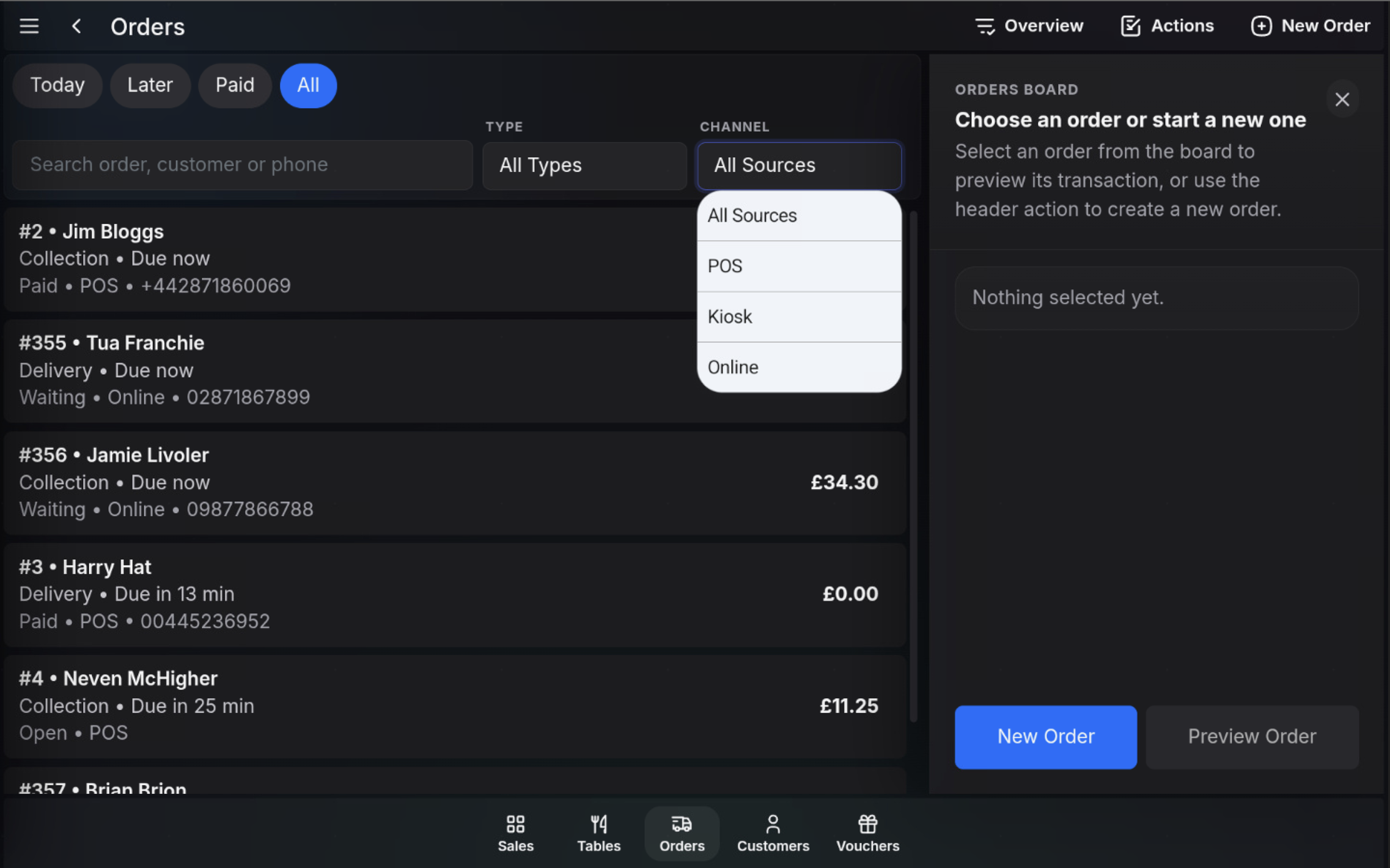
Filter by source
Use Channel to filter by where the order came from.
- All Sources shows every source.
- POS shows orders created on POS.
- Kiosk shows kiosk orders.
- Online shows online orders.
Watch in action
FAQ
Can I combine search with filters?
Yes. Search, date tabs, order type, and source filters can be used together to narrow the order list.
Why is an order not showing?
Check the active tab, search text, type filter, and source filter. Use All and clear filters to widen the list.