Open and Preview an Order
After an order is on the order board, select it to review the order detail panel. From there you can preview the transaction or open the order on the sales screen.
Select an order
- Open Orders.
- Use the tabs, search box, type filter, or source filter to find the order.
- Select the order card from the list.
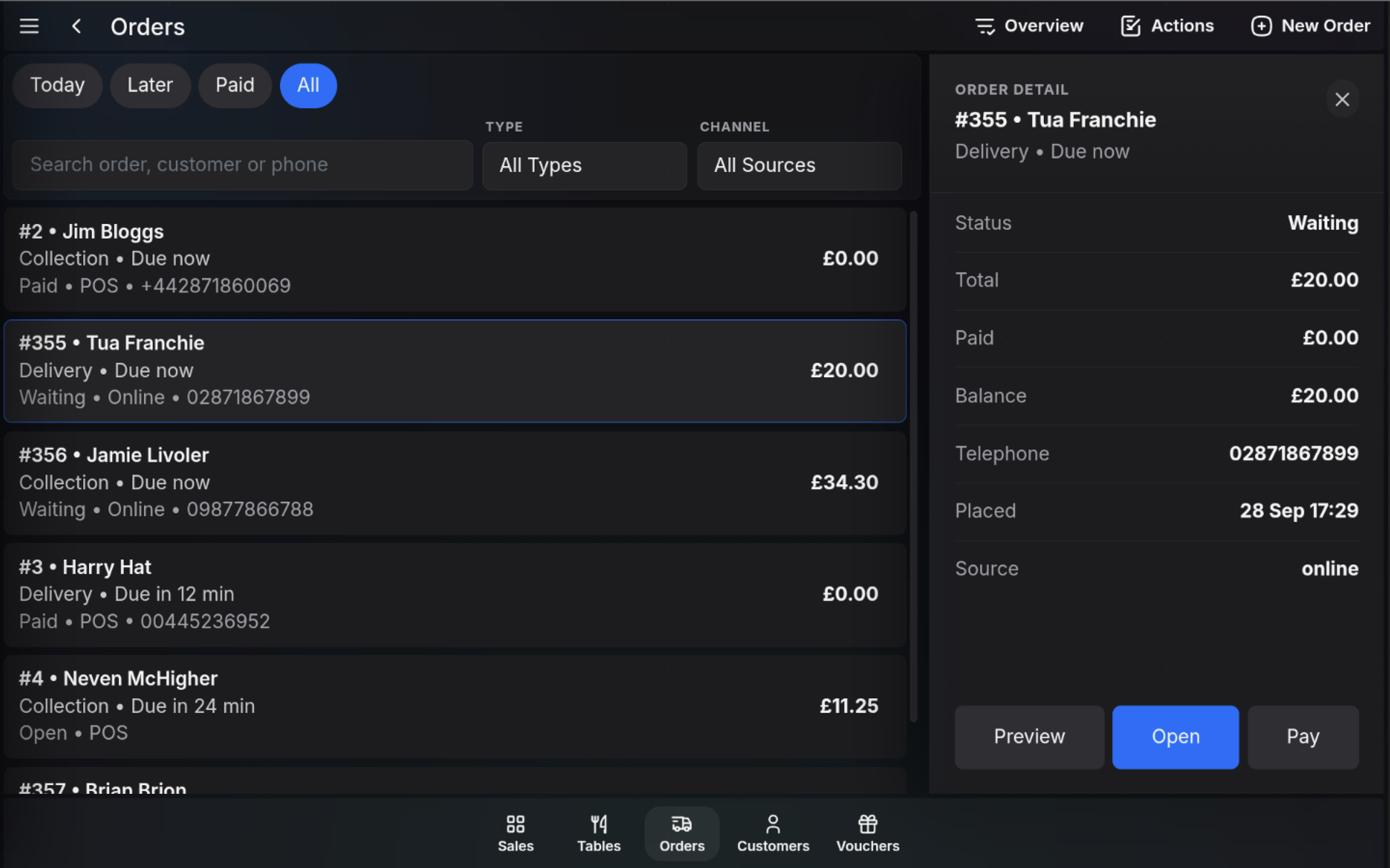
Read the order detail panel
- Status shows the current order status, such as Waiting.
- Total shows the order value.
- Paid shows how much has already been paid.
- Balance shows the remaining amount to pay.
- Telephone shows the customer contact number where available.
- Placed shows when the order was placed.
- Source shows where the order came from, such as online or POS.
Preview items
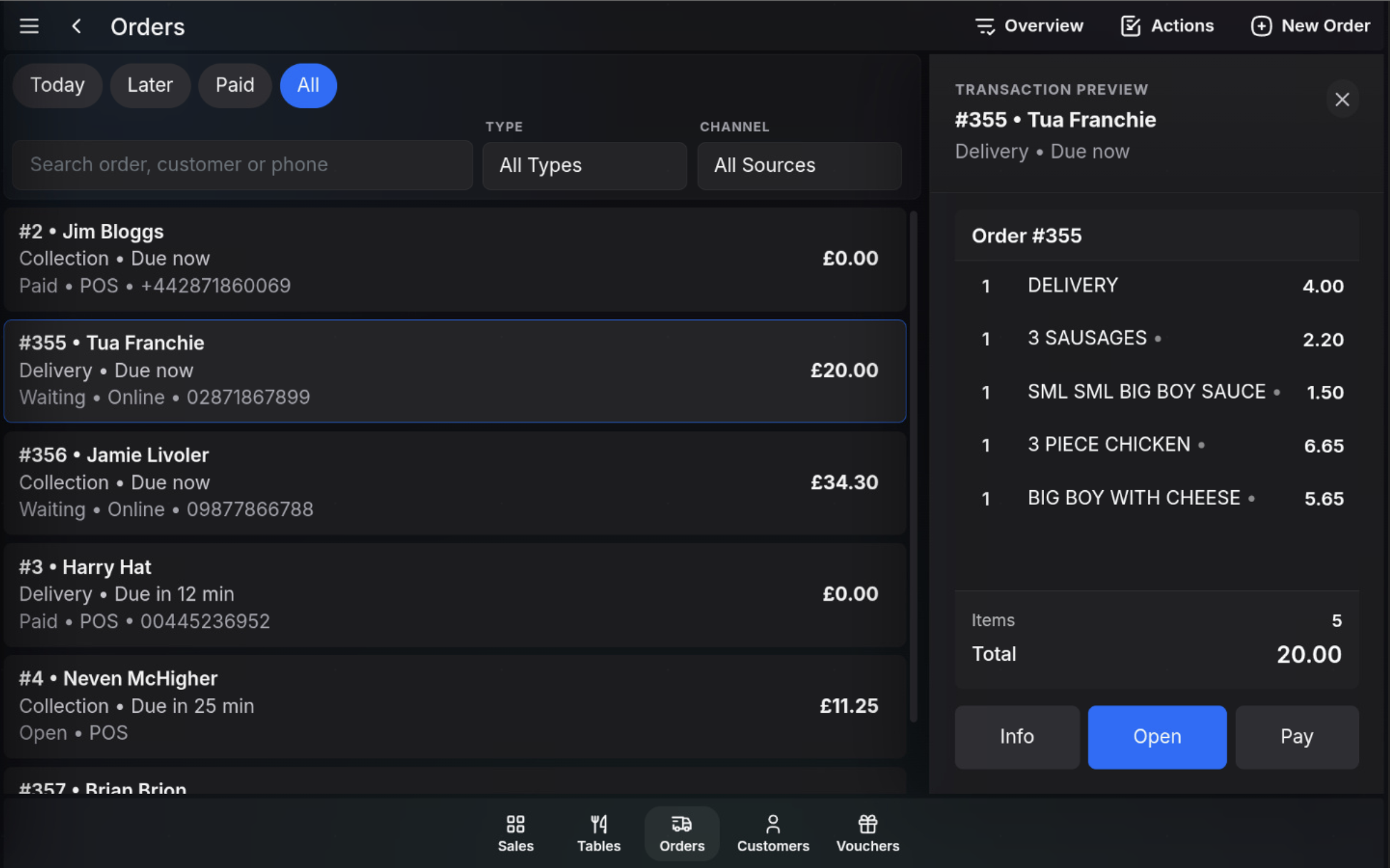
Choose Preview to view the transaction preview without opening the order for editing. The preview shows the order lines, item count, and total.
Open the order
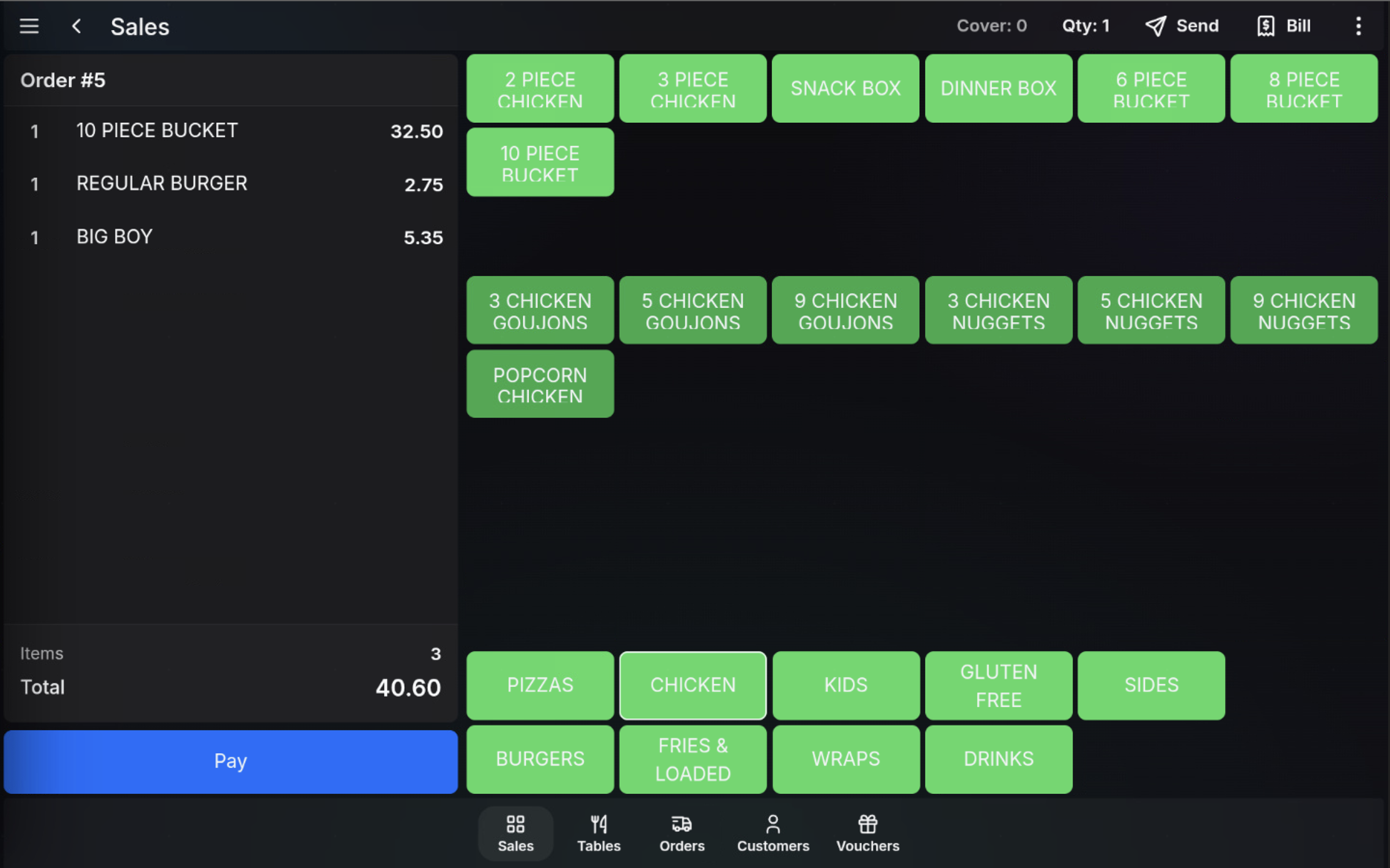
- Open opens the order on the sales screen so items can be reviewed, added, changed, sent, billed, or paid according to normal permissions.
Watch in action
Review a collection order
Edit an order
FAQ
What is the difference between Preview and Open?
Preview shows the order lines without opening the order for editing. Open loads the order onto the sales screen.
Can I pay from the order detail panel?
Yes. When the order is selected, use Pay from the detail panel if payment is available for that order.