Opening a Table
Open a table when guests are seated and you want to start a table order. The table can then hold items until the table is ready to pay.
Open a new table
- Select Tables from Functions or from your pinned functions.
- Choose the correct table area.
- Find the table in List view or on the graphical Map.
-
Select an empty table. Empty tables show as dark grey on the map.
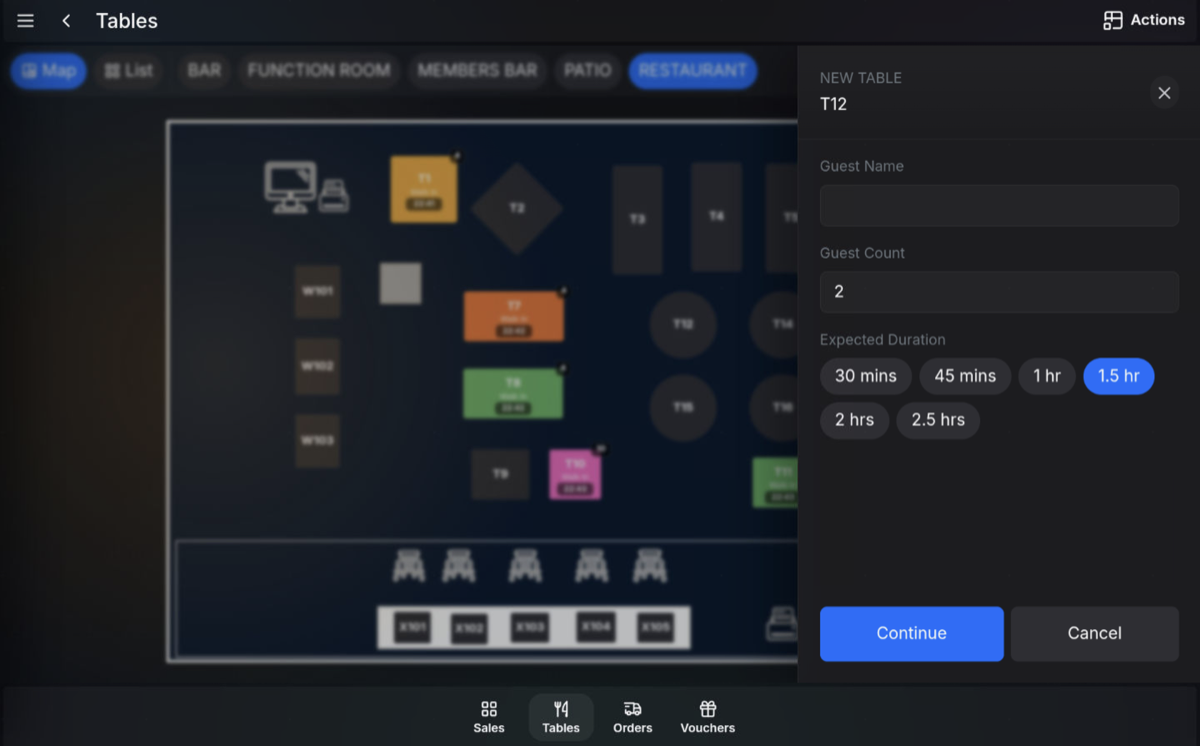
- In the New Table panel, enter the Guest Name if required.
- Enter or check the Guest Count. This defaults to the number of seats set for the table.
- Select the Expected Duration. This defaults to the expected duration set by the number of guests.
- Press Continue to open the table order, or Cancel to return without opening the table.
Existing tables: If you select a table that is already occupied, the POS opens the existing table order instead of starting a new one.
After the table opens
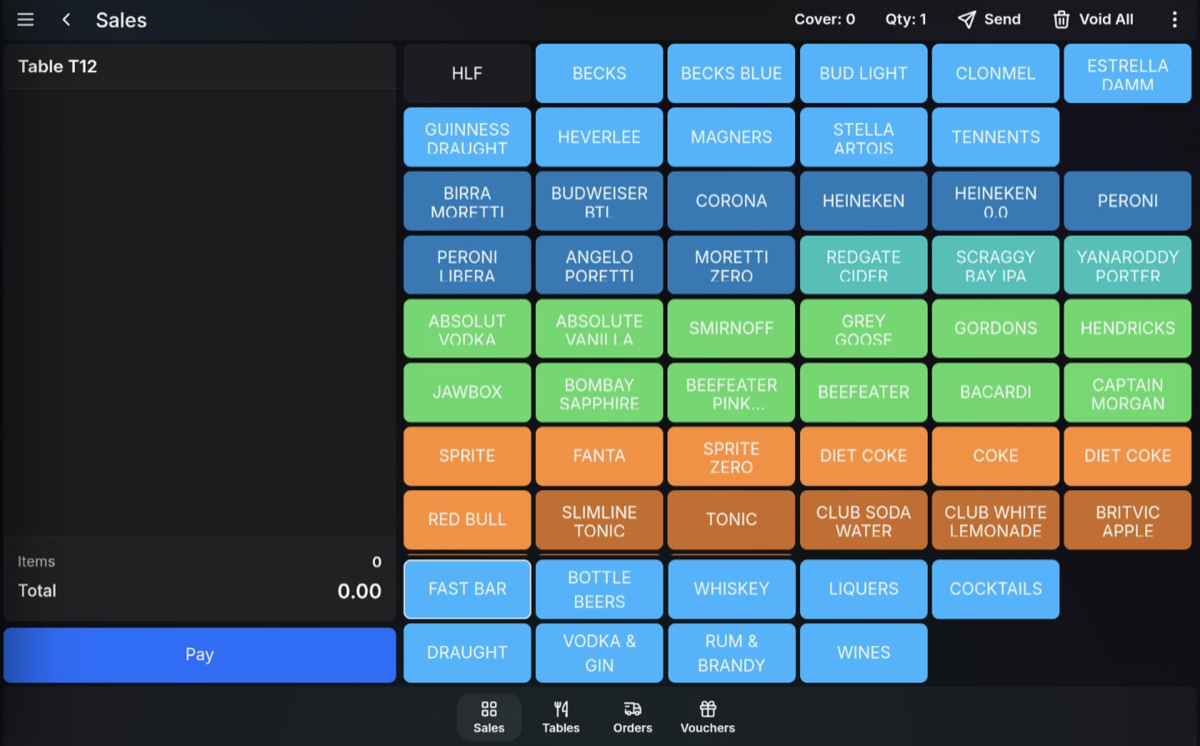
Once the table is open, the POS takes you to the sales screen so you can add products, quantities, modifiers, Sales Menus, Condiment Products, and Condiment Messages as needed.
Video walkthrough
Opening a new table
FAQ
Do I always need to enter covers?
No. Guest count is only requested when your POS setup requires it or allows it to be entered for the table.
Where does the guest name come from?
The guest name can come from a reservation, or it can be manually entered when reservations are not being used.