Pay an Order
Use Pay from the order detail or from the opened sales screen to take payment for an order.
Paid orders stay in the order list until they are finalised. Payment records the money against the order, but finalising is what removes it from the active order workflow.
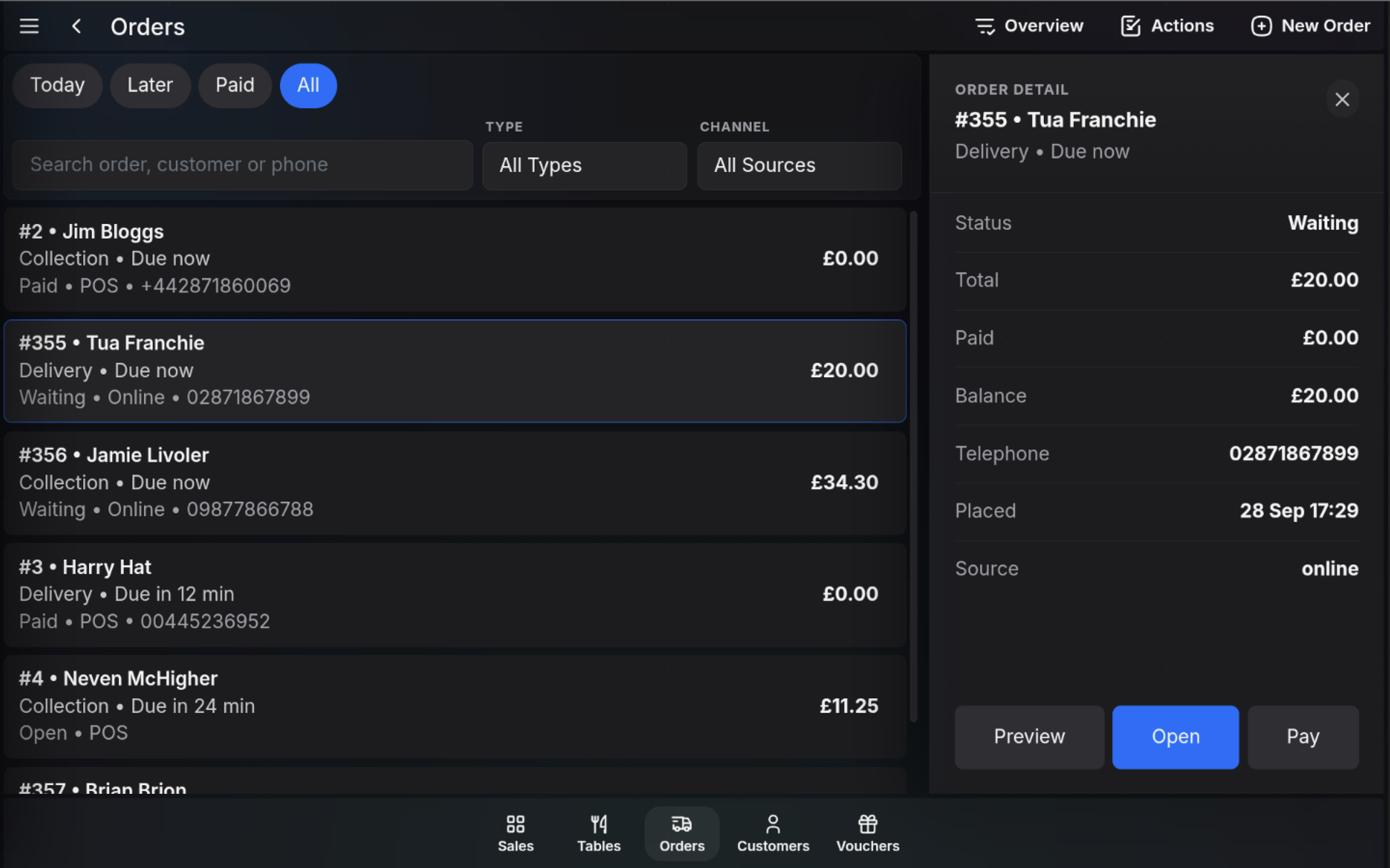
Pay from the order board
- Open Orders.
- Find the order using the tabs, search box, type filter, or source filter.
- Select the order card.
- Check the order detail panel, including Total, Paid, and Balance.
- Choose Pay.
- Complete the payment using the normal POS payment flow.
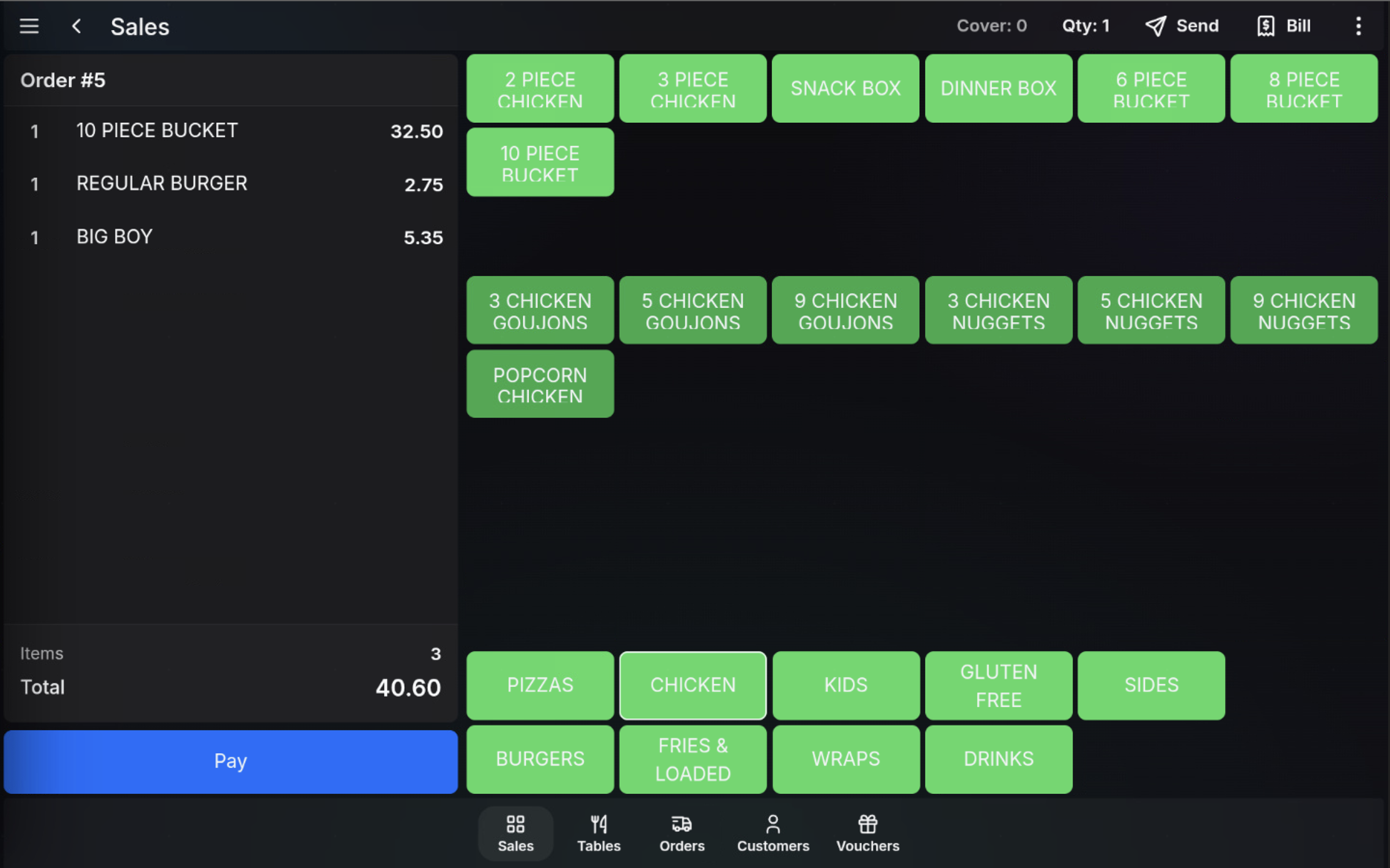
Pay from the opened order
- Select the order and choose Open.
- Review the order on the sales screen.
- Add, change, or send items if required and permitted.
- Choose Pay.
- Complete payment using the required tender.
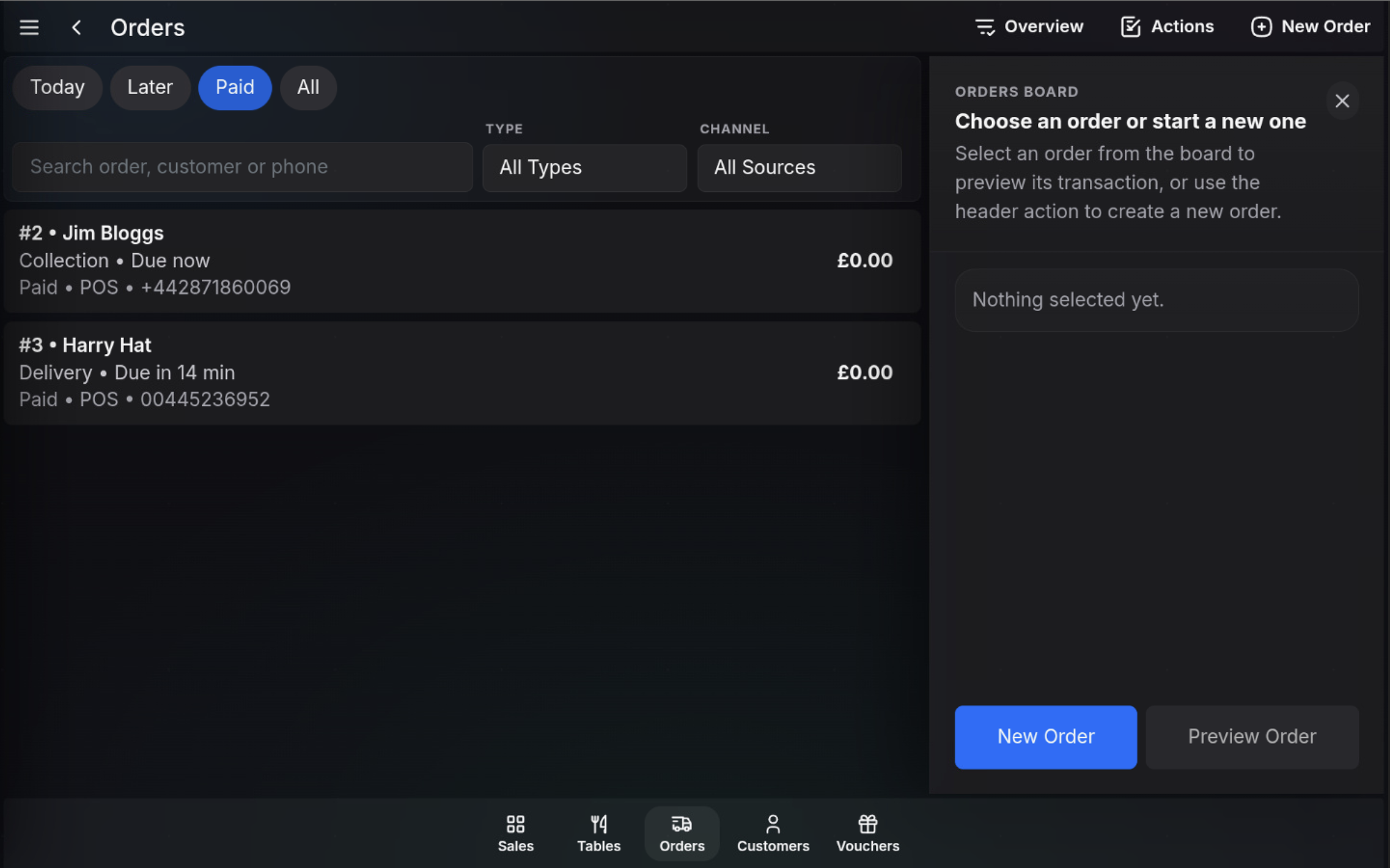
After payment
After the order is paid, it can still appear in the Orders list and the Paid filter. Finalise the order when the site workflow is complete so it no longer remains in the active order list.
Watch in action
FAQ
Does paying an order remove it from the Orders list?
No. Paid orders stay in the list until they are finalised.
Can I pay an order from the board or the sales screen?
Yes. Use Pay from the order detail panel, or open the order and use Pay on the sales screen.