Pay to Account
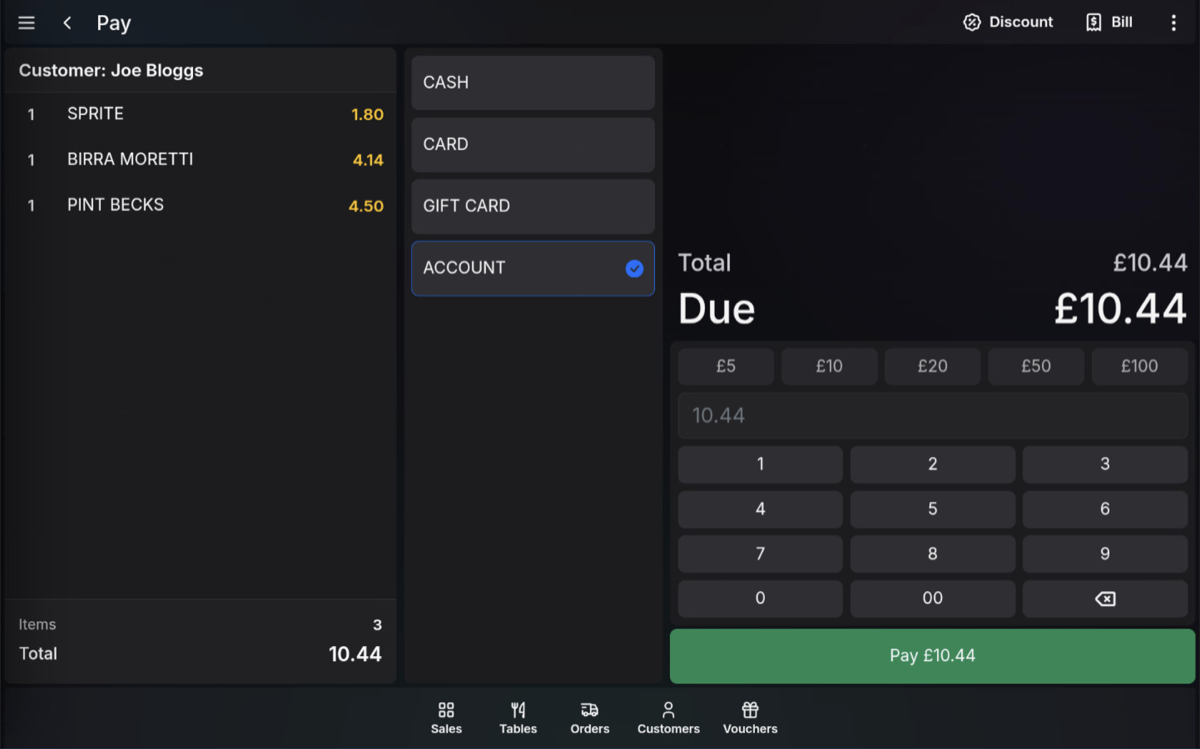
Use Account as the payment method when a customer is attached to the sale and has enough available balance to pay for the transaction.
Before taking payment
- Attach the customer to the sale.
- Check the customer's available balance and the remaining balance after the sale.
- Press Pay.
Select Account
- On the payment screen, select Account.
- Check that the payment amount matches the sale total.
- Press Pay to finalise the account payment.
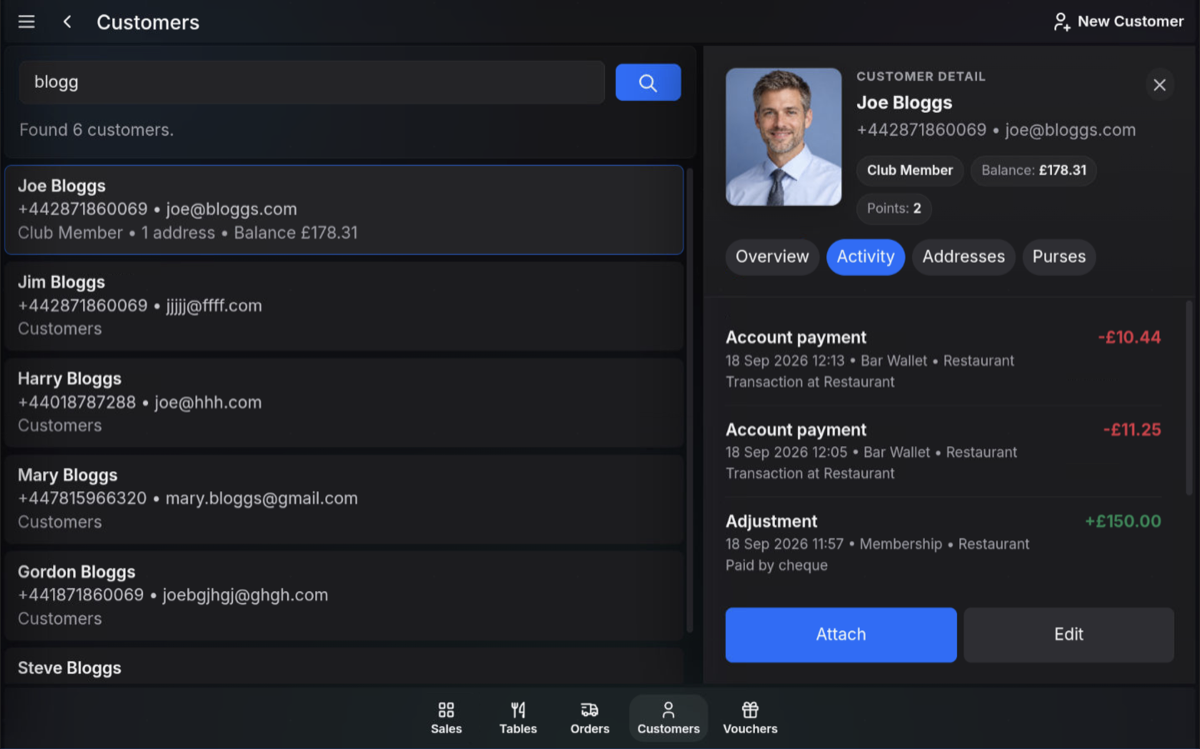
Customer Activity
After the sale is completed, the customer record activity is updated with the account payment. The customer's balance is reduced by the value of the transaction.
Available balance: Pay to Account should only be used when the customer's debit or credit balance allows the sale to be charged to their account.
FAQ
What happens to the customer balance?
The transaction value is deducted from the customer's available account balance when the sale is finalised.
Where can I check the account payment afterwards?
Open the customer record and view the Activity tab to see the account payment entry.