Product Buttons
Product buttons add items to the current transaction. The way a product button behaves depends on how the product has been set up.
Simple product buttons
A simple product button sells the product as soon as it is pressed.
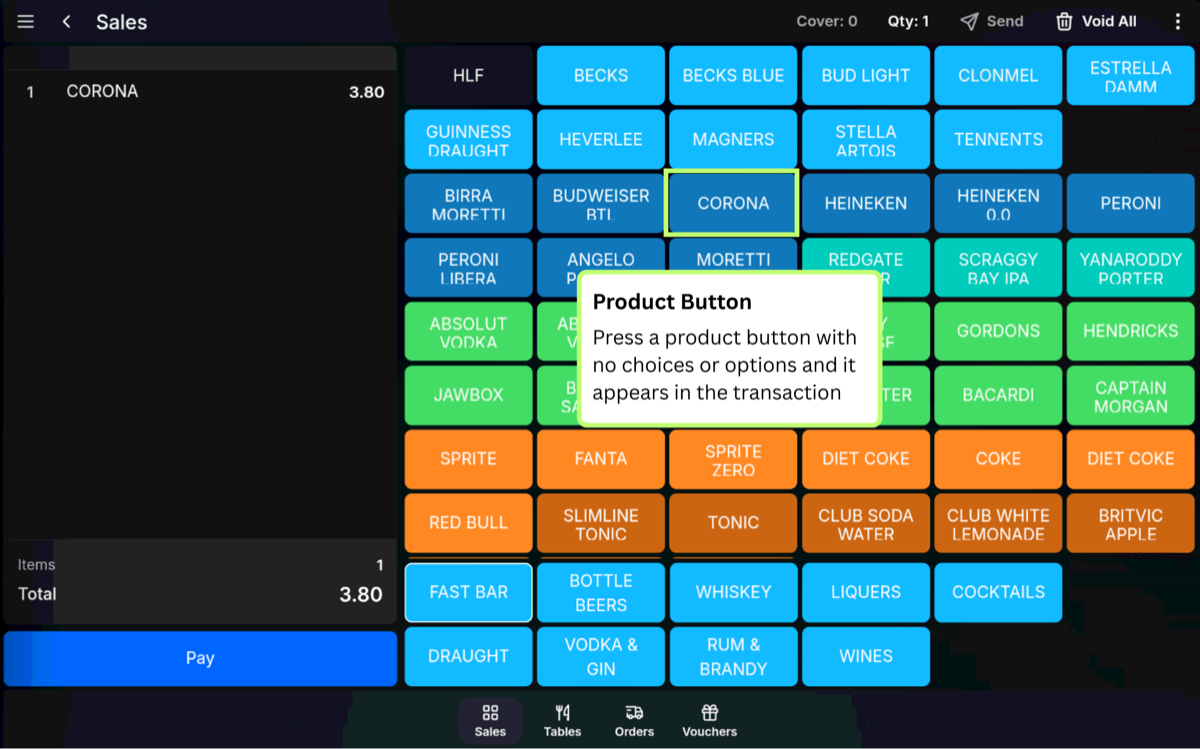
For example, pressing Bottle of Beer adds that bottled beer to the transaction.
Modifier product buttons
A modifier product button sells the product using its default sales unit when the button is pressed. If a modifier is selected, a different sales price and stock unit for the same product is sold instead.
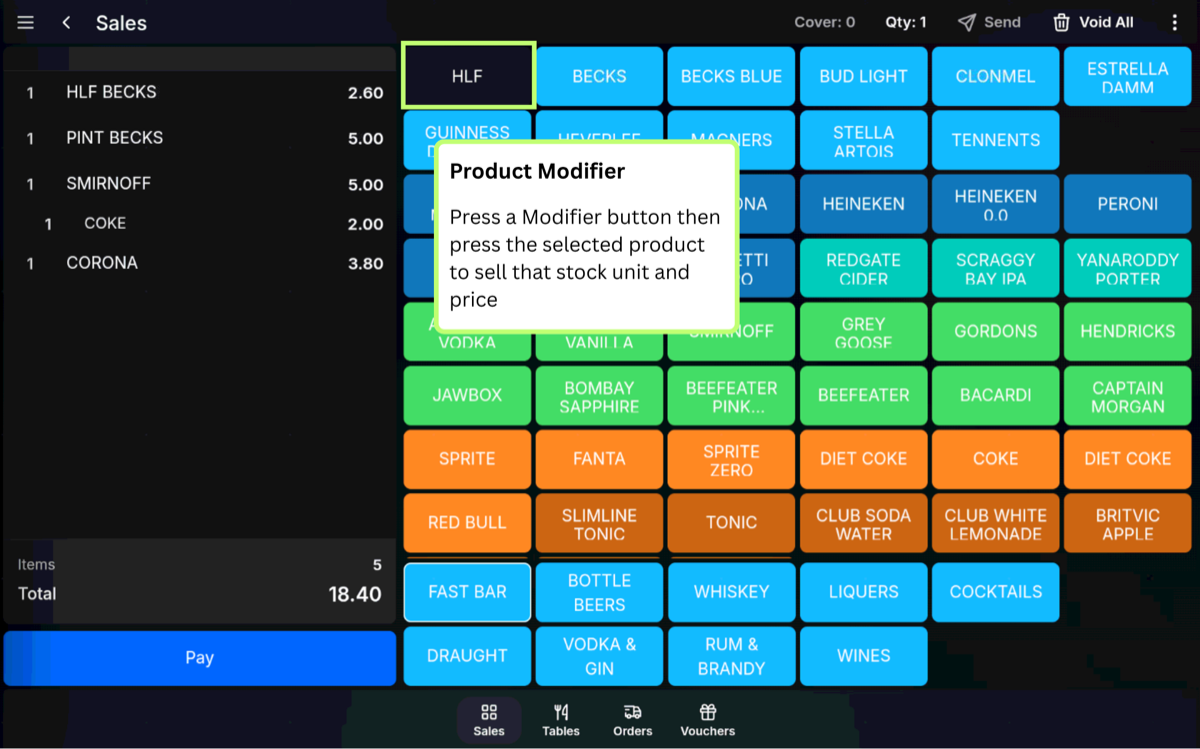
For example, pressing Draught Beer may sell a pint. Pressing Half Pint as a modifier sells the half-pint modifier. Pizza sizes such as Small, Medium, and Large can also be set up this way.
Products with sales menus
A product can open a Sales Menu that prompts for an additional choice. These choices are normally priced.
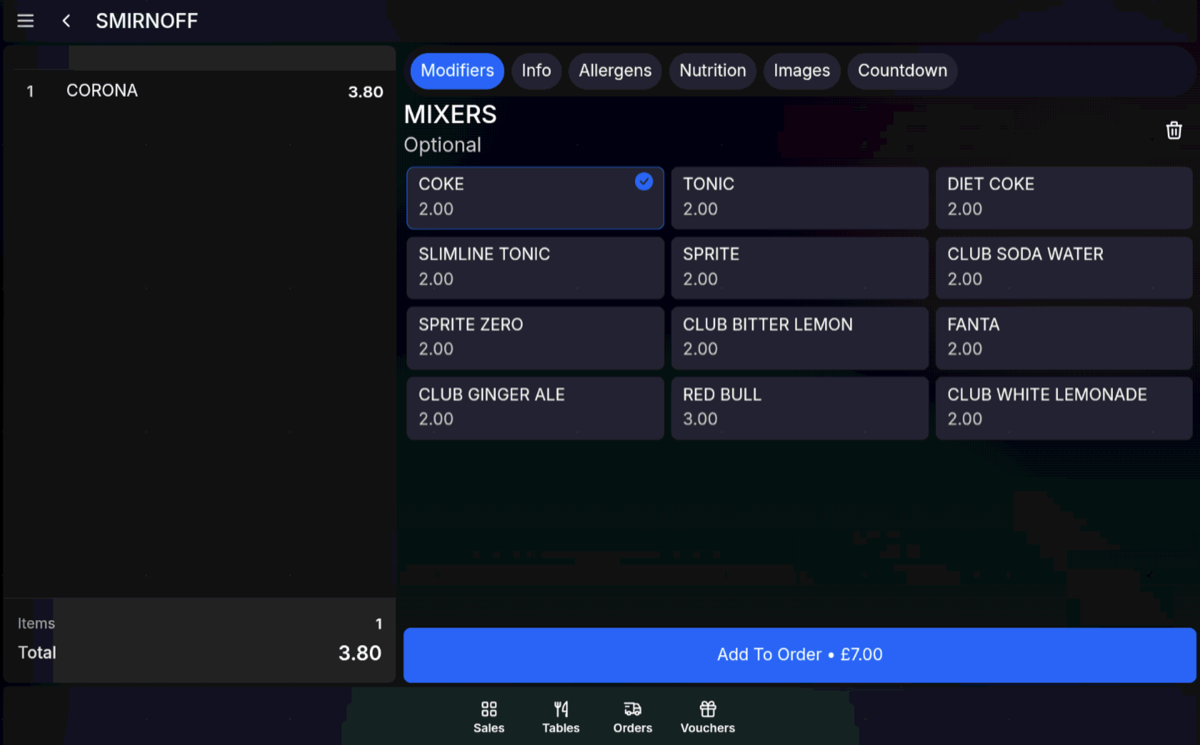
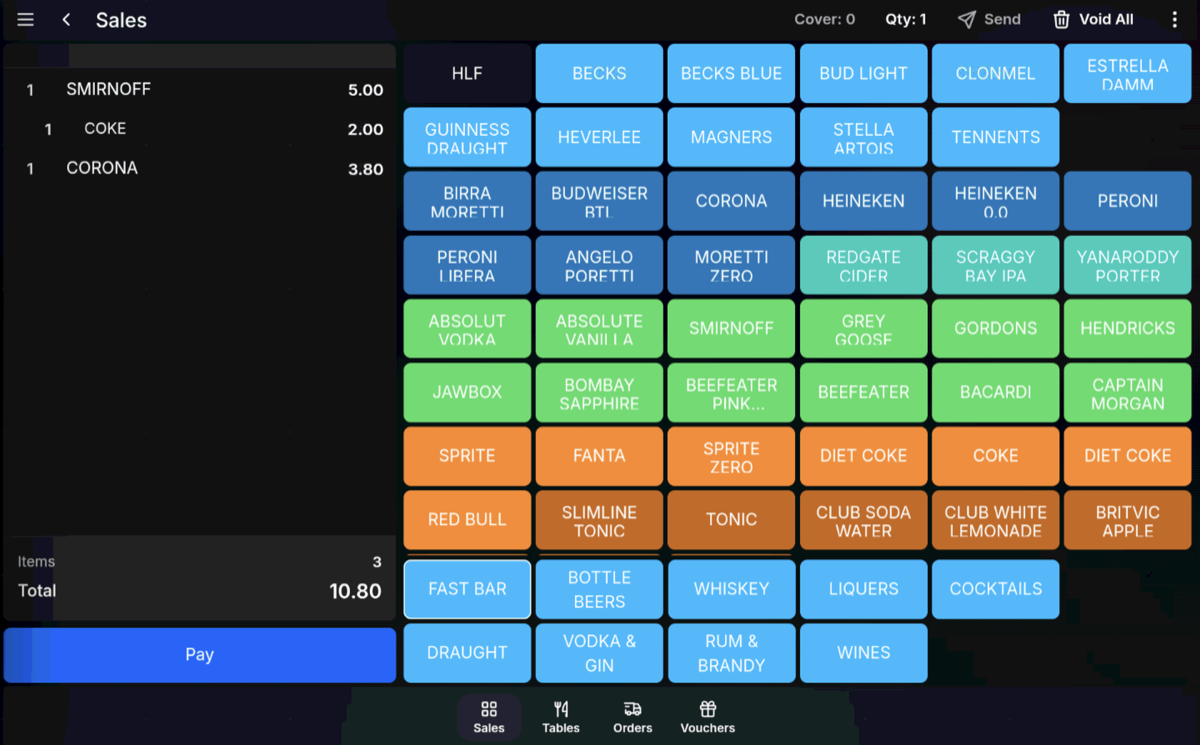
For example, pressing Spirit with Mixer may prompt the user to choose the mixer.
Products with condiment products
A product can prompt for Condiment Products. These are normally additional priced items.
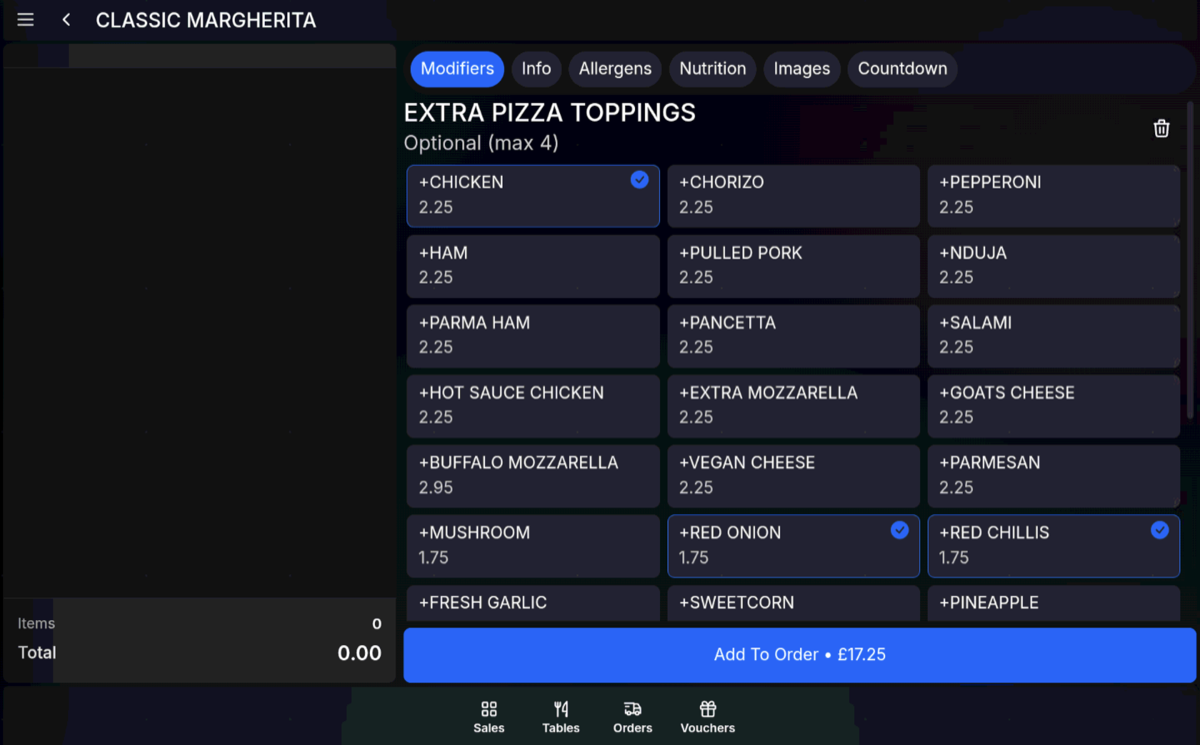
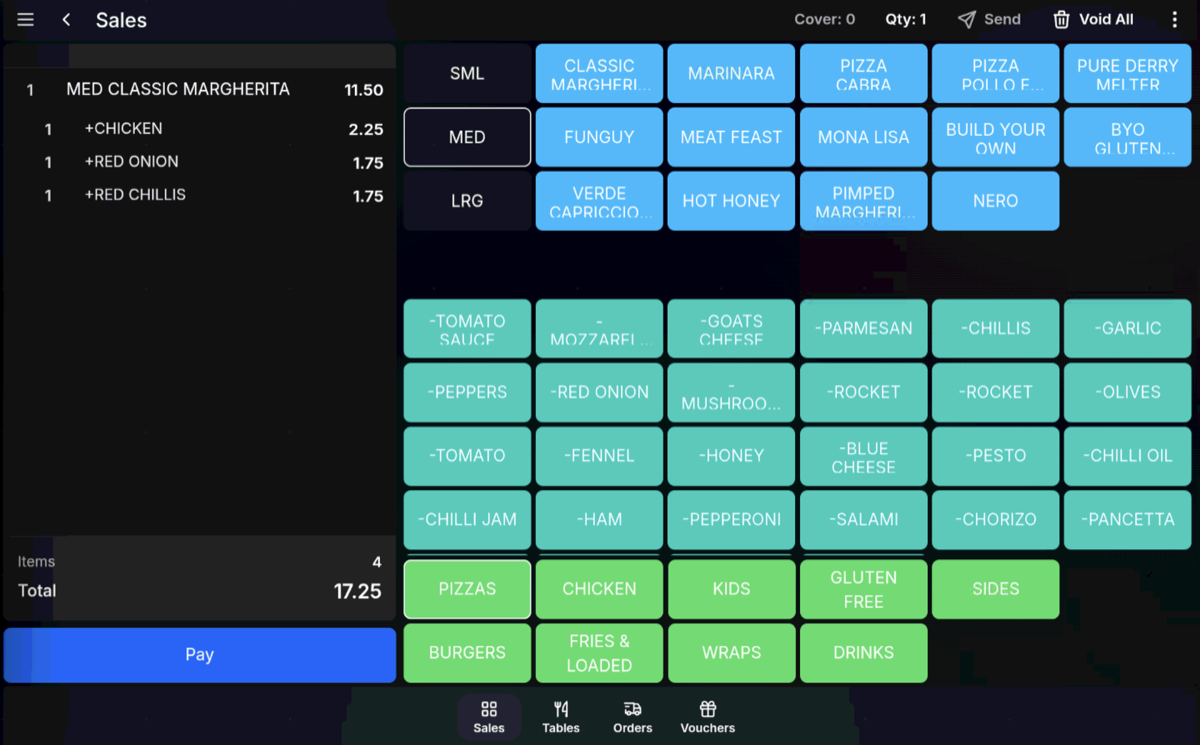
For example, a pizza product may prompt for extra toppings.
Products with condiment messages
A product can prompt for Condiment Messages. These are description-only choices and do not add a price.
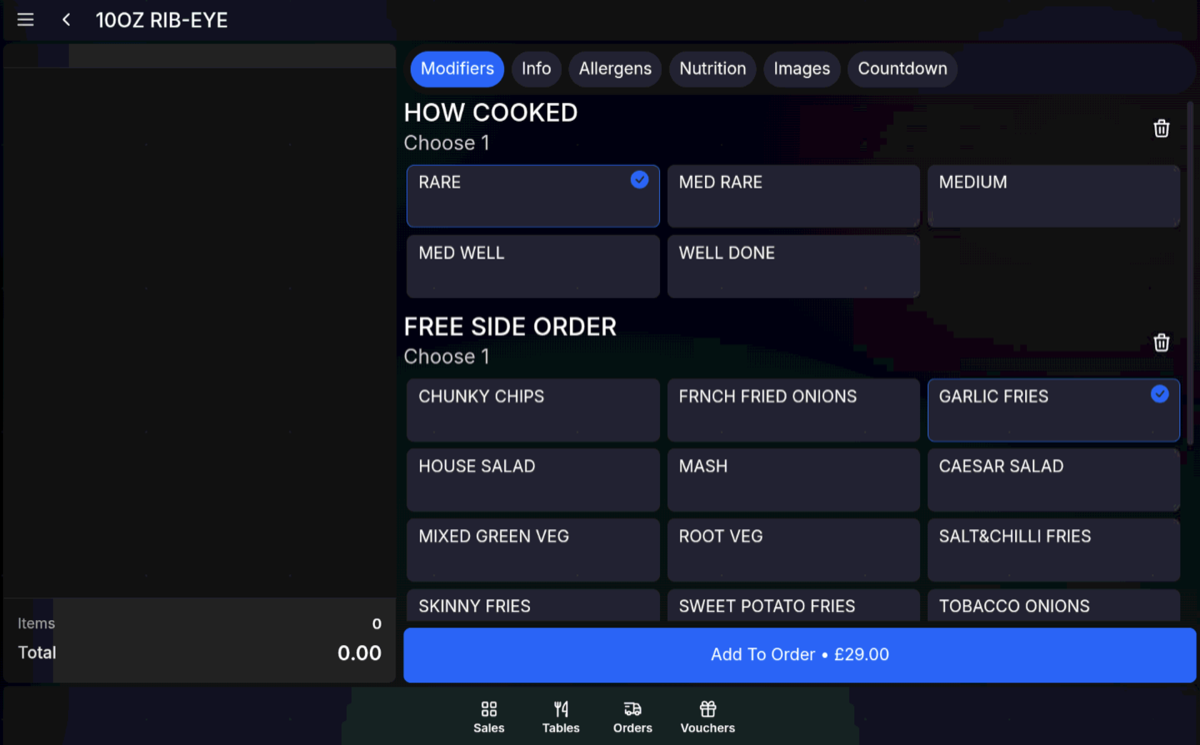
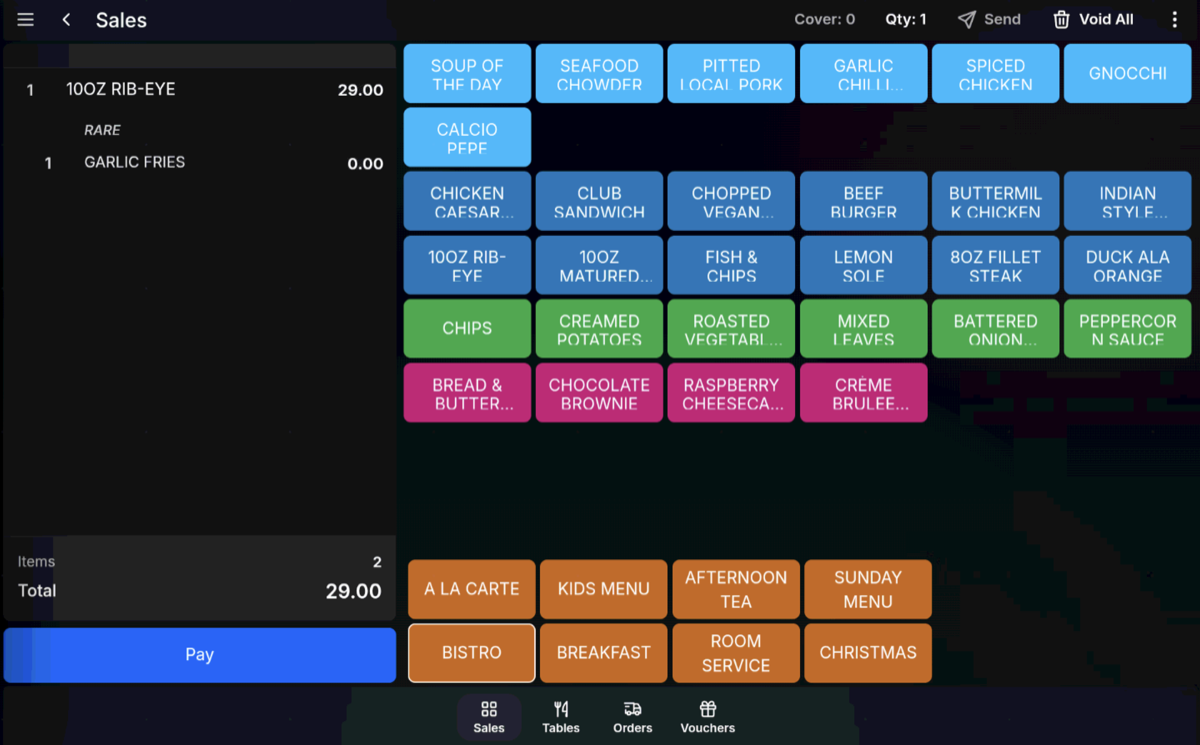
For example, a steak may prompt for How Cooked, or a sandwich may prompt for a bread choice.
Choice limits: Minimum and maximum quantities can be set against Sales Menus and Condiment Messages to limit choices or make a choice compulsory.
Printing: Condiments and Condiment Products follow the printing rules of the parent product.