Refund Mode
Use Refund Mode when you need to refund products directly from the sales screen. The available options are controlled by the user's User Role.
User Role restriction: Refunds are security controlled and may require the PIN or biometric finger-vein approval of an authorised user.
Refund using Refund Mode
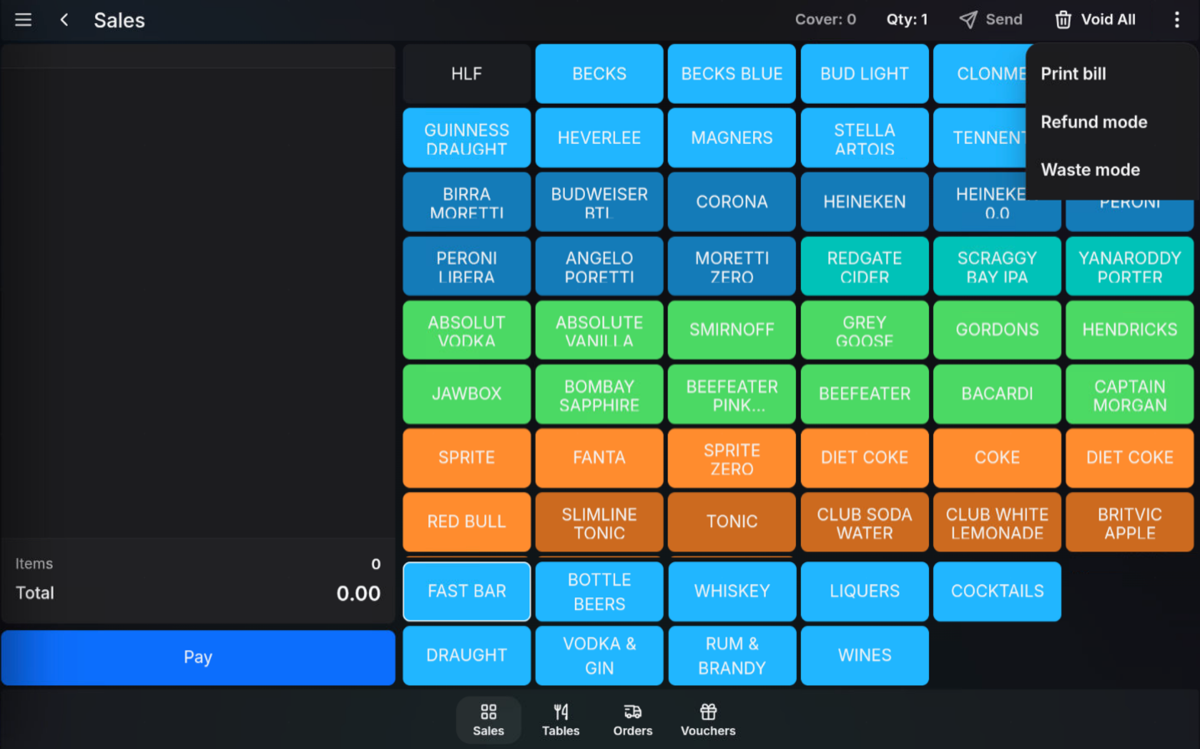
- Open Other Functions.
-
Select Refund Mode.
-
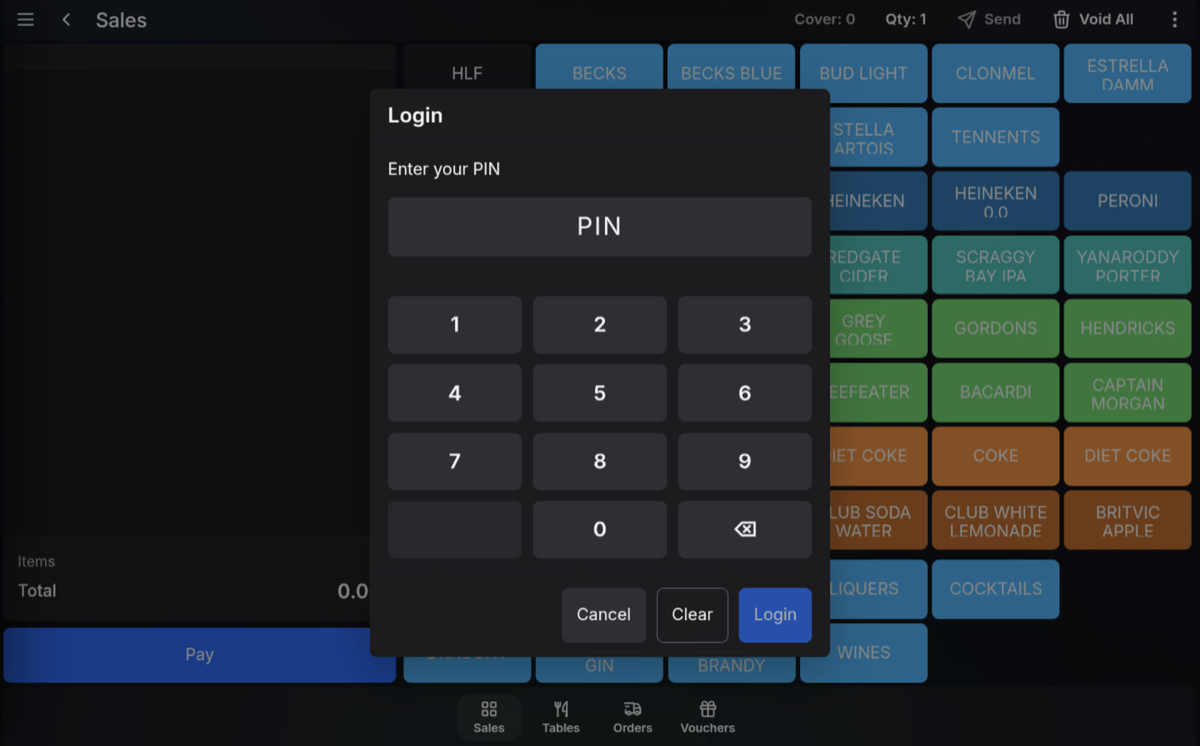
Enter your PIN if required by your User Role.
-
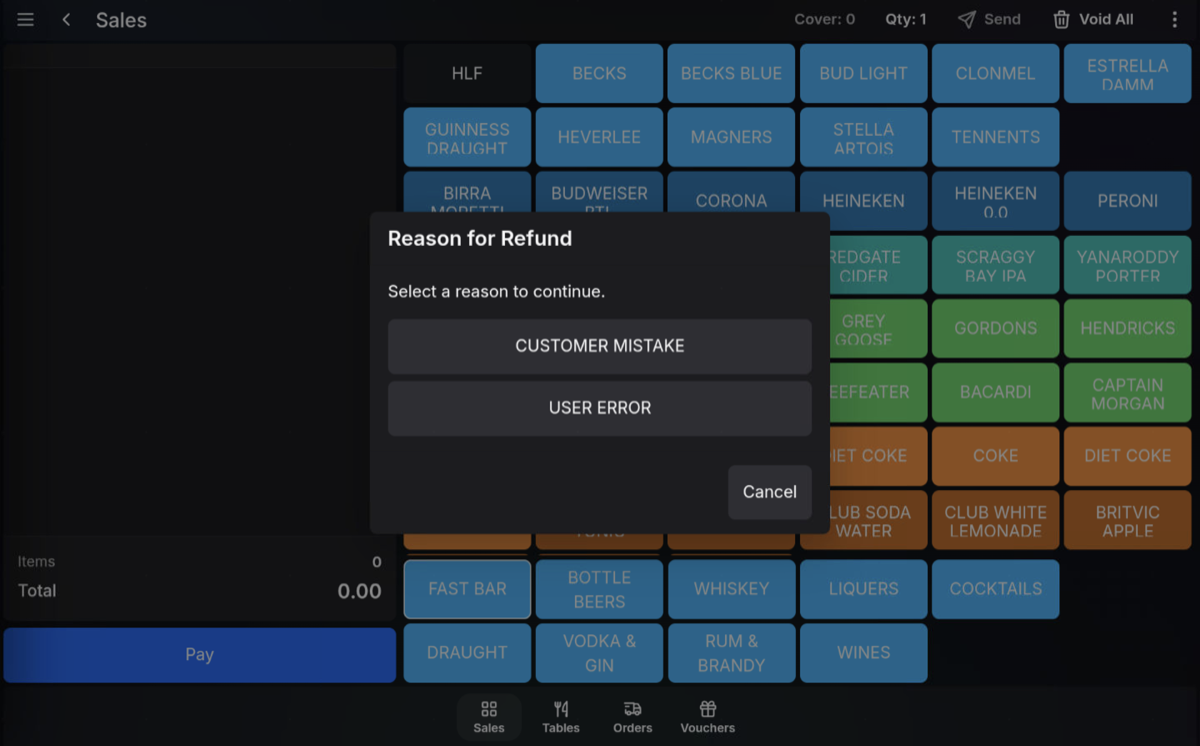
Select a refund reason if one is required.
-
Select the products to be refunded.
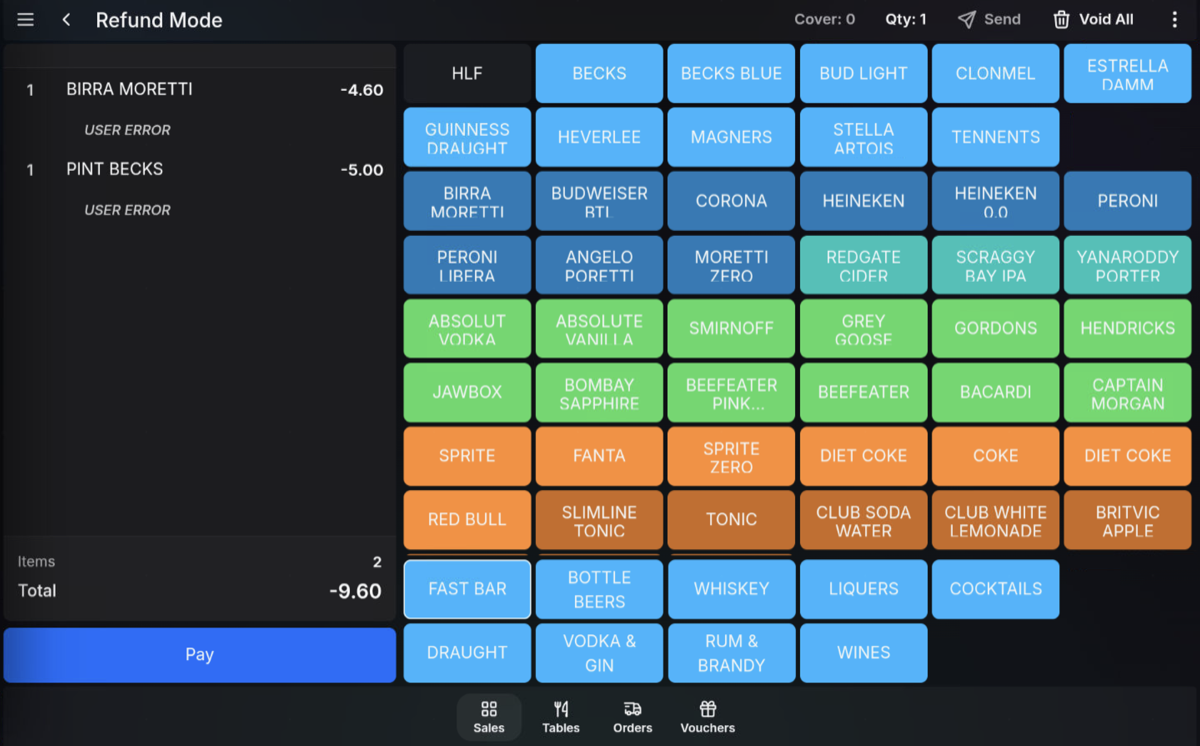
- Press Pay.
-
Select the refund tender.
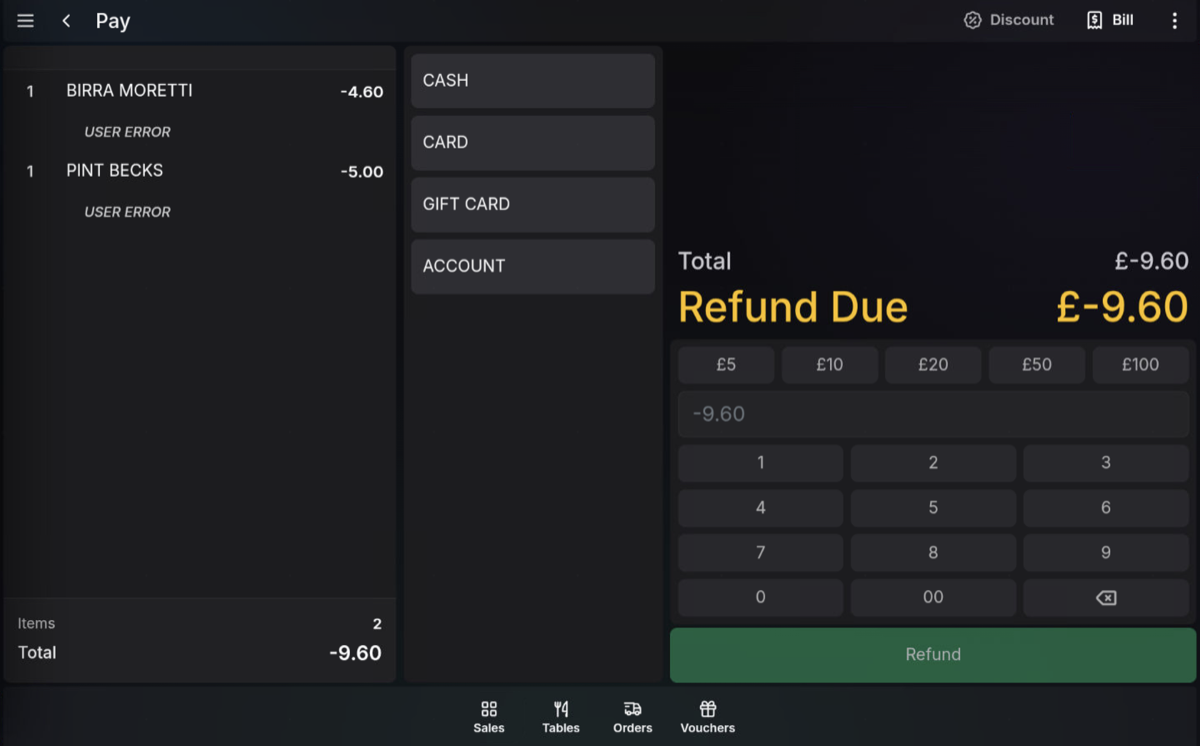
- Press Refund to finalise the refund.
Refund tenders
Select the tender that matches how the refund should be returned to the customer.
- Cash: Give the customer the cash refund amount from the drawer.
- Card: Refund the amount to the original card that paid for the transaction.
FAQ
Can every user process refunds?
No. Refund access is controlled by User Role and may require authorisation from another user.
When is a refund reason needed?
A refund reason is requested when the POS is configured to require one for that refund action.