Refund Transaction
Use Refund Transaction when refunding from a previous transaction. The available refund options are controlled by the user's User Role.
User Role restriction: Refunds are security controlled and may require the PIN or biometric finger-vein approval of an authorised user.
Open the transaction
-
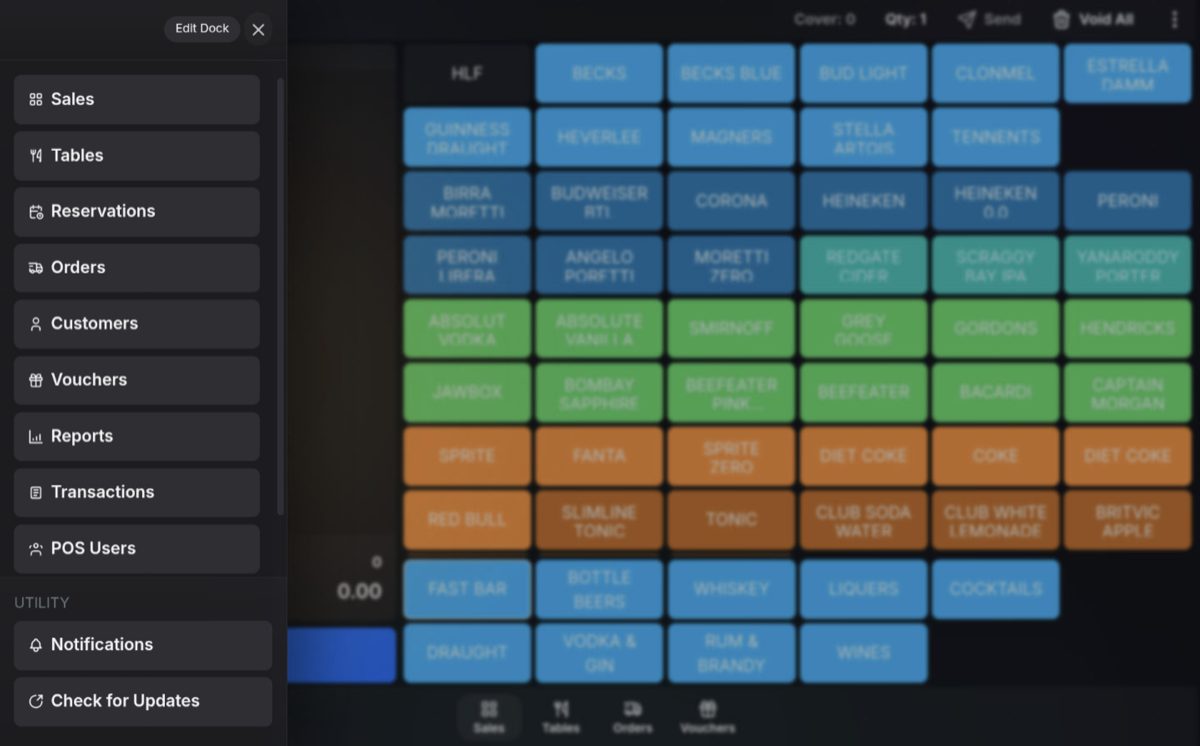
Open Transactions.
-
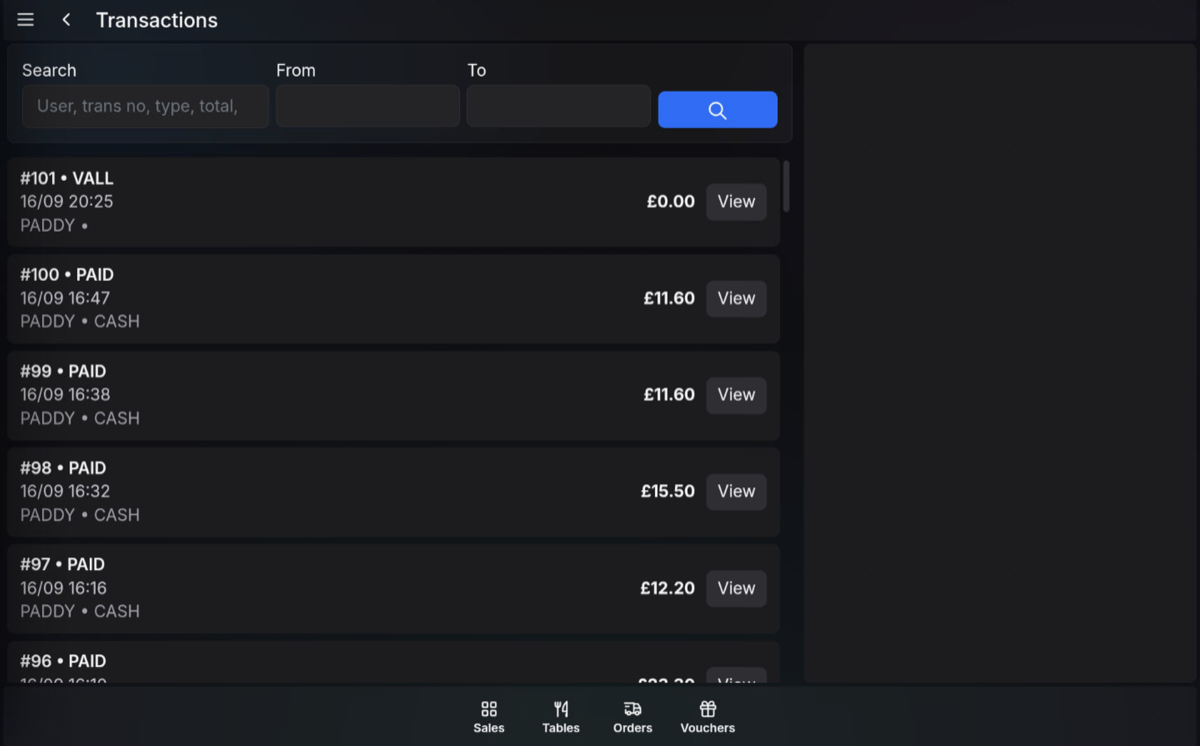
Select the required transaction.
-
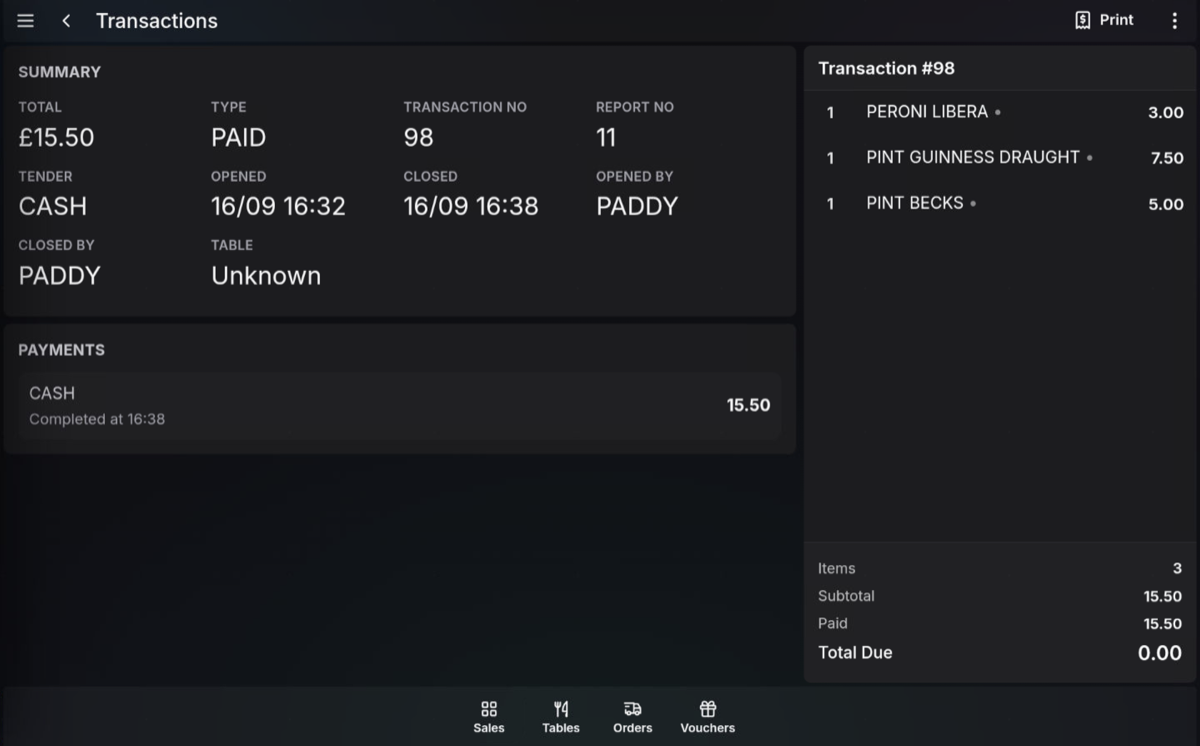
View the transaction detail.
Refund highlighted product lines
-
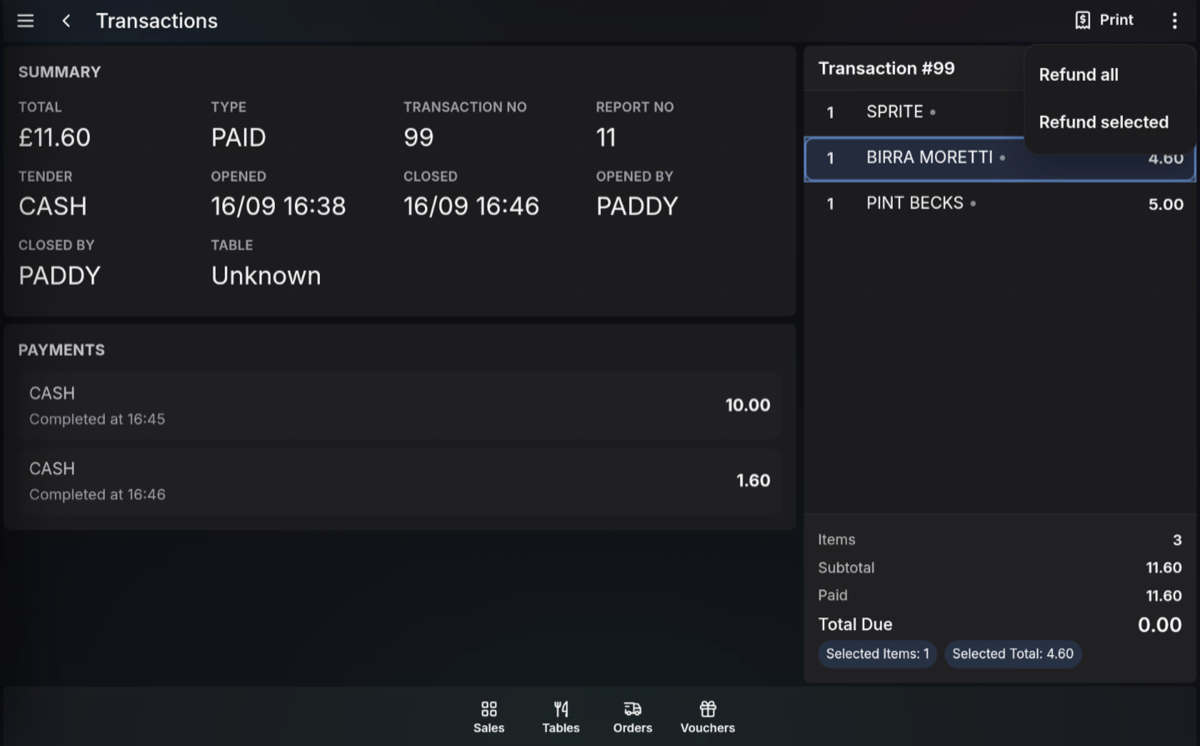
From the transaction detail, highlight the product line or multiple product lines to refund.
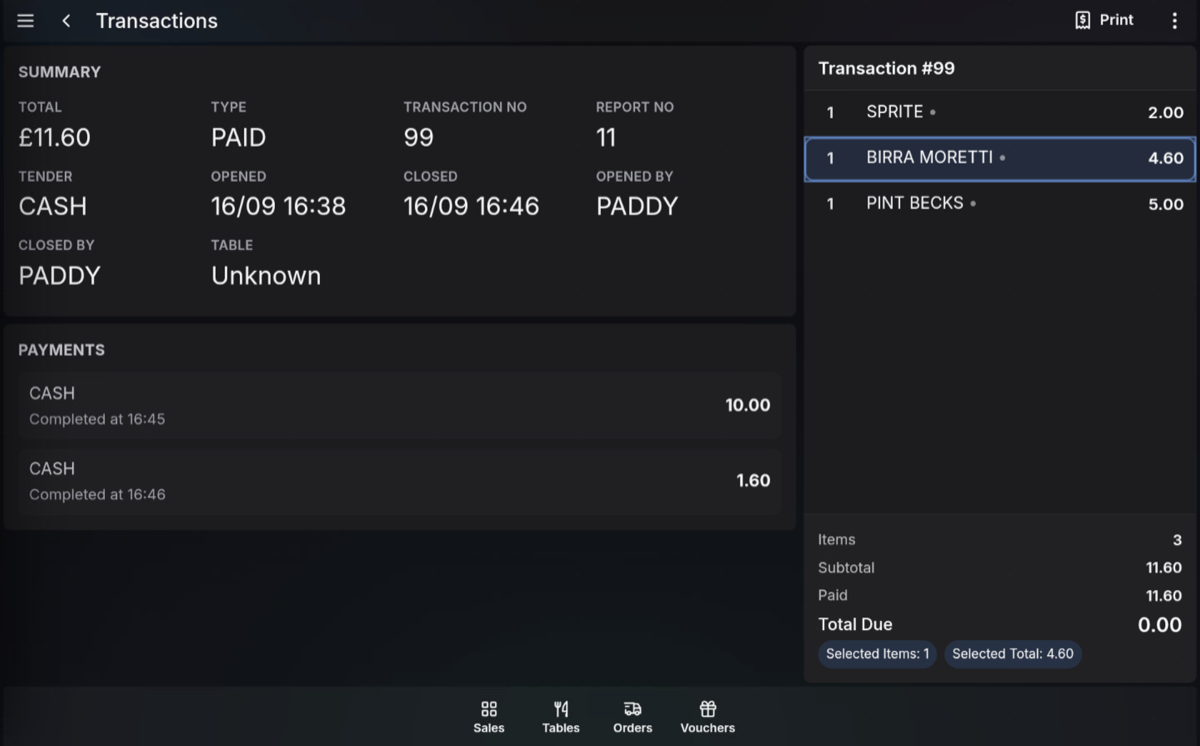
- Open Functions.
-
Press Refund Selected.
-
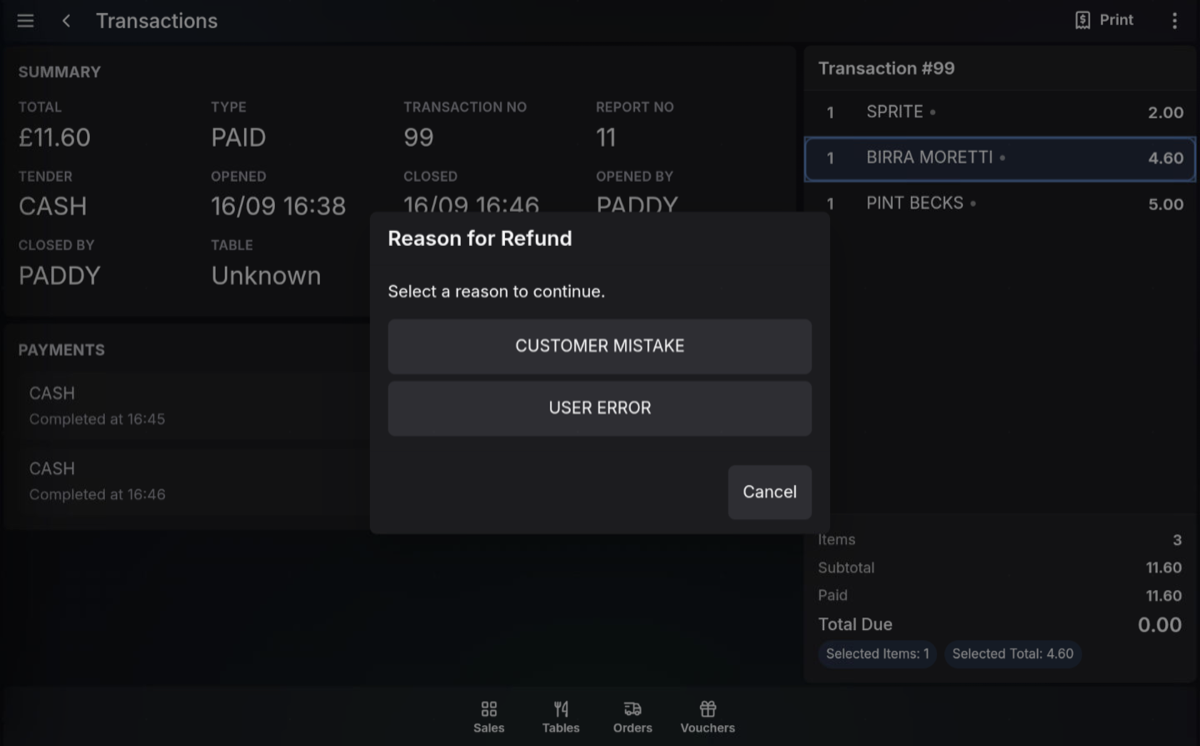
Select a refund reason if one is required.
-
Select the refund tender.
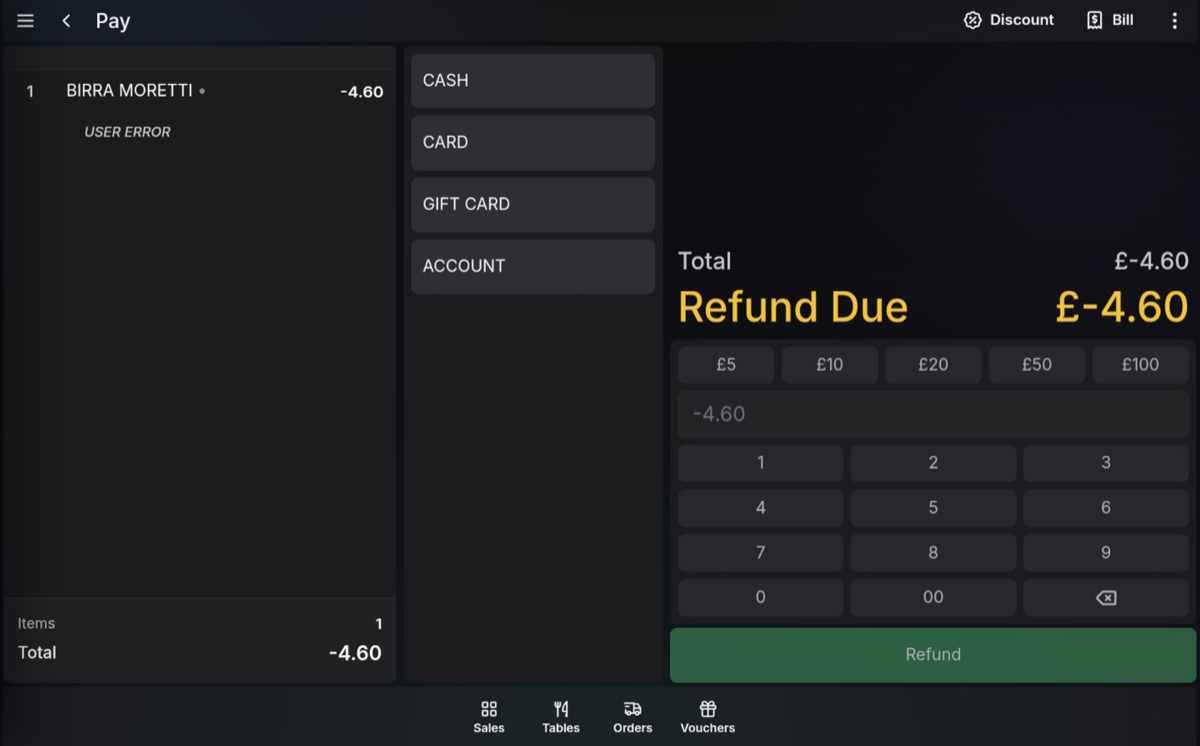
- Press Refund to finalise the refund.
Refund all items
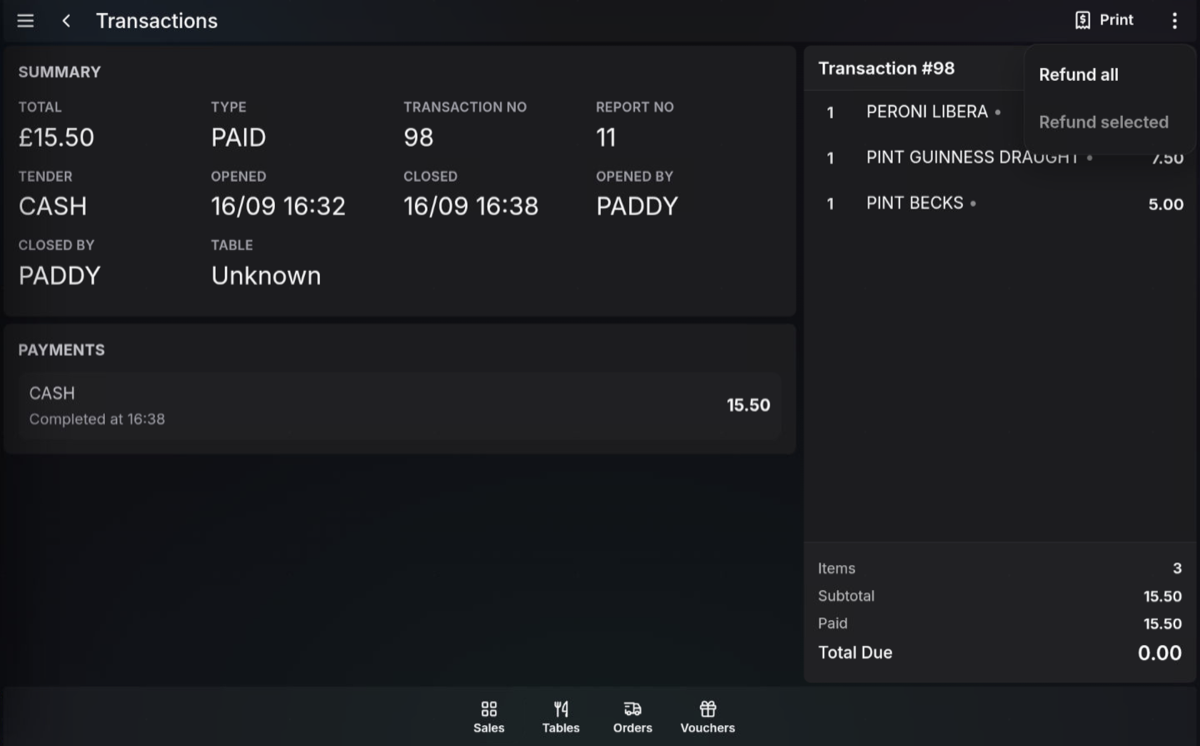
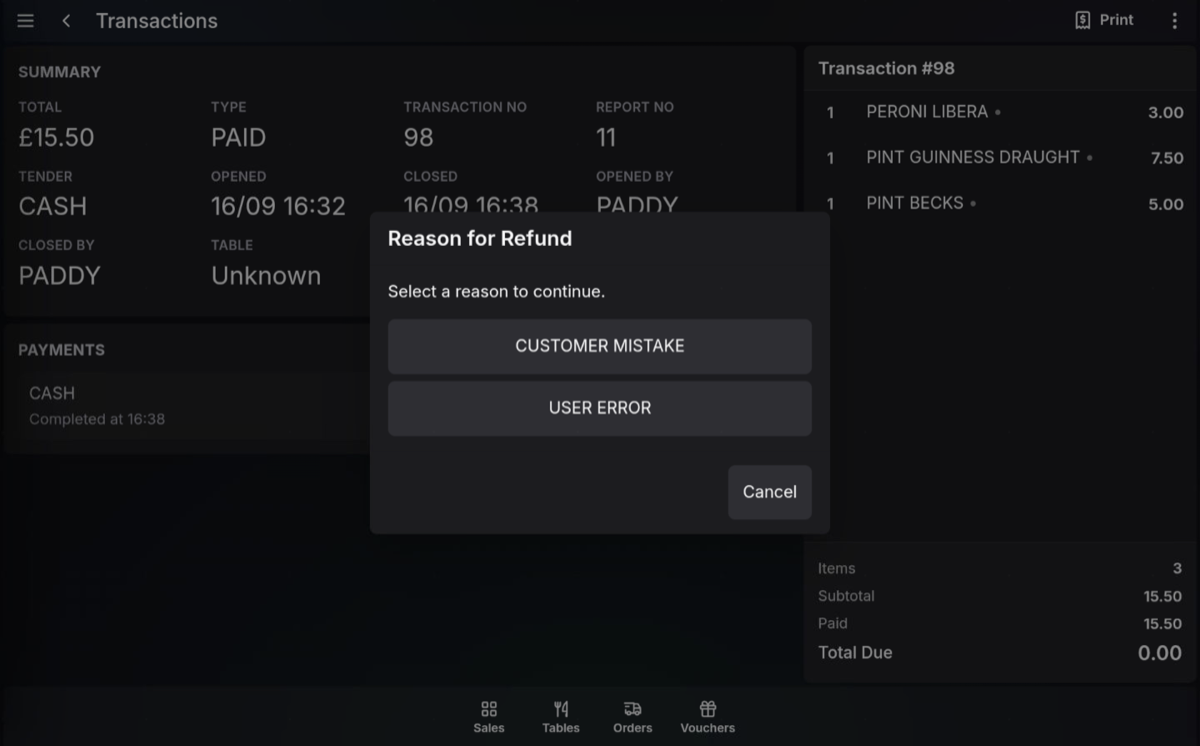
- From the transaction detail, open Functions.
-
Press Refund All.
-
Select a refund reason if one is required.
-
Select the refund tender.
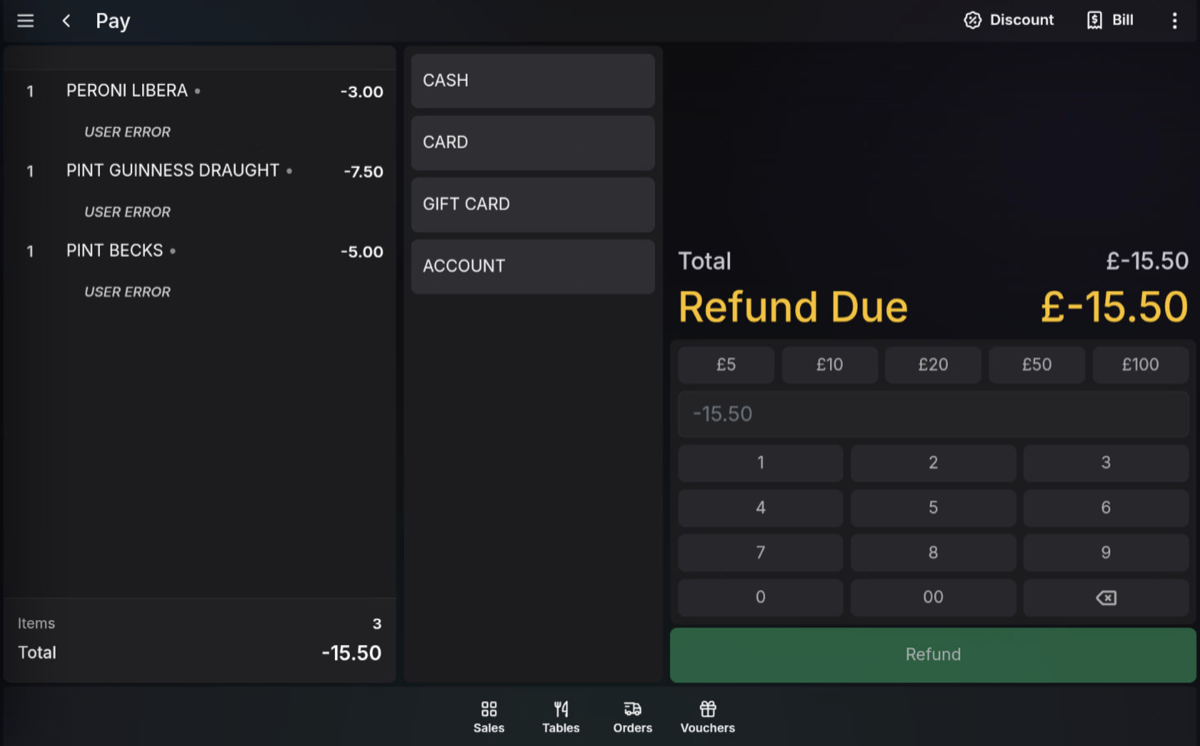
- Press Refund to finalise the refund.
Refund tenders
Select the tender that matches how the refund should be returned to the customer.
- Cash: Give the customer the cash refund amount from the drawer.
- Card: Refund the amount to the original card that paid for the transaction.
FAQ
Can I refund only some items from a transaction?
Yes. Highlight the product line or multiple product lines in the transaction detail, then use Refund Selected.
Can I refund the whole transaction?
Yes. Use Refund All from the transaction detail functions when your User Role permits it.