Sending a Table
Send a table when the order needs to be saved against the table and sent to the relevant printers or kitchen displays. You can send the table directly, or send it by logging off from the table.
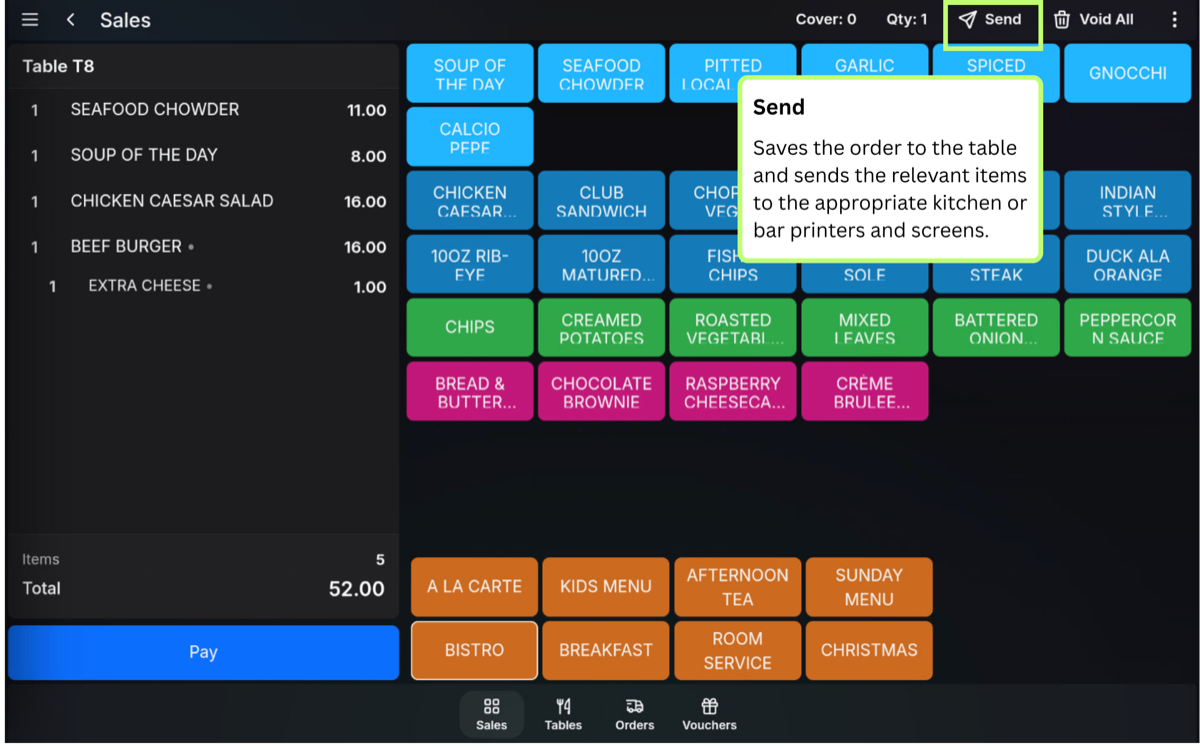
Send using the Send button
- Add the required items to the table.
- Press Send.
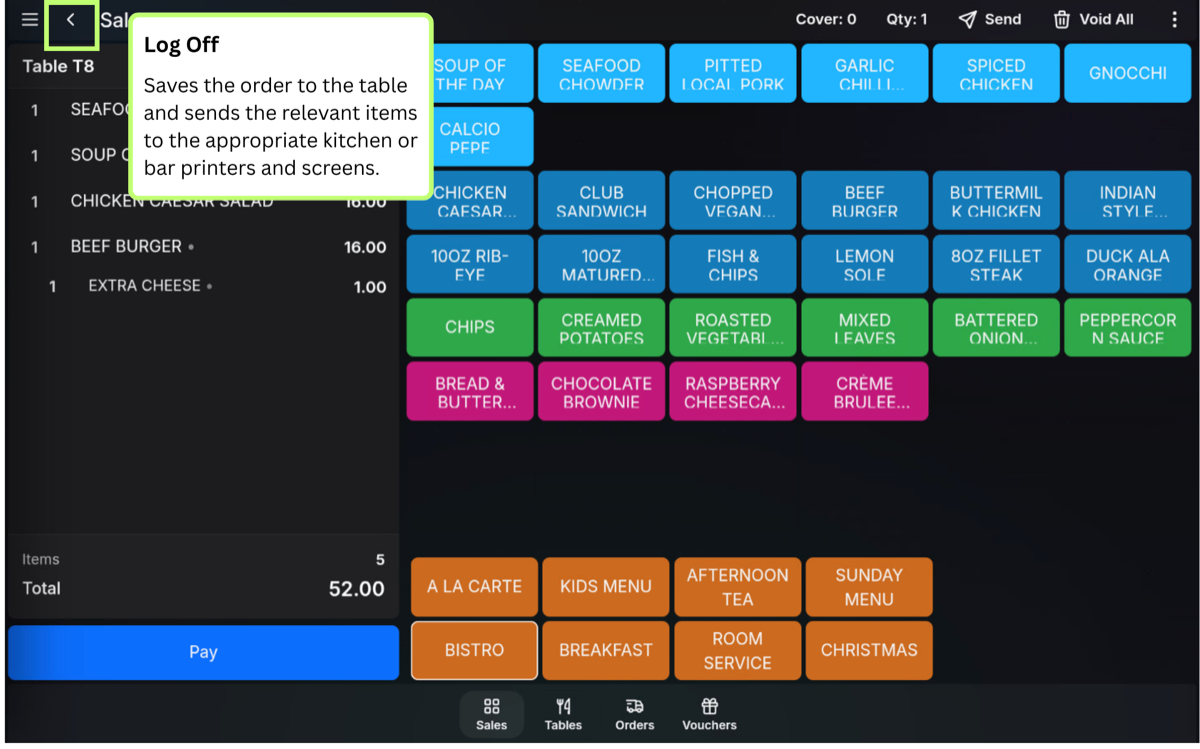
Send by logging off
- Add the required items to the table.
- Use the back arrow or log off option to leave the table.
- The table is sent and saved so it can be opened again later.
Send on App
- Add the required items to the table.
- Press Review.
- Press the Send icon, shown as a paper arrow.
Before leaving the table: Check that all items have been added correctly. Once sent, items may print or appear on kitchen displays depending on your setup.
FAQ
Does sending close the table?
No. Sending saves the order against the table. The table remains occupied until it is paid or otherwise cleared.
Can I add more items later?
Yes. Open the table again, add the extra products, then send the table again.