Split Bill
Use Split Bill when customers want to pay for selected items separately from the rest of the table.
Select items to pay
-
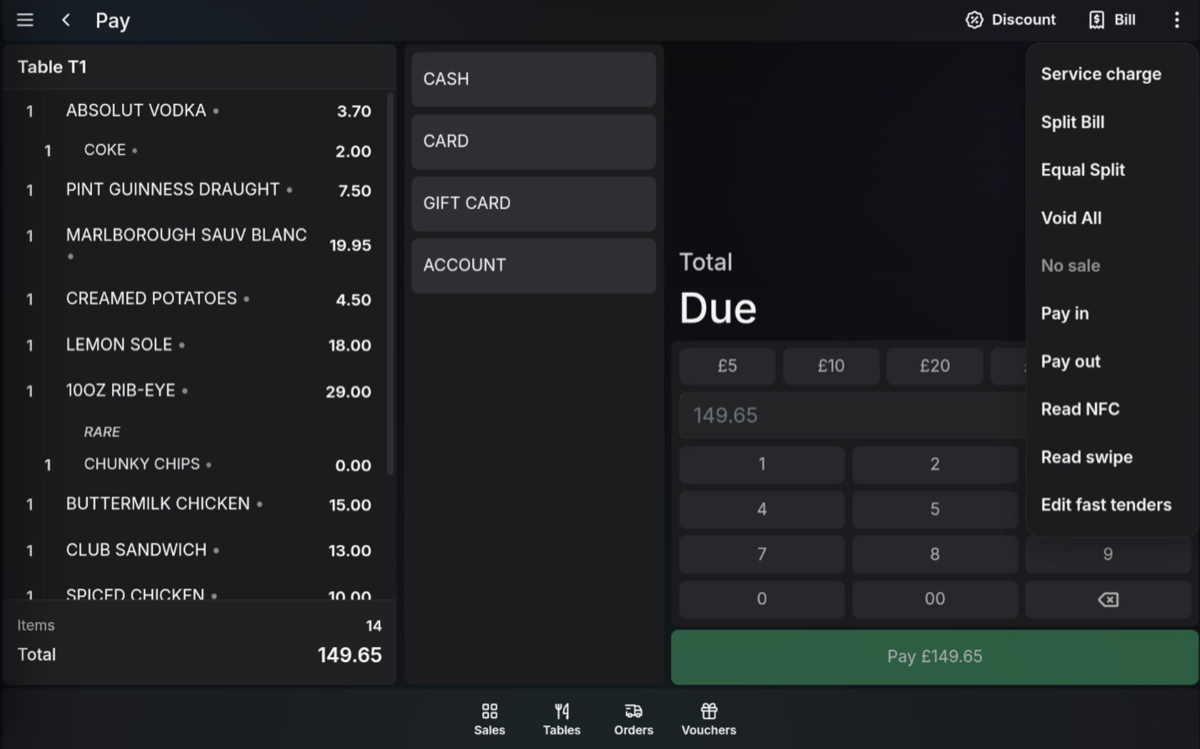
Open the table and press Split Bill.
-
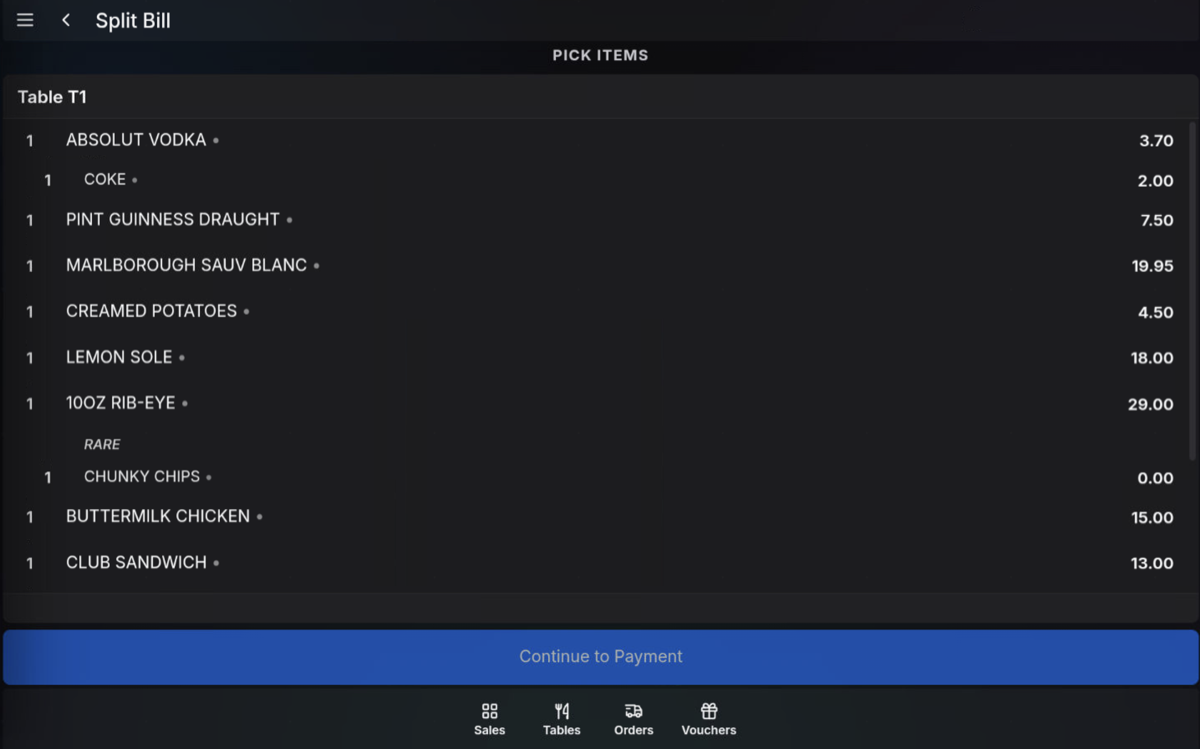
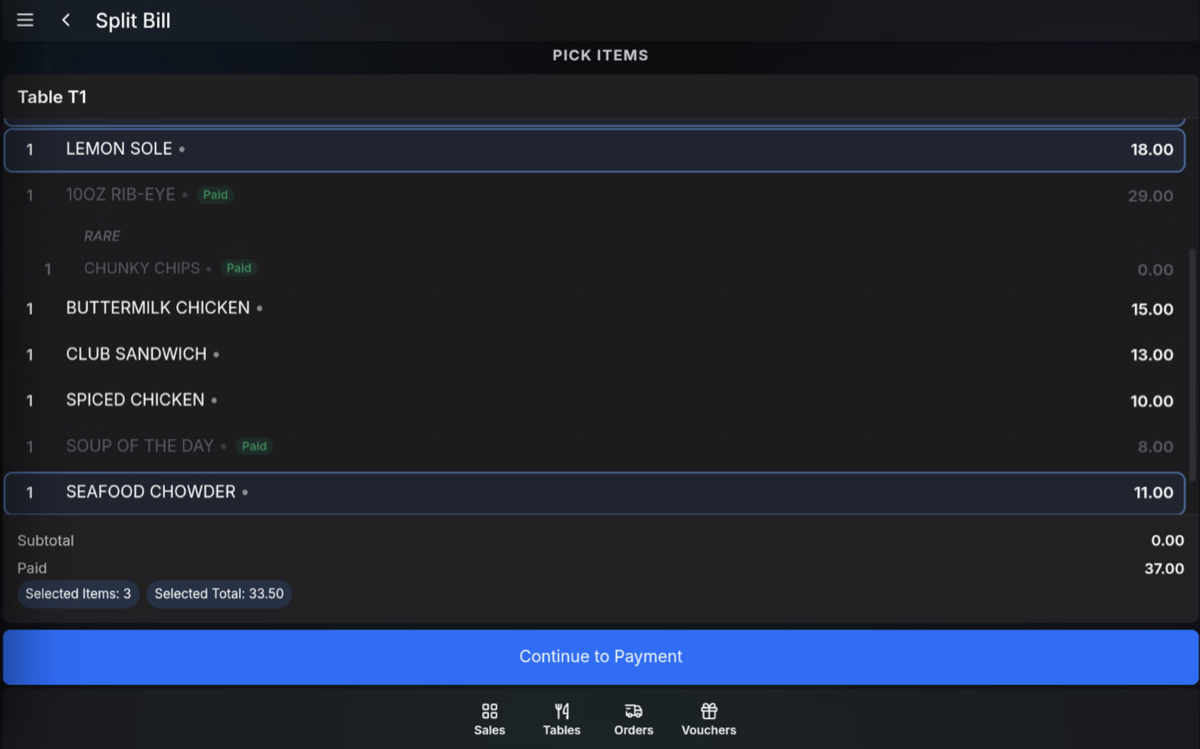
Choose the items the customer wants to pay for.
-
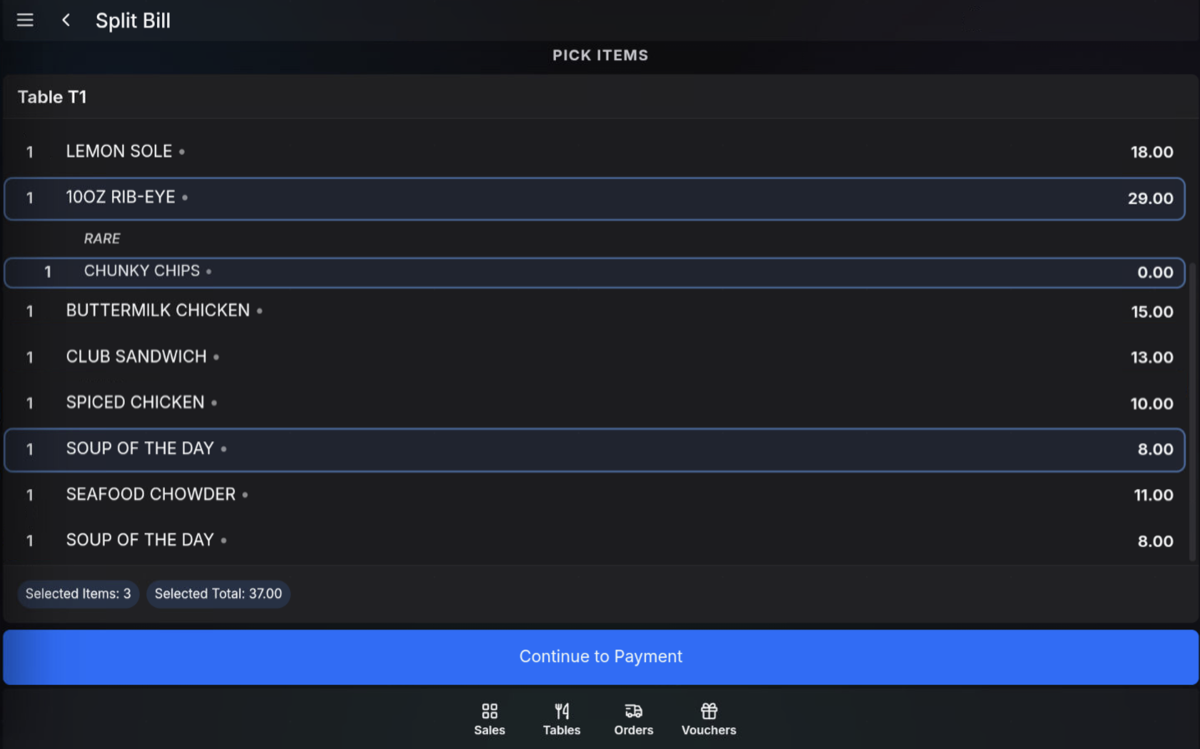
Highlight one item or multiple items.
-
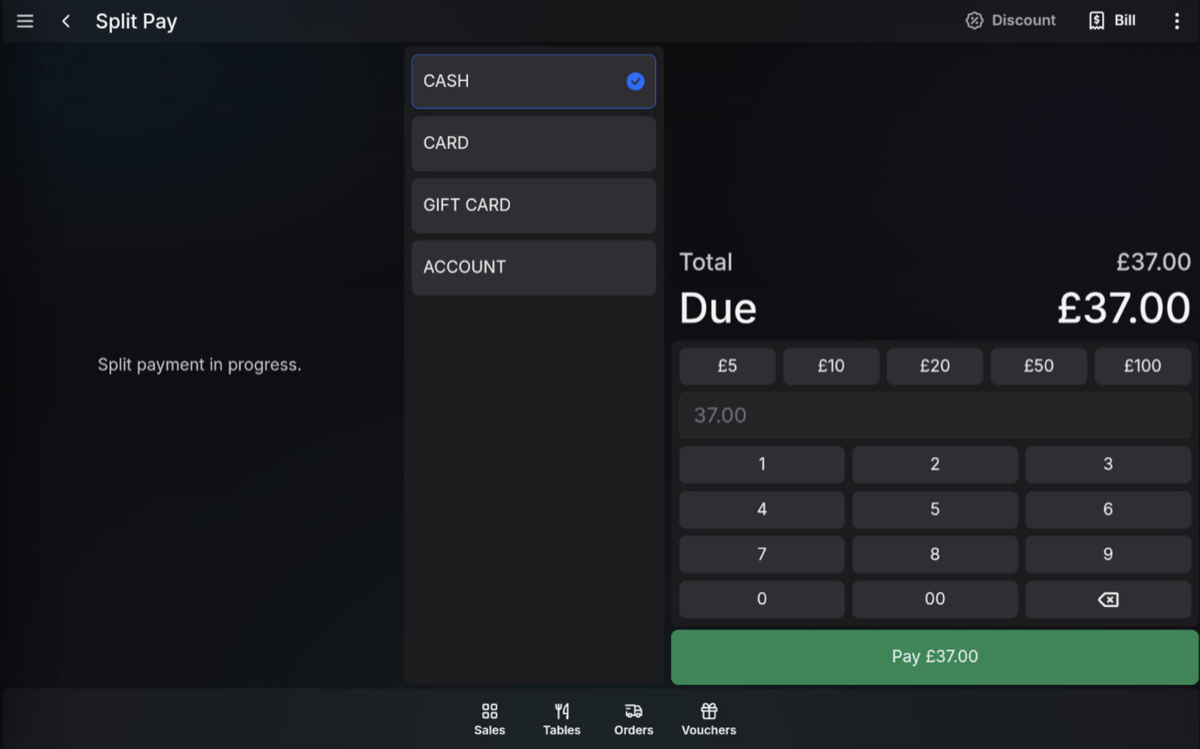
Press Continue to Payment.
-
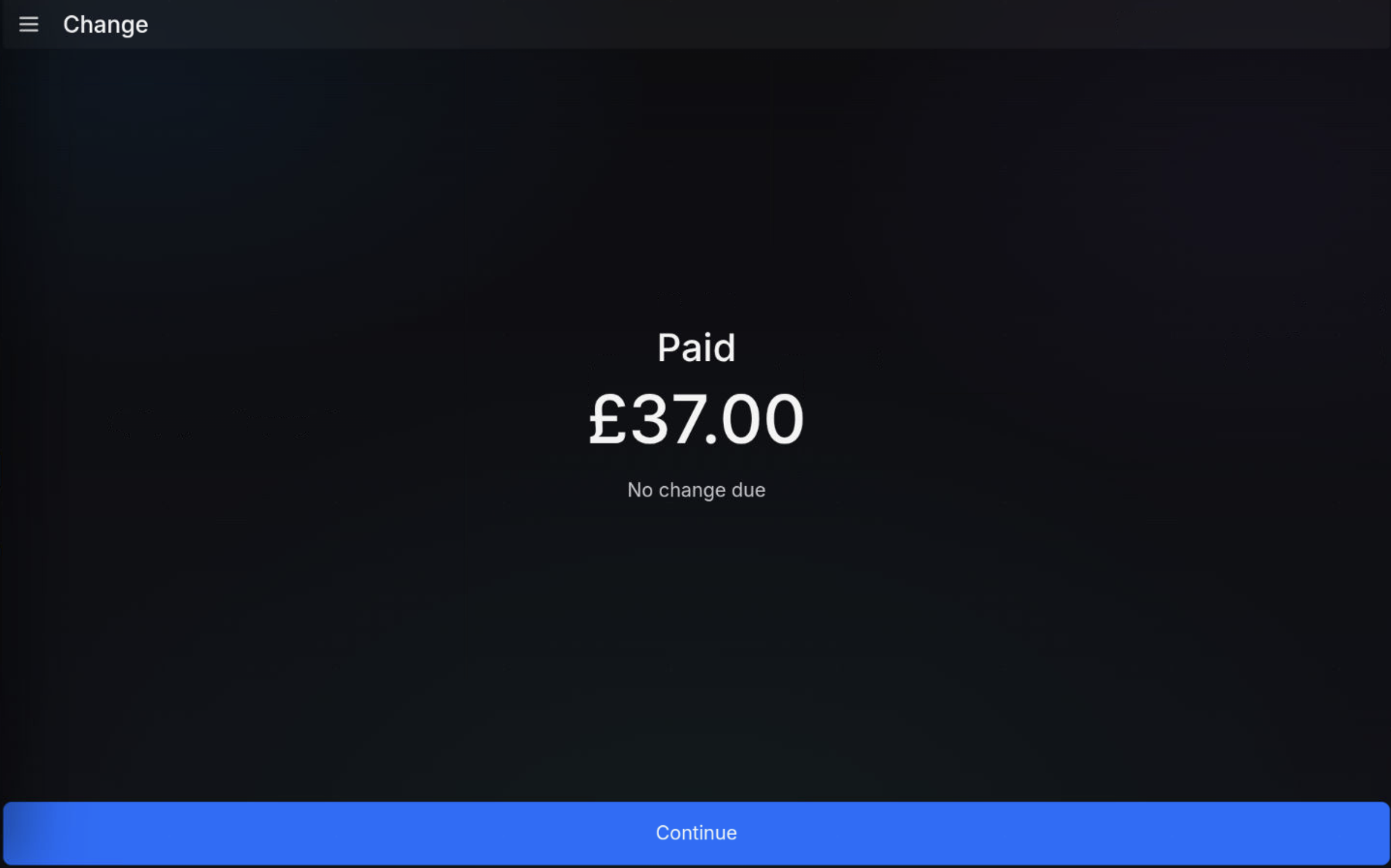
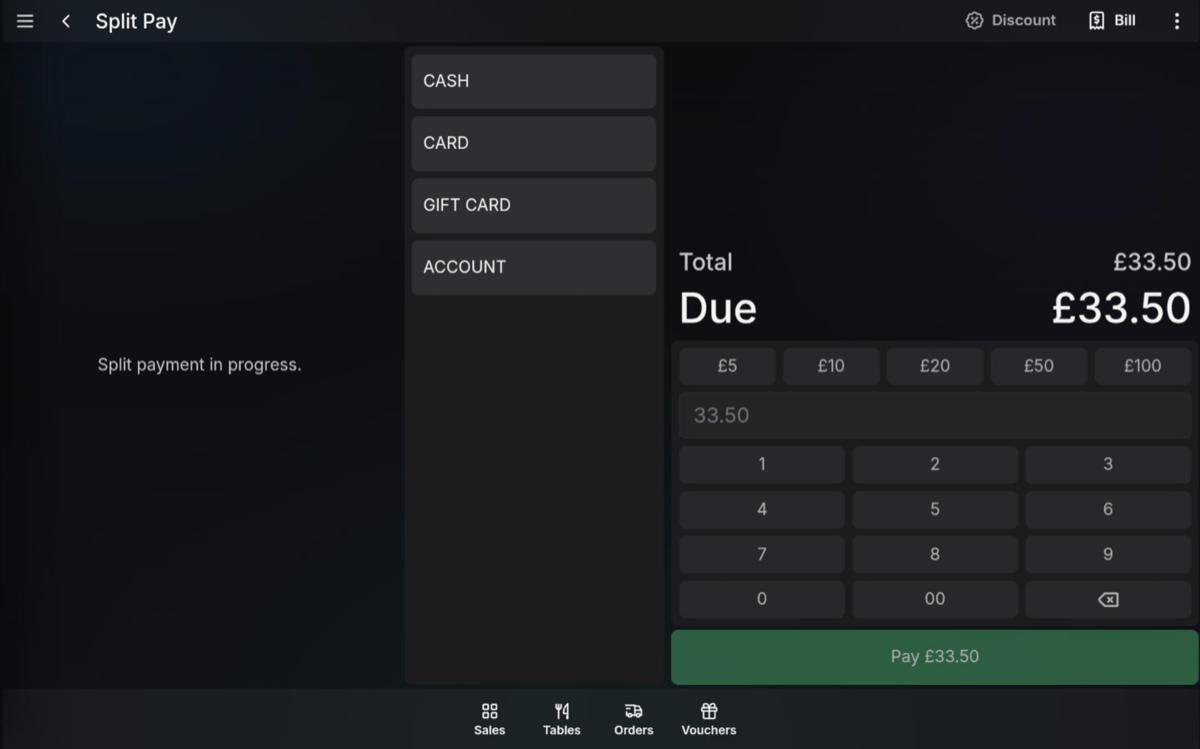
Complete the payment using the selected tender.
Pay the next selected items
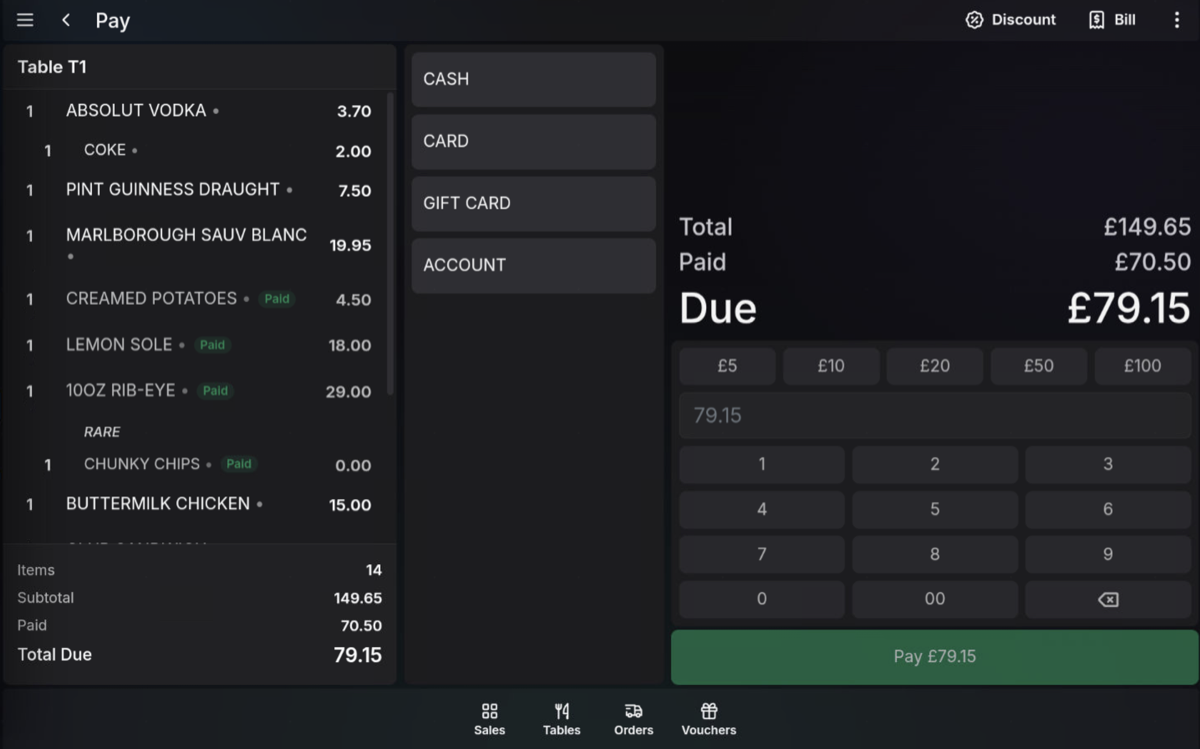
After the first payment is completed, the paid items are shown as already paid. Select the next items and pay them in the same way.
Return to payment
Press Back from item selection to return to the payment screen.
Pay the balance
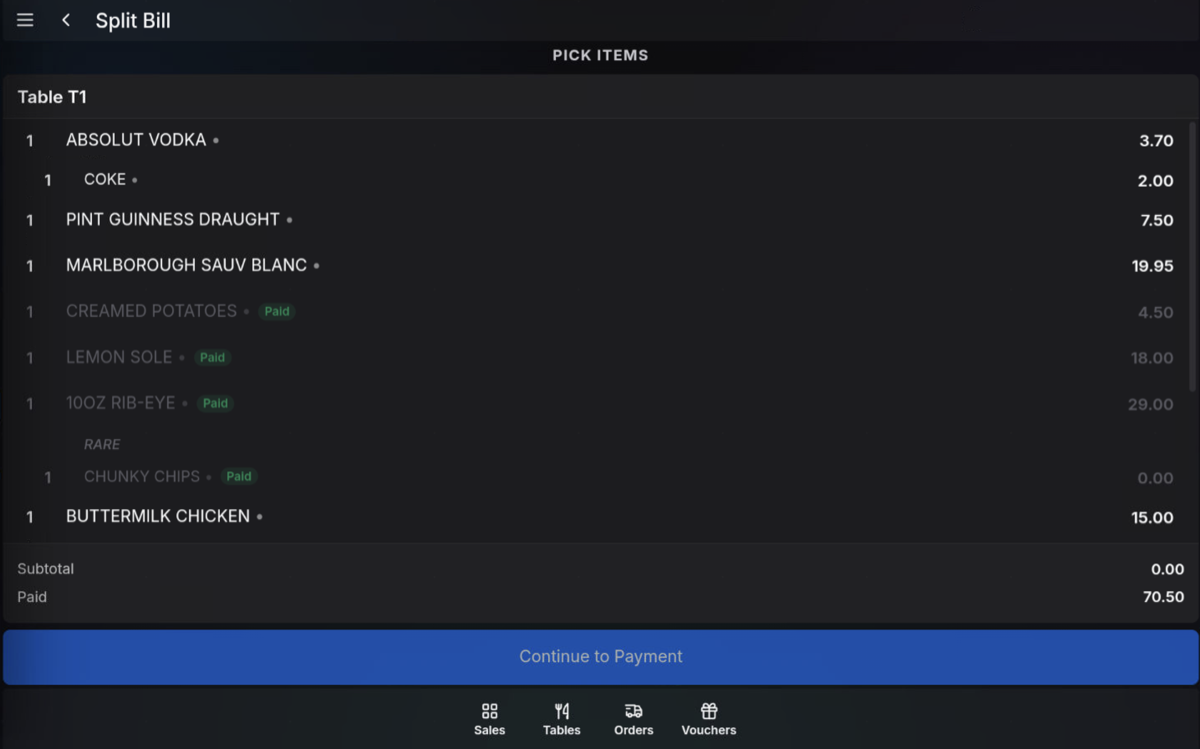
You can pay selected items one group at a time, or pay the remaining balance when the customer is ready.
Pay by Cover
If the table has been taken using covers, the items are grouped by each cover. Select one cover or multiple covers to highlight all items for those covers, then continue to payment.
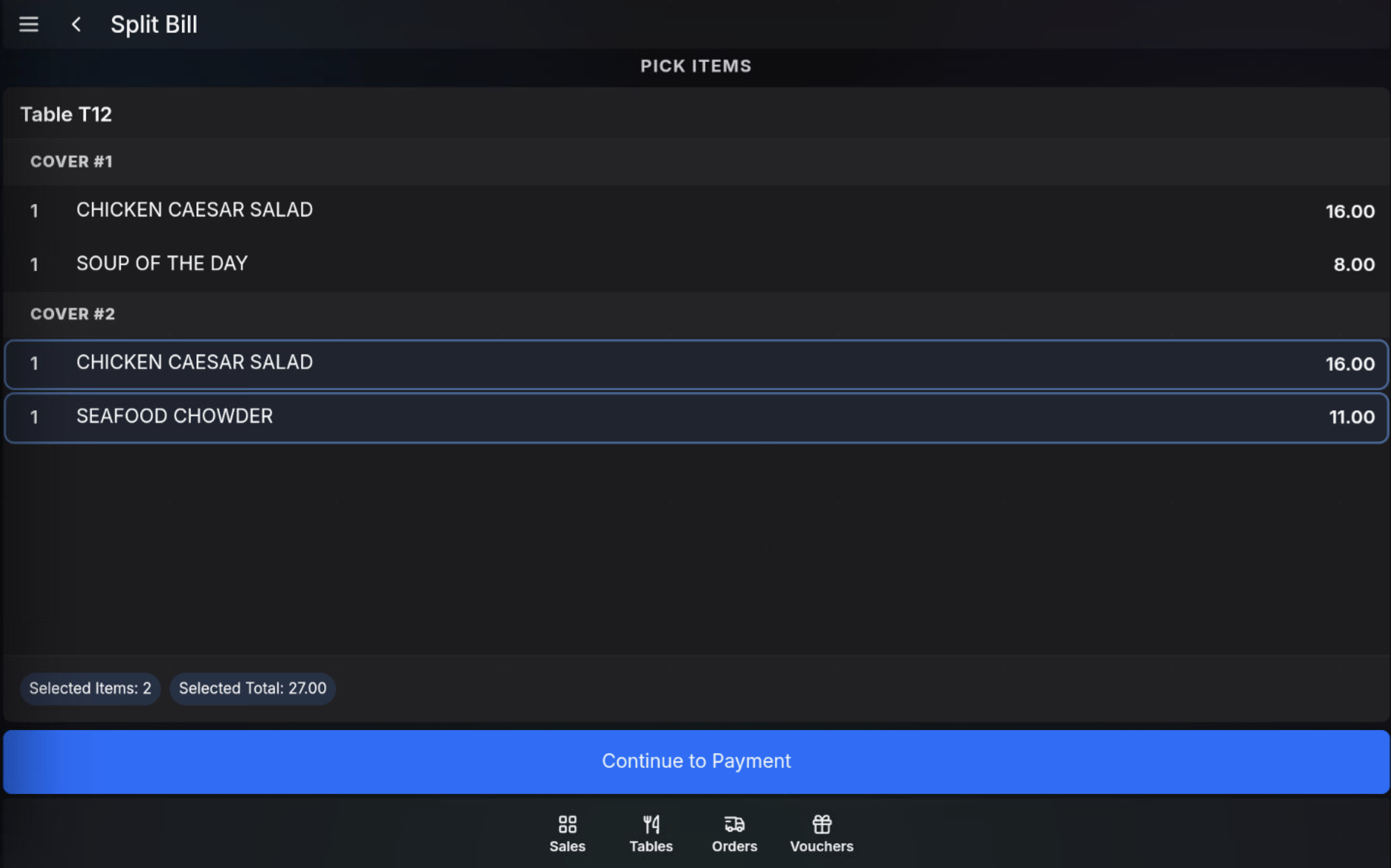
Paid items: Items already paid are shown on the split bill screen.
FAQ
Can I split a bill across several payments?
Yes. Select the first items, take payment, then select the next items and repeat until the table is fully paid.
Can I pay the remaining balance without selecting each item?
Yes. Use the payment option for the remaining balance when the rest of the table is ready to pay.