Starting a Sale
Starting a sale means signing into the POS sales screen. The options available depend on your POS user setup.
Before you start
If User Attendance is enabled, you must clock in before you can start a sale.
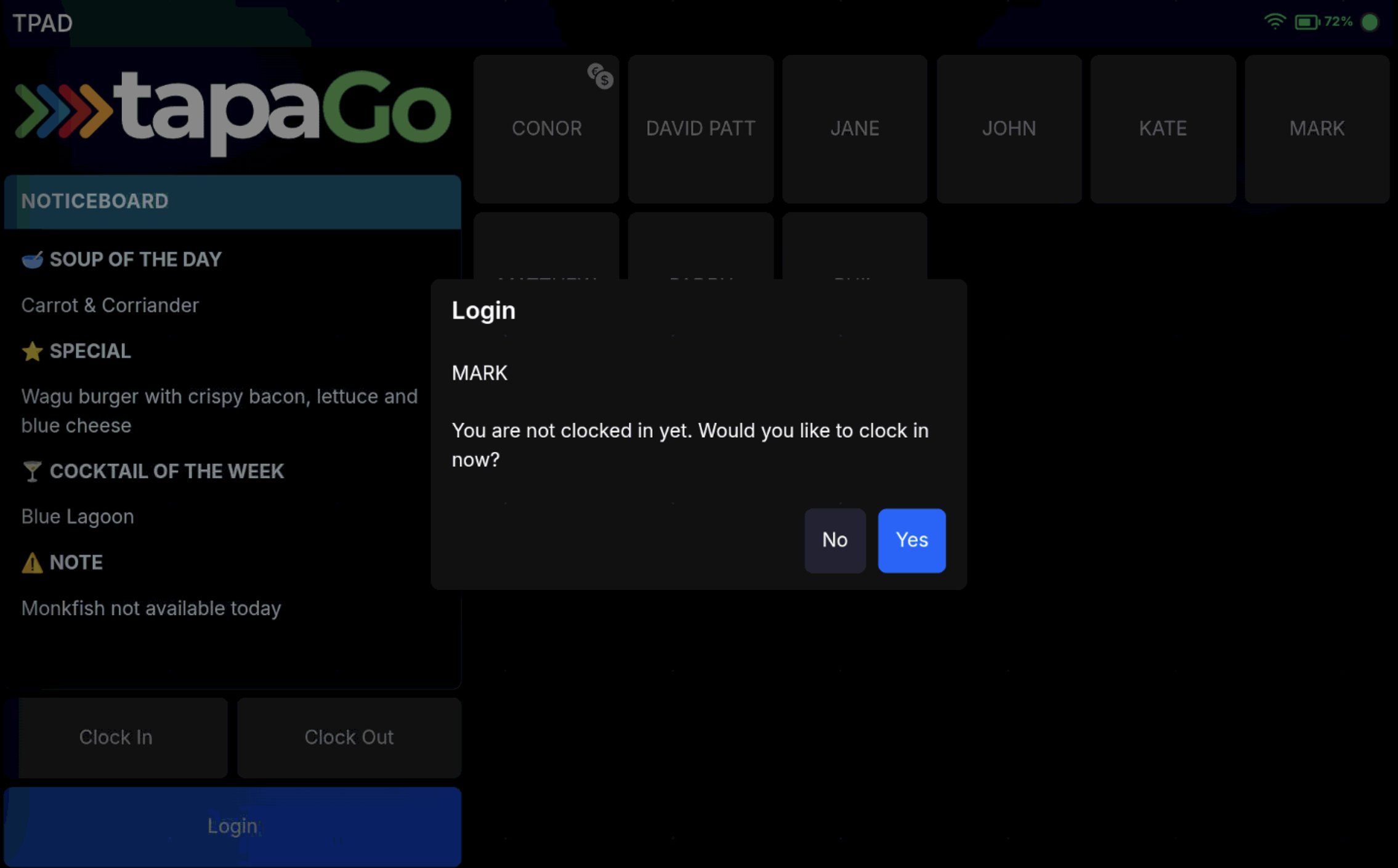
Available sign-on methods
-
Press your Sales user button.
-
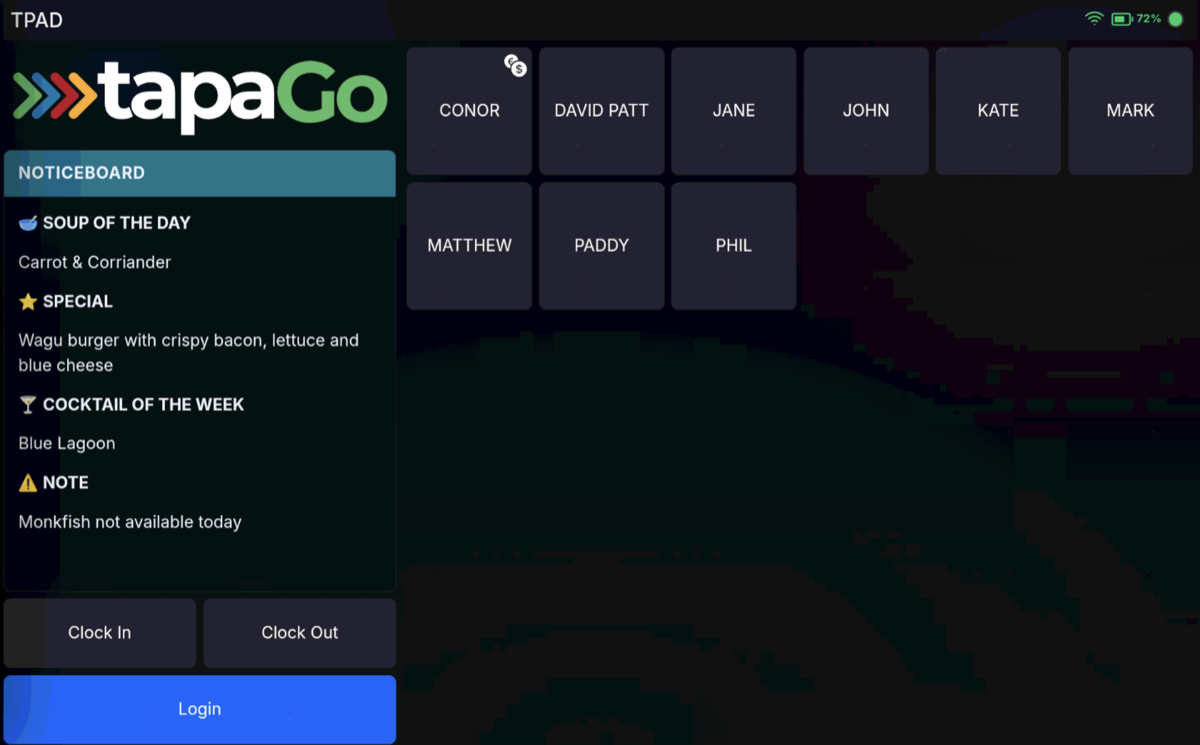
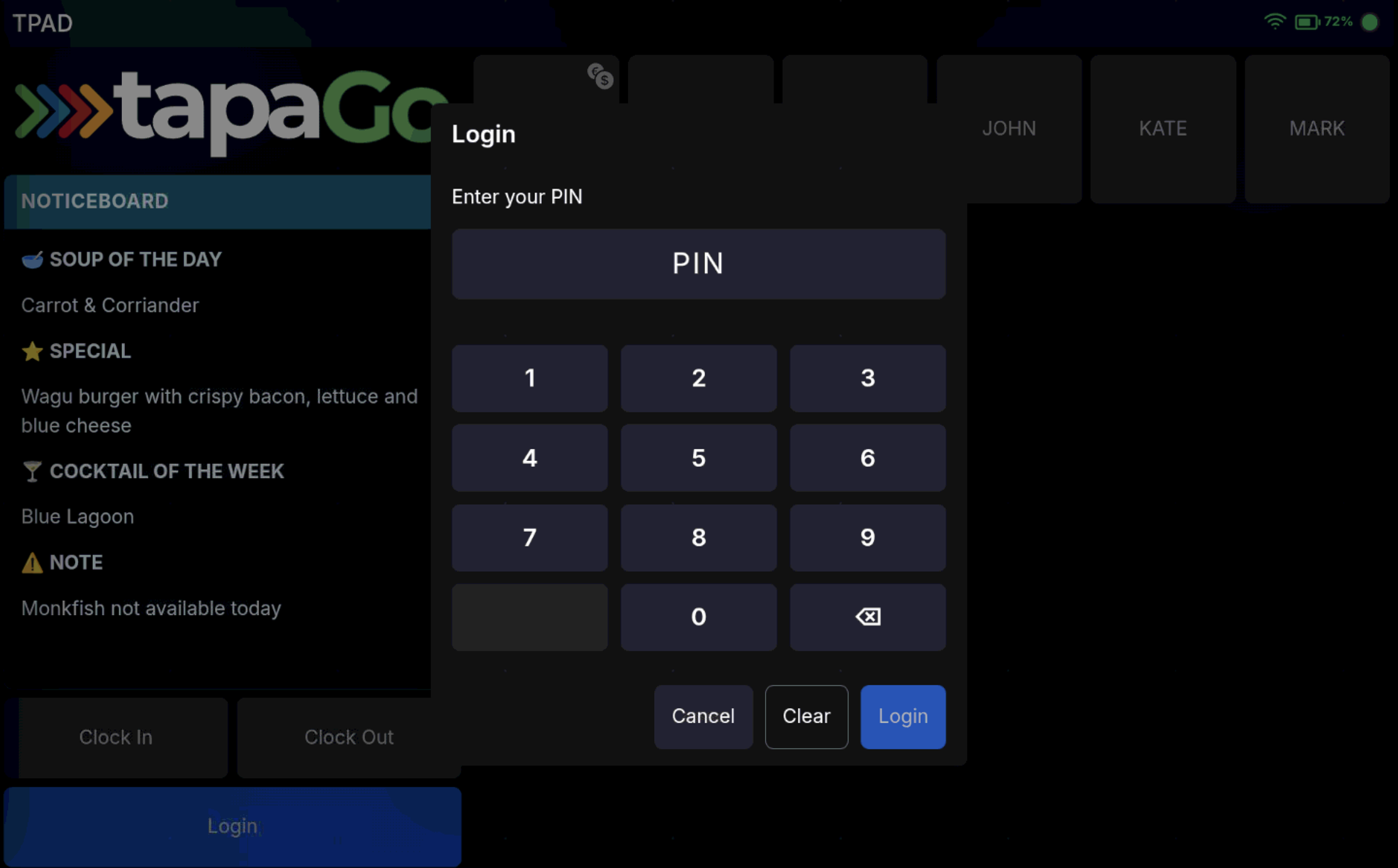
Press your Sales user button and enter your PIN, if PIN is compulsory.
Alternatively, press Login and enter your code.
- Swipe or touch your RFID card.
- Insert your finger into the finger-vein reader.
Once your sign-on method is accepted, you will be taken into the sales screen.
FAQ
Why can I not see my Sales user button?
Your account may not have a Sales button assigned, may not have the required Sales permission, may be blocked on that terminal by Terminal Exclusions, or may need to clock in first if User Attendance is enabled.
Why am I being asked for a PIN after pressing my Sales button?
PIN has been set as a compulsory security method for your user account, so you must enter it before entering the sales screen.