TapaGo App Navigation
The TapaGo app is designed for smaller mobile screens. Lookup menus, products, transaction review, and actions are arranged so the sale can be completed without a fixed POS terminal.
Lookup menus
Lookup menus are shown along the top of the app screen. Use them to choose the product group you need.
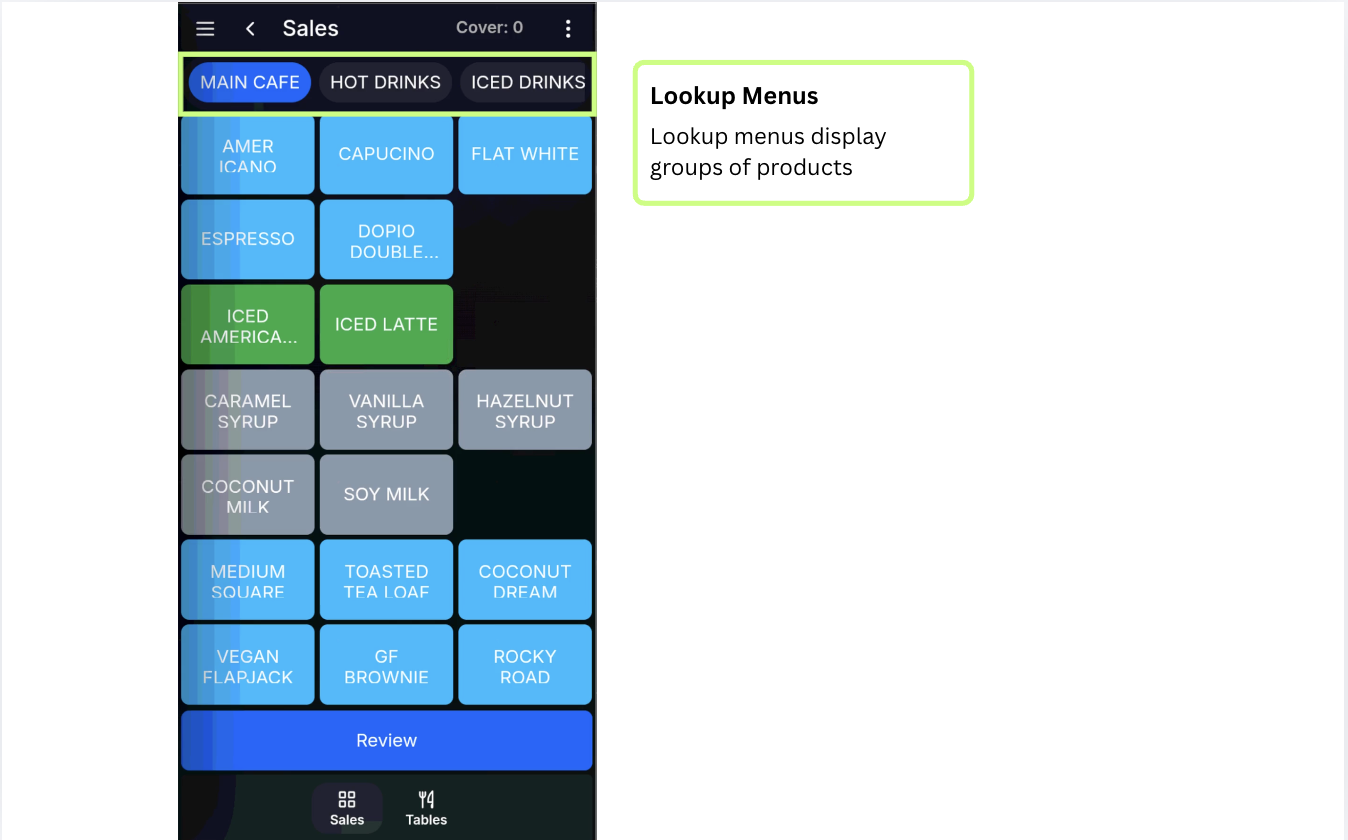
Moving through lookup menus
If there are more lookup menus than can fit on screen, swipe left or right through the lookup menu area to move between groups of menus.
Product buttons
Product buttons are shown in the main part of the screen. Press a product button to add the item to the sale, then complete any modifier, Sales Menu, Condiment Product, or Condiment Message prompts if they appear.
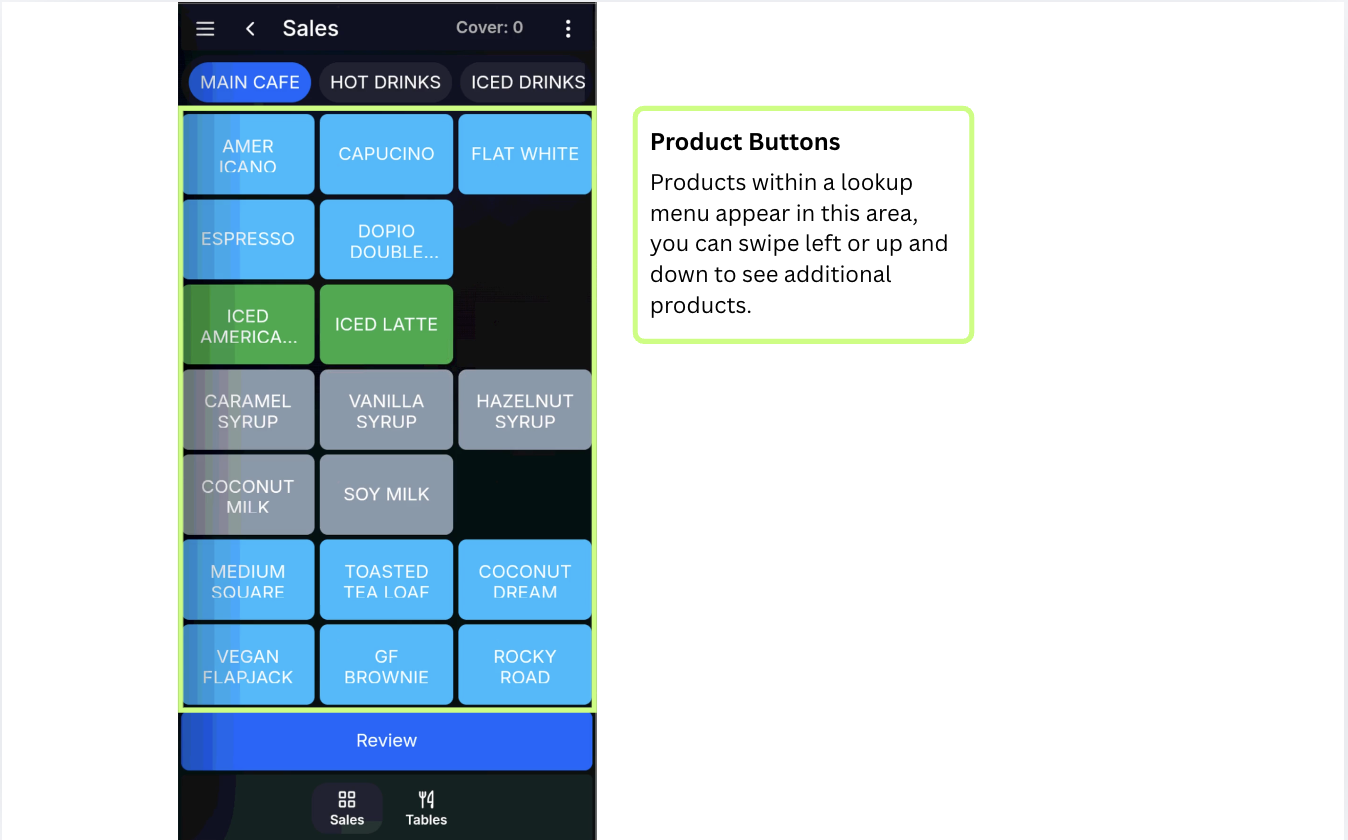
Moving through products
The product area can have additional rows and columns. Swipe up or down to move through more products, or swipe left and right to reveal additional product columns.
Review the transaction
Because the app screen is smaller, the transaction area is not shown while products are being selected. Press Review to show the transaction area before paying or saving the order.
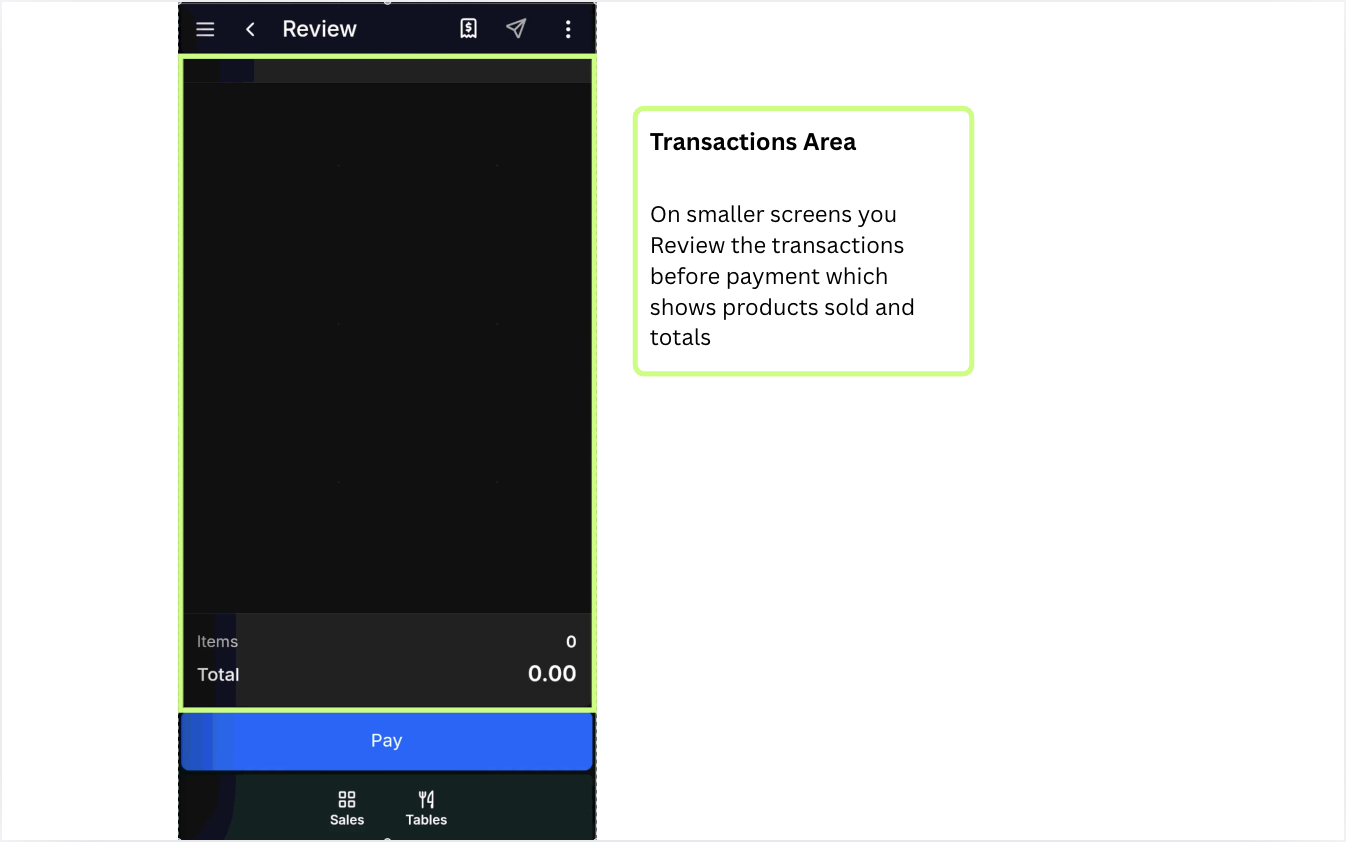
Review before finishing: Always use Review to check the items and sale total before you pay or save the order.
Video walkthrough
FAQ
Why is the app layout different?
The app layout is optimised for smaller mobile screens, so the transaction area is opened with Review instead of always being visible.
When should I press Review?
Press Review before paying or saving an order so you can check the items and sale total.