Topup Purse
Use Top Up to add funds to a customer purse or wallet, such as a Bar Wallet or Membership purse.
Select the purse
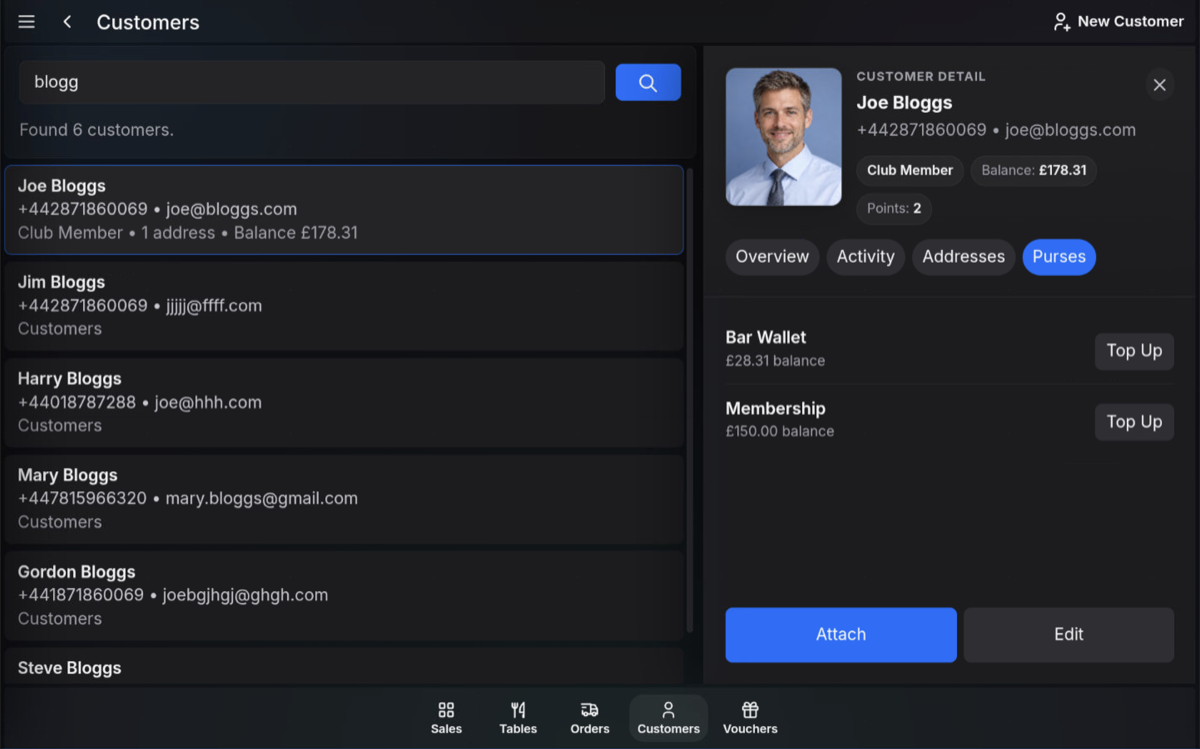
- Search for the customer and open their customer record.
- Select the Purses tab.
- Press Top Up beside the purse that should receive the funds.
Enter the top-up amount
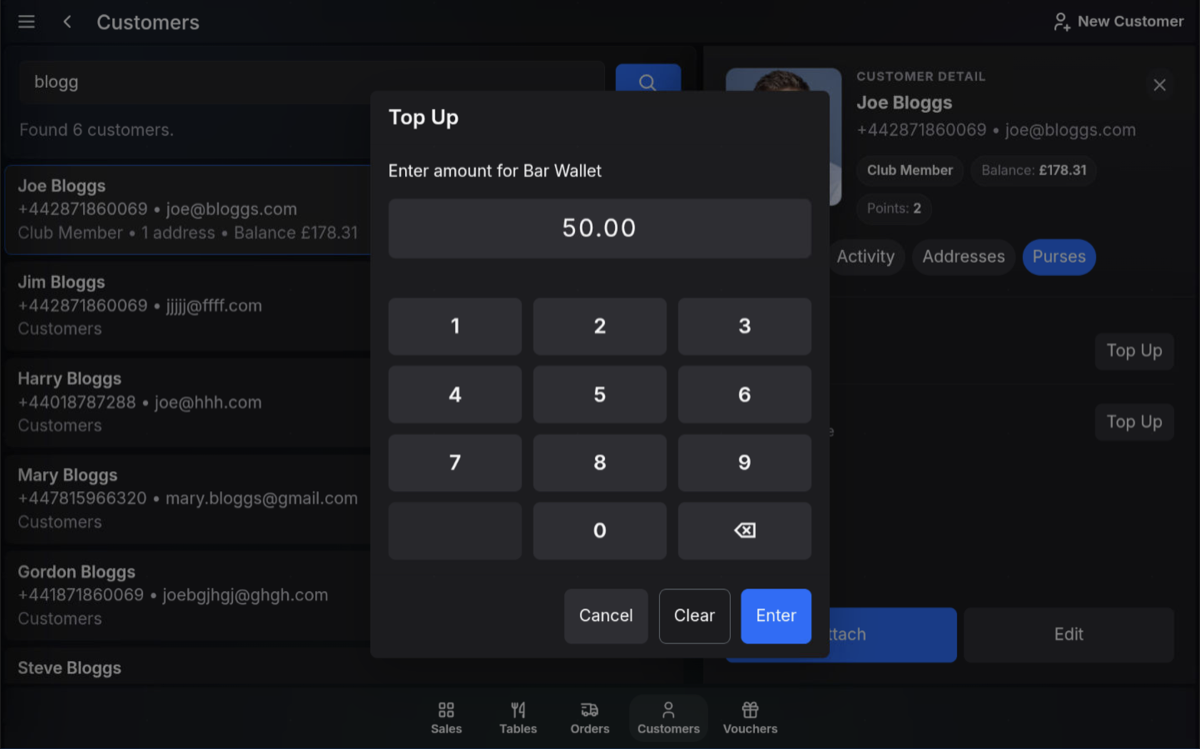
- Enter the amount to add to the selected purse.
- Press Enter.
Review and take payment
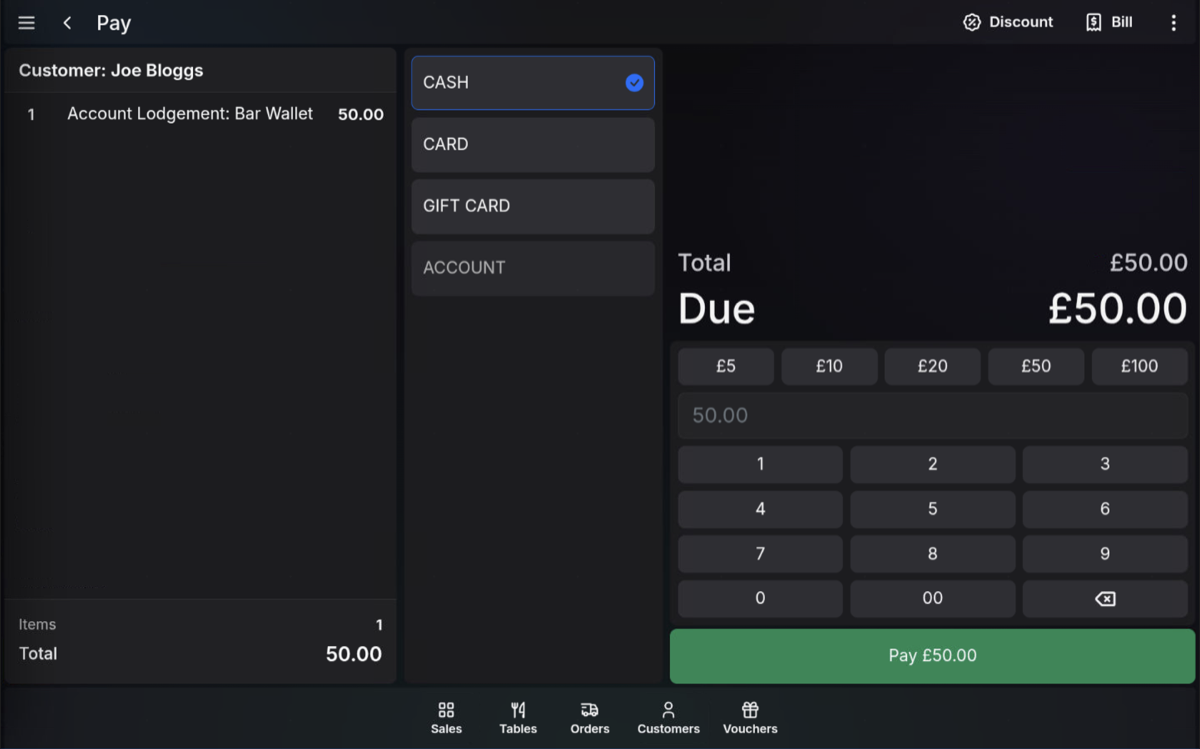
- Check the customer, purse name, and top-up amount.
- Press Pay.
- Select the payment method used by the customer, such as cash or card.
- Complete the payment to finalise the top-up.
Customer balance: Once the top-up is completed, the purse balance is updated on the customer record.
FAQ
Can I top up more than one purse?
Yes. Select the required purse and complete the top-up. Repeat the process for another purse if needed.
Does the customer need to be attached to a sale?
No. You can top up from the customer record by selecting the required purse and pressing Top Up.