User Interrupt
User Interrupt lets a user suspend a sale, log off, and return to the sale later without keeping the POS terminal tied up.
Suspend a sale
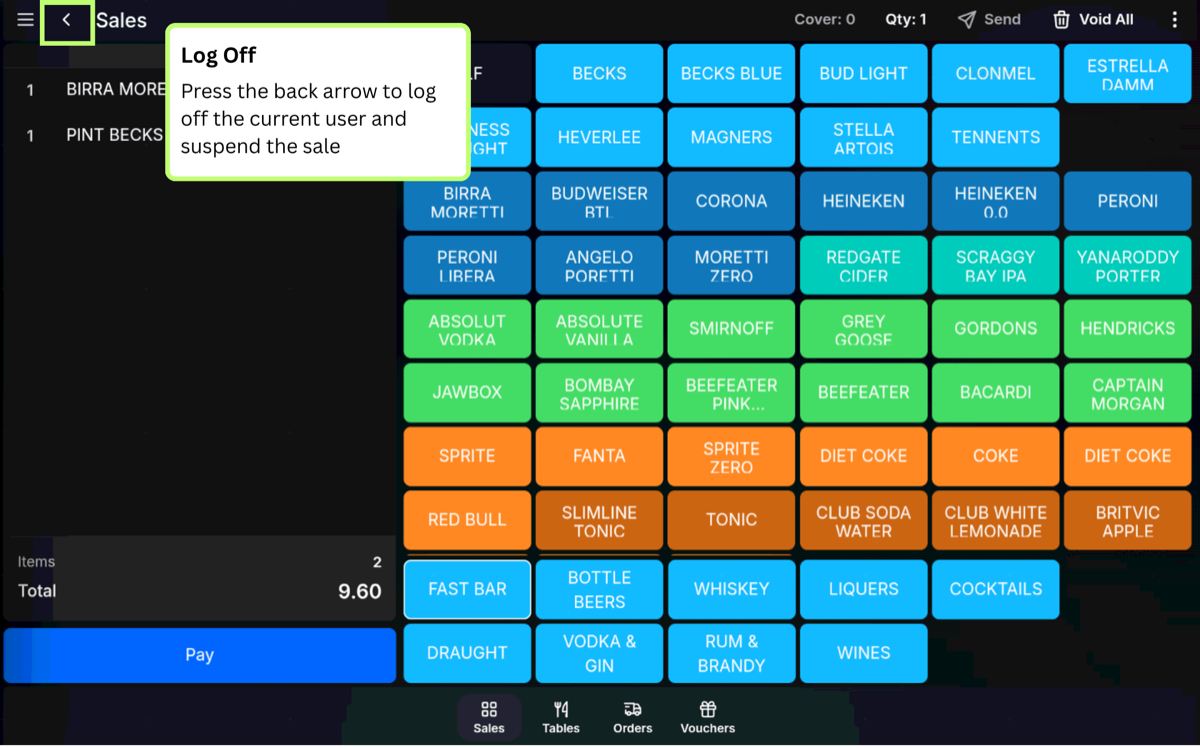
- Start the sale and add the required products.
- Press the back arrow in the top-left corner.
- The POS logs the user off and suspends the sale.
If Sales user buttons are being used, the user's button shows a money icon in the top-right corner to indicate that a suspended sale is waiting.
Resume the sale
- Sign back on as the same user.
- If the user has a Sales user button assigned, select the user button showing the money icon.
- If no Sales user button is assigned, use the normal sign-on method: sign-on code, swipe/RFID card, or biometric finger-vein reader.
- Continue the sale, or complete payment.
Use another terminal or PED
The suspended sale can be picked up on another terminal. This is useful when a sale is started on the POS, then resumed on a payment device to take a card payment.
Example: A user can start a sale on the POS, press the back arrow to log off, then pick up the suspended sale on a PED and complete the card payment. The POS is then free for other users while the payment is completed elsewhere.
Video walkthrough
FAQ
Does pressing the back arrow cancel the sale?
No. With User Interrupt, pressing the back arrow suspends the sale so it can be resumed later.
How do I know a user has a suspended sale?
When Sales user buttons are used, the user's button shows a money icon in the top-right corner.