View Transaction Details
Open a transaction when you need to check the items sold, payments taken, transaction totals, operator details, or print a transaction receipt.
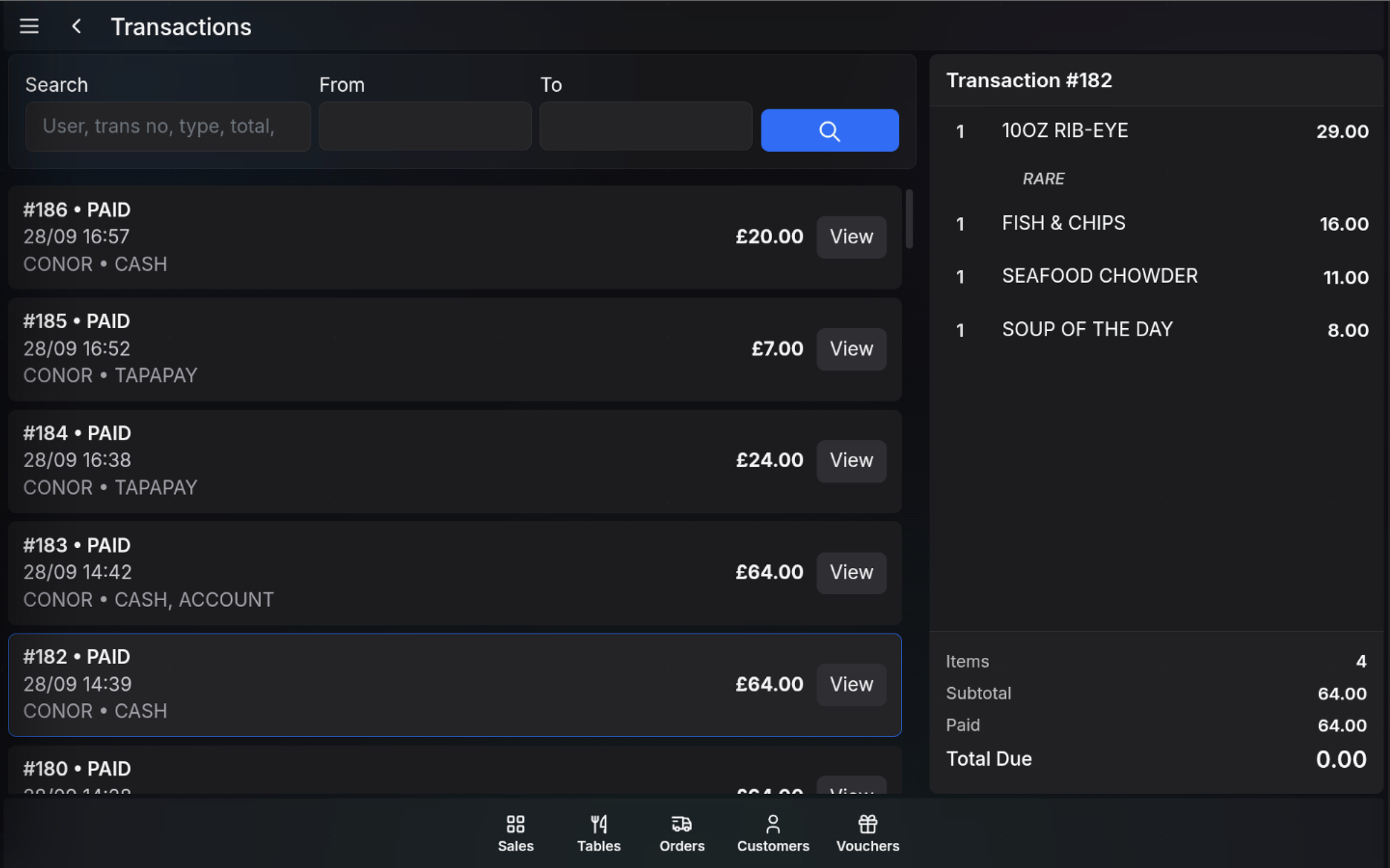
View transaction items
- Open Transactions.
- Find the required transaction in the list.
- Select the transaction row or choose View.
- Review the item panel on the right.
The item panel shows each sold item, quantity, item price, modifiers or messages, item count, subtotal, paid amount, and total due.
Open full detail
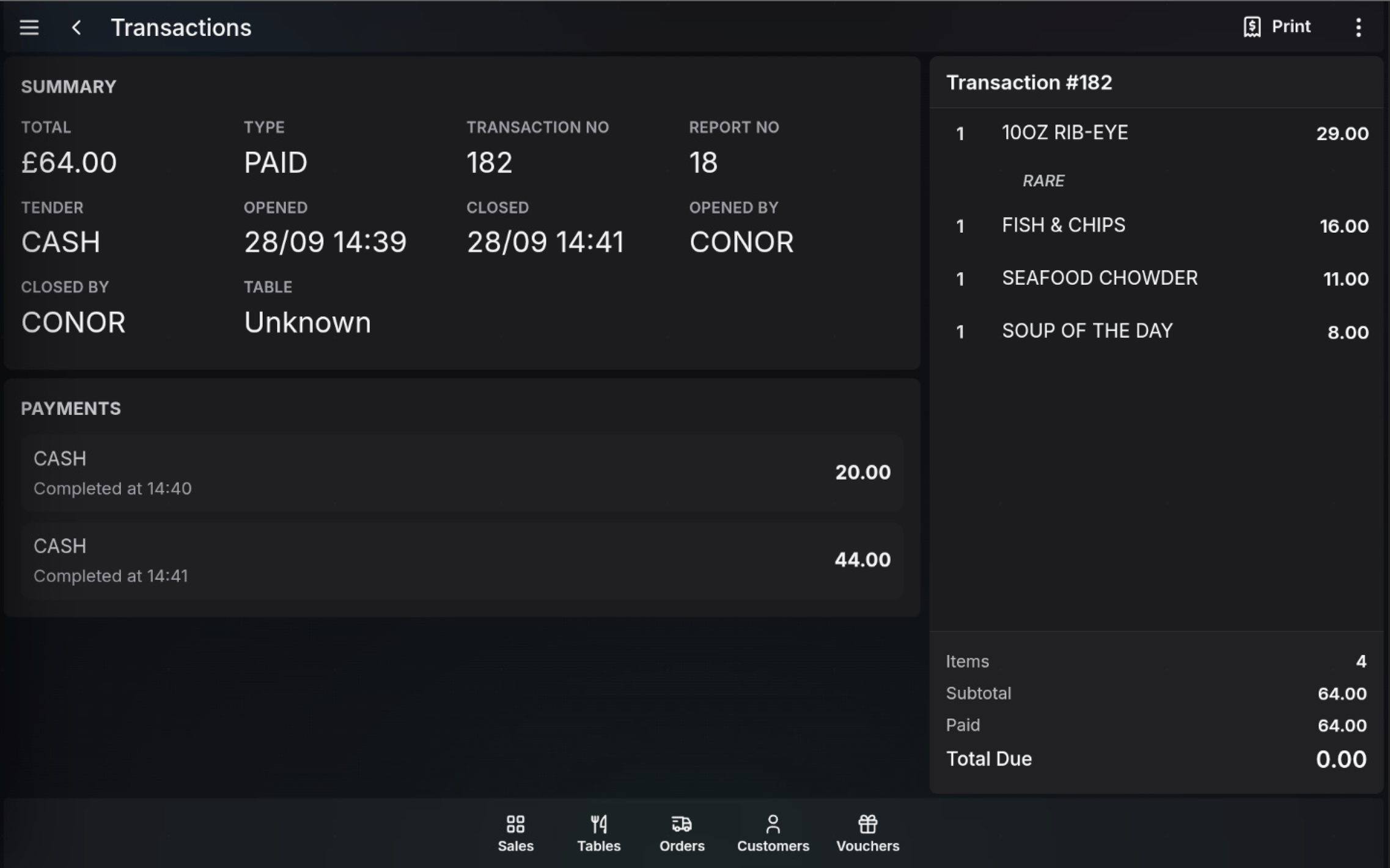
- With a transaction selected, open the full detail view.
- Review the Summary section for total, type, transaction number, report number, tender, opened and closed times, operator, and table.
- Review Payments to confirm each payment line and amount.
Print options
- Print prints a copy receipt for the selected transaction.
- Functions > Gift Receipt prints a receipt without prices.
FAQ
Can I reprint a receipt from transaction detail?
Yes. Use Print to print a copy receipt for the selected transaction.
Can I print a receipt without prices?
Yes. Use Functions > Gift Receipt to print a receipt without prices.